In this tutorial, we will learn how convert a PDF into an image using PDF to Image Web API. We will also see the async option in practice by executing tests asynchronously.
Step 1: Use the Authentication Key
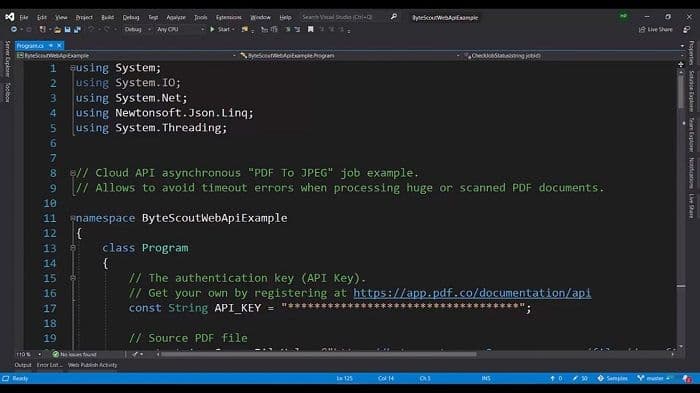
As usual, first of all, we are having the authentication keys. We are going to declare that and which will be utilized in the headers. We have the source file here.
Step 2: Select the PDF Pages to be Converted to Images
Let’s see what’s inside. We have two PDF pages. We can specify the page numbers here, for example, which are the page numbers we want to convert to images, for example, 0 1? We can row in the comma-separated format. Or if we want to have the range – we can give 2-5, or if we want to have all the pages after a certain page number – we can do like “all the pages after the 7”.
If the PDF requires a password, supply a password you already have permission to use. The conversion does not recover an unknown password. Make sure you provide the async option to true. So, upon providing the async option, we will have a different response. In the synchronous option, we directly get the output. It takes time to execute. But we get the output straight away. But in the async option, we will get the job as output and we have to check that job periodically.
Step 3: Prepare URL for PDF to JPEG
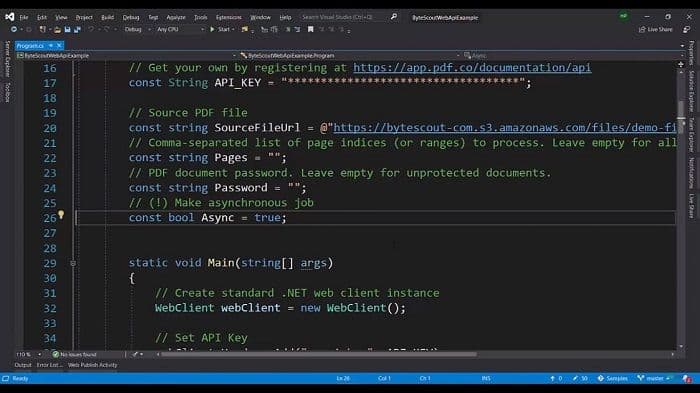
We have the web client, we have declared the replied to object. We have provided headers for these. We are preparing the URL for PDF to JPEG. So we want to output in JPEG images. So unities and URLs will be converted from PDF to JPEG.
We provide the password and the pages. We provide the URL and enable the async option. So after this is done, the response string will be downloaded. We are going to parse it into JSON. We are using Newton’s opt for this and if this, all successful, then we are getting the job ID.
Step 4: Check the Job Until It Finishes
Keep the jobId returned by the asynchronous conversion. Send POST https://api.pdf.co/v1/job/check with {"jobid":"YOUR_JOB_ID"} as the JSON body, using the same PDF.co API key in the x-api-key header.
Check the reported status:
working: Wait briefly before checking the same job again.success: Continue to the download step.failedoraborted: Stop and inspect the available error details.
Stop polling if the API returns a job-not-found error. Set a deadline for the waiting loop so it cannot run indefinitely. Reaching that deadline does not cancel the background job; retain its ID for a later check rather than automatically starting another conversion.
Step 5: Download the File
After the job reports success, retrieve the conversion result and read its image URLs. If the asynchronous output URL points to a JSON result file, download and parse that file first.
Download each returned page image once and save it with a distinct filename. Check that the image count and page order match the PDF pages selected for conversion.
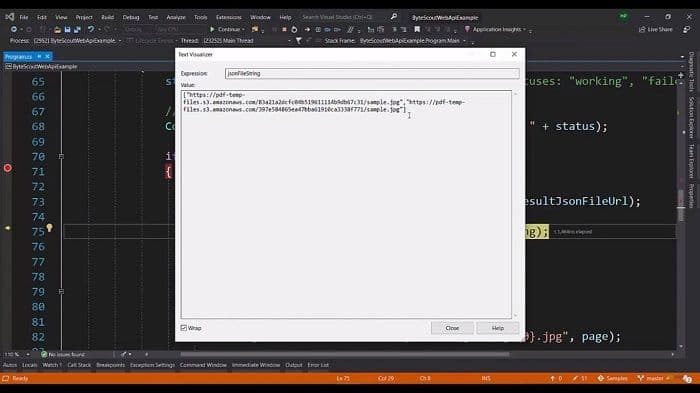
So it’s that easy to convert the PDF into images. If you want to get to know more about this Web API, you can always explore our documentation.
Related Tutorials