Generate Quotation PDFs from Glide with Make and PDF.co
If your business uses Glide to manage customer quotations, generating PDF documents manually can slow down the approval and delivery process. You may also need to ensure that each PDF is saved to the correct customer record, especially when a quotation has been edited or generated more than once.
With Make and PDF.co, you can automate quotation generation while keeping the PDF connected to its original Glide row.
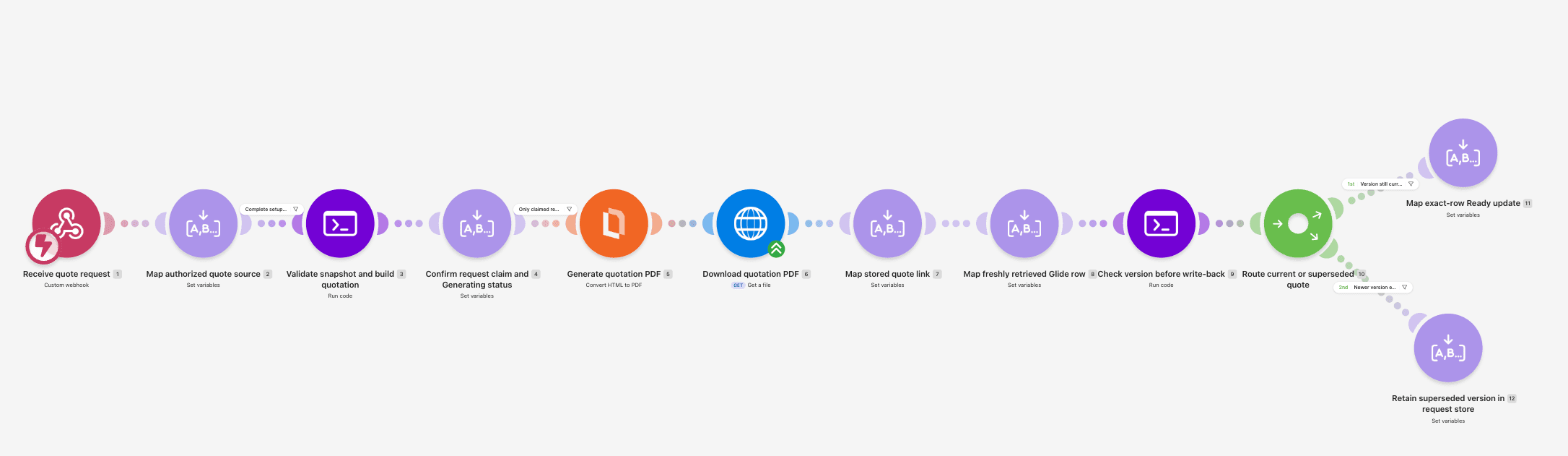
In this tutorial, you'll build a Make scenario that receives a quotation request from Glide, retrieves the approved quotation details, and converts them into a PDF using PDF.co. The scenario then stores the completed document and updates the original Glide row with its permanent PDF link.
You'll also configure version checking and duplicate prevention so repeated requests or changes to a quotation don't overwrite the wrong document.
Prerequisites
Before starting, you'll need:
- A Glide account with a quotation app and access to its Make integration.
- A Make account with access to Make Code and Data stores.
- A PDF.co account with an API key and available credits.
- An approved document-storage destination, such as Google Drive.
- A quotation data source containing customer information, approved line items, and quotation totals.
This example uses Glide's documented Trigger Webhook action and the Get Row, Get Rows, and Edit Row operations available through Make.
The referenced Glide integration guide covers Glide Classic. Confirm that these actions are supported by your Glide app, subscription, and data source before proceeding.
The workflow uses amounts and dates already approved by the quotation source. It does not calculate quantities, line totals, tax, or grand totals.
IN THIS TUTORIAL
Step 1: Prepare Your Glide Quotation Data
Open your Glide quotation app and identify the table that stores quotation records.
Create or confirm the following columns:
- Row ID: An immutable identifier for the quotation row.
- Quote Version: A positive integer identifying the current quotation revision.
- Customer: The customer name.
- Quote Reference: The approved quotation reference.
- Valid Until: The quotation's validity date.
- Currency: The approved currency code.
- Subtotal: The approved subtotal.
- Tax: The approved tax amount.
- Total: The approved grand total.
- PDF Status: The current PDF-generation status.
- PDF URL: The stored document link.
- Generated Version: The version of the quotation last successfully generated.
The quotation must also contain or reference its approved line items. Each line item needs:
- Description.
- Quantity.
- Unit price.
- Line total.
Use display-ready strings for monetary amounts, including the decimal places approved by the source system. Keep the items in their intended display order.
For example, a quotation might contain:
- Row ID:
row-example-204 - Quote Version:
3 - Customer: Example Customer
- Quote Reference: Q-204
- Valid Until: 30 November 2026
- Currency: USD
- Subtotal: 300.00
- Tax: 0.00
- Total: 300.00
The quotation's line items are:
- Site inspection — Quantity 1, unit price 150.00, line total 150.00.
- Repair labor — Quantity 2, unit price 75.00, line total 150.00.
Increment Quote Version whenever the approved quotation changes.
A previously generated PDF should remain associated with the version it represents.
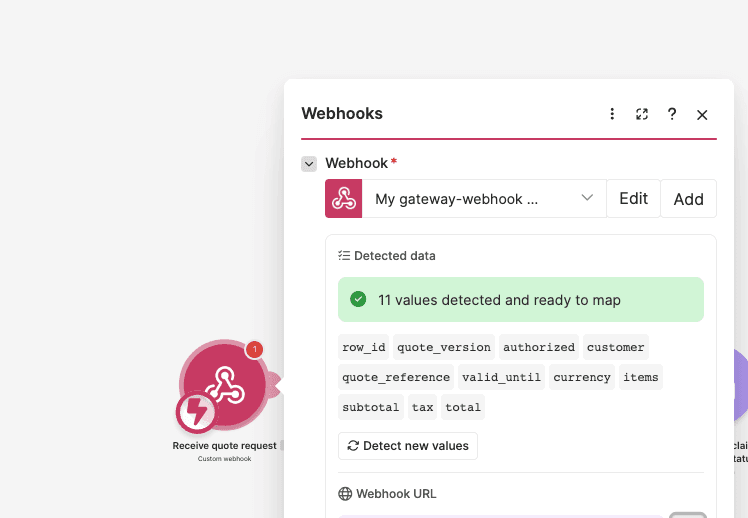
Step 2: Create a Make Scenario and Webhook
Sign in to Make and create a new scenario.
- Add Webhooks > Custom webhook.
- Name the module
Receive quote request. - Create a webhook named
Glide Quotation Request. - Save the webhook.
- Copy its URL.
In Glide, create an action that starts quotation generation.
For a supported Glide Classic app:
- Open the relevant button or action in the Glide editor.
- Add a Trigger Webhook action.
- Enter the Make webhook URL.
- Configure the action to send the current quotation's Row ID and Quote Version.
- Save the action.
Send only the information needed to identify the requested quotation revision.
The webhook request should have this structure:
{
  "row_id": "row-example-204",
  "quote_version": "3"
}
Click Run once in Make and trigger the action from a test quotation.
Check that the webhook receives both fields.
Do not send customer email addresses, quotation totals, or authorization decisions from the browser when the scenario can retrieve them from the trusted source.
Important: A Row ID supplied by a browser does not prove that the requester is authorized to access that quotation. Before generating a customer document, the workflow must verify the requester's entitlement using trusted information from your application or an authorized service.
Step 3: Retrieve the Approved Quotation from Glide
Add Glide > Get Row after the webhook.
Connect your Glide account and select the app and table containing the quotations.
Configure:
- App: Your quotation app.
- Table: The quotation table.
- Row ID: Map
row_idfrom the webhook.
The Get Row module retrieves the current quotation record.
If line items are stored in a separate table, add Glide > Get Rows or the appropriate data-source operation to retrieve the related items.
Filter the line items to the exact quotation Row ID and approved Quote Version. Preserve their intended order.
Before continuing, verify:
- The retrieved Row ID matches the webhook Row ID.
- The retrieved Quote Version matches the requested version.
- The quotation is approved.
- The requester is authorized to access this specific quotation.
- Every selected line item belongs to that quotation and version.
The authorization result must come from trusted application or source-side logic, not from a Boolean supplied by the webhook.
If your data source does not expose sufficient information to verify requester access, add a trusted authorization step before continuing. Do not expose private quotations through an unrestricted webhook.
For quotations stored across multiple tables, ensure that the retrieved record and line items form a consistent snapshot. Recheck Quote Version after retrieving related items, or use an immutable versioned quotation record.
Step 4: Organize the Quotation Data
Add JSON > Create JSON.
Name it:
Create approved quotation snapshot
Build one JSON object from the retrieved and verified data.
The normalized structure should look like this:
{
  "row_id": "row-example-204",
  "quote_version": "3",
  "authorized": true,
  "customer": "Example Customer",
  "quote_reference": "Q-204",
  "valid_until": "30 November 2026",
  "currency": "USD",
  "items": [
    {
      "description": "Site inspection",
      "quantity": "1",
      "unit_price": "150.00",
      "line_total": "150.00"
    },
    {
      "description": "Repair labor",
      "quantity": "2",
      "unit_price": "75.00",
      "line_total": "150.00"
    }
  ],
  "subtotal": "300.00",
  "tax": "0.00",
  "total": "300.00"
}
This is the internal normalized quotation format, not the raw output of Glide Get Row.
Map the source values into these fields. Set authorized to true only after completing the trusted authorization check.
Next, add Tools > Set multiple variables.
Name the module:
Map authorized quote source
Create these variables:
source_json: Map the output of the JSON-building module.setup_complete: EnterYESafter the required source reads, connections, authorization checks, and mappings have been configured.
Keep both variables available for the current scenario cycle.
Add a filter after the module:
- Name: Complete setup before generating.
- Variable:
setup_complete. - Condition: Equals.
- Value:
YES.
Leave this filter disabled from passing requests until the source retrieval and authorization logic have been configured and tested.
Step 5: Validate the Quotation and Build the HTML
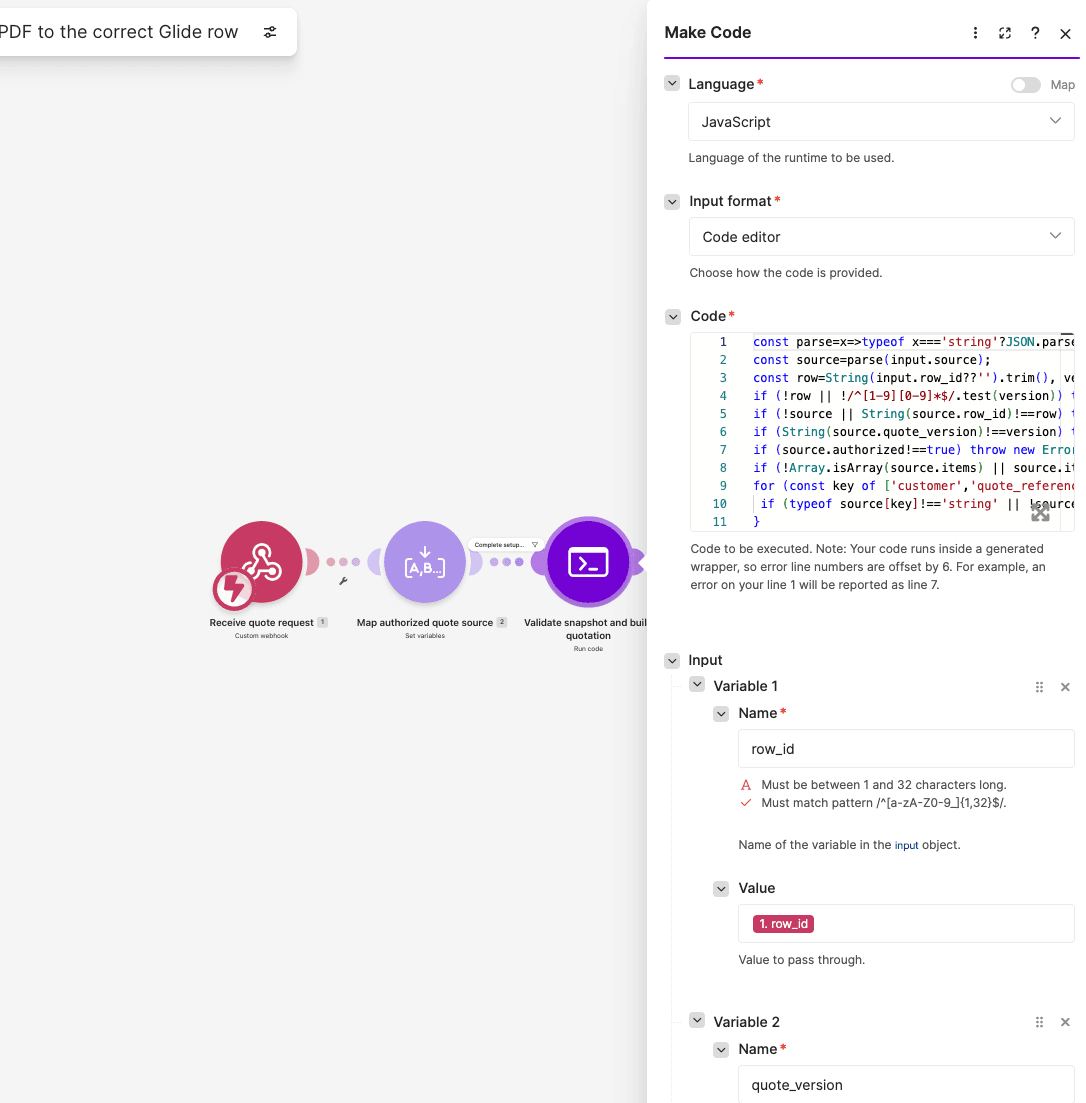
Add Make Code > Run code.
Name the module:
Validate snapshot and build quotation
Configure:
- Language: JavaScript.
- Input format: Code editor.
- Additional dependencies: Leave empty.
Under Input, create:
row_id: Map the webhook'srow_id.quote_version: Map the webhook'squote_version.source: Map thesource_jsonvariable from the previous step.
Paste the following JavaScript:
const parse=x=>typeof x==='string'?JSON.parse(x):x;
const source=parse(input.source);
const row=String(input.row_id??'').trim(), version=String(input.quote_version??'').trim();
if (!row || !/^[1-9][0-9]*$/.test(version)) throw new Error('Missing row ID or invalid positive integer quote version');
if (!source || String(source.row_id)!==row) throw new Error('Retrieved row ID does not match request');
if (String(source.quote_version)!==version) throw new Error('Quote version has changed; request the current version');
if (source.authorized!==true) throw new Error('Trusted source authorization check required');
if (!Array.isArray(source.items) || source.items.length===0) throw new Error('No approved quote line items');
for (const key of ['customer','quote_reference','valid_until','currency','subtotal','tax','total']) {
if (typeof source[key]!=='string' || !source[key].trim()) throw new Error('Missing approved source field: '+key);
}
for (const [i,item] of source.items.entries()) for(const key of ['description','quantity','unit_price','line_total']) {
if (typeof item[key]!=='string' || !item[key].trim()) throw new Error(`Missing approved line ${i+1} field: ${key}`);
}
const esc=s=>String(s??'').replace(/[&<>"']/g,c=>({'&':'&','<':'<','>':'>','"':'"',"'":'''}[c]));
const rows=source.items.map(i=>`<tr><td>${esc(i.description)}</td><td>${esc(i.quantity)}</td><td>${esc(i.unit_price)}</td><td>${esc(i.line_total)}</td></tr>`).join('');
const html=`<!doctype html><html><head><meta charset="utf-8"><style>body{font-family:Arial,sans-serif;margin:36px;font-size:12px;line-height:1.5}h1{font-size:26px}table{border-collapse:collapse;width:100%;margin:24px 0}th,td{padding:10px;border-bottom:1px solid #ddd;text-align:left;vertical-align:top}tr{break-inside:avoid}thead{display:table-header-group}.total{font-size:18px;font-weight:bold}td:first-child{white-space:pre-wrap}</style></head><body><h1>Quotation</h1><p>Quote reference: ${esc(source.quote_reference)}<br>Customer: ${esc(source.customer)}<br>Valid until: ${esc(source.valid_until)}<br>Version: ${esc(version)}<br>Currency: ${esc(source.currency)}</p><table><thead><tr><th>Description</th><th>Quantity</th><th>Unit price</th><th>Amount</th></tr></thead><tbody>${rows}</tbody></table><p>Subtotal: ${esc(source.subtotal)}<br>Tax: ${esc(source.tax)}</p><p class="total">Total: ${esc(source.total)}</p></body></html>`;
return {row_id:row,quote_version:version,request_key:JSON.stringify([row,version]),snapshot:source,html,filename:'quote-'+row.replace(/[^A-Za-z0-9_-]/g,'_')+'-v'+version+'.pdf'};This script validates the requested Row ID and Quote Version against the retrieved quotation, requires a trusted authorization result, and checks the required fields and line items.
It also escapes customer and item text before inserting it into HTML.
The generated HTML contains:
- Quotation reference.
- Customer name.
- Validity date.
- Quote Version.
- Currency.
- Approved line items.
- Subtotal.
- Tax.
- Grand total.
The script does not recalculate or independently reconcile amounts. It preserves the source-approved display strings.
For the example quotation, the output filename is:
quote-row-example-204-v3.pdfThe Code module also returns a request_key, a serialized combination of Row ID and Quote Version.
For example:
["row-example-204","3"]This key is used to prevent duplicate generation for the same quotation revision.
Step 6: Create a Data Store for Duplicate Prevention
Before converting the HTML, create a Make data store.
Open Data stores in Make and create:
glide_quotation_pdf_requests
Define fields for:
state: Processing, completed, failed, or superseded.snapshot: The approved quotation data used for the request.html: The generated HTML.filename: The versioned PDF filename.stored_url: The permanent document link, once available.
Use the Code module's request_key as the data-store record key.
Open the scenario settings and enable Process data in order.
Add Data store > Get a record, mapping the request key from the validation Code module.
Create routes based on the existing request state.
New request
If the key does not exist, use Data store > Add/Replace a record with overwrite disabled.
Set:
- Key: Map the validated request key.
- State:
processing. - Snapshot: Map the validated quotation snapshot.
- HTML: Map the generated HTML.
- Filename: Map the generated PDF filename.
- Stored URL: Leave empty.
The add operation must not silently overwrite an existing request.
Completed request
If the key already exists with state completed, skip PDF.co conversion and storage.
Reuse the saved permanent URL. Recheck the current Glide Row ID, version, and authorization before deciding whether a write-back is necessary.
Processing request
If the key exists with state processing, do not start another conversion.
Inspect the existing run or use a controlled recovery path.
Failed request
Retry deliberately from the saved quotation snapshot, not from a newer version of the Glide row.
If the file was already stored, reuse its URL and retry only the missing write-back.
Sequential scenario processing helps prevent duplicate requests within this scenario. It does not provide a global lock across independent scenarios, so multiple workflows need shared coordination.
Step 7: Mark the Original Glide Row as Generating
On the new-request path, add Glide > Edit Row after the data-store claim succeeds.
Select:
- App: Your quotation app.
- Table: Your quotation table.
- Row ID: Map the original validated Row ID.
Update:
- PDF Status:
Generating.
Do not clear PDF URL or Generated Version. The previous successful document should remain referenced while a new version is being processed.
After the claim and row update succeed, add Tools > Set multiple variables.
Name the module:
Confirm request claim and Generating status
Create:
request_claimed:YES.
Add a filter before PDF.co conversion:
- Name: Only claimed requests.
- Variable:
request_claimed. - Condition: Equals.
- Value:
YES.
This variable must come from the successful claim and status-update path. Do not map it from the webhook.
Step 8: Generate the Quotation PDF with PDF.co
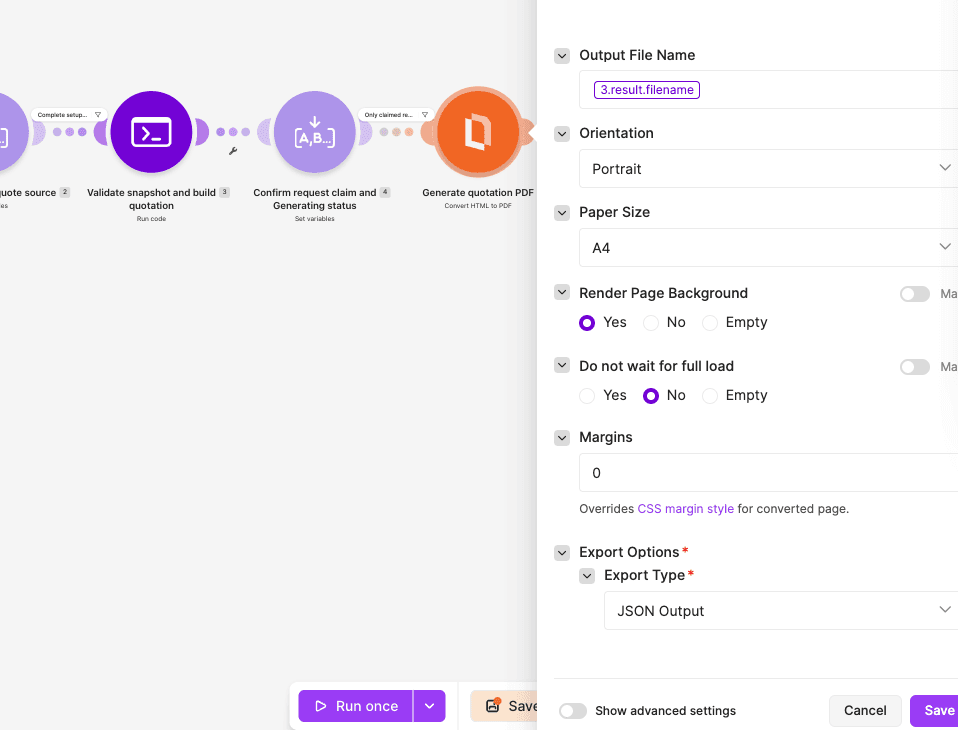
Add PDF.co > Convert HTML to PDF.
Name the module:
Generate quotation PDF
Create a PDF.co connection using your API key.
Configure:
- Convert Type: HTML to PDF.
- Input HTML Code: Map
htmlfrom the quotation-validation Code module. - Output File Name: Map its
filename. - Execution Mode: Sync.
- Export Type: JSON Output.
- Paper Size: A4.
- Orientation: Portrait.
- Margins:
0. - Render Page Background: Yes.
- Do not wait for full load: No.
- Output Links Expiration:
60.
Use raw HTML input, not a saved HTML-template ID.
The PDF.co conversion module creates a PDF using the approved quotation HTML. The output URL is temporary and must not be used as the permanent customer-facing PDF URL.
Synchronous conversion is intended for smaller tasks. For longer jobs, use an asynchronous mode and add bounded PDF.co Job Check handling before downloading.
Step 9: Download the Completed PDF
Add HTTP > Get a file, or the equivalent download operation.
Name it:
Download quotation PDF
Configure:
- URL: Map the completed PDF.co output
url. - Method: GET, if exposed.
- Share cookies: No.
- Error handling: Treat unsuccessful requests as errors.
Before proceeding, confirm PDF.co did not report an error and returned a completed PDF download URL.
If the conversion returns only a job ID, the download step must wait for the job to finish.
The HTTP module returns the binary PDF data that will be uploaded to your approved storage location.
Step 10: Save the PDF to Permanent Storage
Add your approved document-storage upload operation.
For example, if you use Google Drive:
- Add Google Drive > Upload a file.
- Connect the approved Google Drive account.
- Select the customer's authorized destination folder.
- Map the downloaded PDF's binary Data.
- Map the versioned filename from the validation Code module.
- Leave file conversion disabled.
The storage folder and its access permissions must be selected using trusted source information, not an unverified browser-supplied folder ID.
After upload, obtain the permanent browser link or file identifier returned by the storage provider.
For a Google Drive file, a browser link may have this structure:
https://drive.google.com/file/d/STORED_FILE_ID/viewReplace the placeholder with the actual stored file ID.
Confirm the intended customer can access the document and that unrelated customers cannot.
Add Tools > Set multiple variables, named:
Map stored quote link
Create:
stored_url: Map the permanent stored document link.
Update the request's data-store record to save stored_url before attempting the final Glide write-back.
This allows the scenario to recover if the PDF upload succeeds but the Glide update fails.
Do not use the expiring PDF.co conversion URL as the permanent Glide PDF URL.
Step 11: Retrieve the Current Glide Row Again
The quotation may have changed while the PDF was being generated.
Before returning the document link, retrieve the current Glide row again.
Add Glide > Get Row.
Name it:
Read current quotation version
Configure:
- App: Your quotation app.
- Table: The quotation table.
- Row ID: Map the original validated Row ID.
Read the current Row ID and Quote Version.
Repeat the trusted authorization check using the current record.
Add JSON > Create JSON or the equivalent structured-data module to normalize the current row.
For example:
{
  "row_id": "row-example-204",
  "quote_version": "3",
  "authorized": true
}
Set authorized to true only after the current trusted check succeeds.
Next, add Tools > Set multiple variables.
Name it:
Map freshly retrieved Glide row
Create:
current_row_json: Map the normalized current-row object.
Do not reuse the earlier quotation snapshot as the current-row check.
Step 12: Check the Version Before Updating Glide
Add Make Code > Run code.
Name it:
Check version before write-back
Configure:
- Language: JavaScript.
- Input format: Code editor.
Create these input variables:
current_row: Map thecurrent_row_jsonvariable.row_id: Map the original validated Row ID.quote_version: Map the original validated Quote Version.request_key: Map the request key from the quotation-validation module.stored_url: Map the permanent document link from storage.temporary_url: Map the temporary PDF.co conversion URL.
Paste this JavaScript:
const current=typeof input.current_row==='string'?JSON.parse(input.current_row):input.current_row;
if (!current || String(current.row_id)!==String(input.row_id)) throw new Error('Current row does not match original Row ID');
if (current.authorized!==true) throw new Error('Current trusted authorization check required');
let u;try{u=new URL(input.stored_url);}catch{throw new Error('Missing durable storage URL');}
if(u.protocol!=='https:' || u.username || u.password || input.stored_url===input.temporary_url) throw new Error('Use a durable permissioned storage URL');
const publish=String(current.quote_version)===String(input.quote_version);
return {publish,row_id:input.row_id,quote_version:input.quote_version,stored_url:input.stored_url,state:publish?'Ready':'Superseded',request_key:input.request_key};
The script verifies:
- The current Row ID still matches the original quotation row.
- The trusted authorization check passed.
- The stored document link uses HTTPS.
- The stored link is not identical to the temporary PDF.co conversion URL.
- The current Quote Version still matches the version used to generate the PDF.
It returns a publish Boolean.
true: The generated PDF still represents the current quotation.false: The quotation version has changed and the generated file should be treated as superseded.
The URL checks do not verify storage permissions. Those must be confirmed through the storage provider.
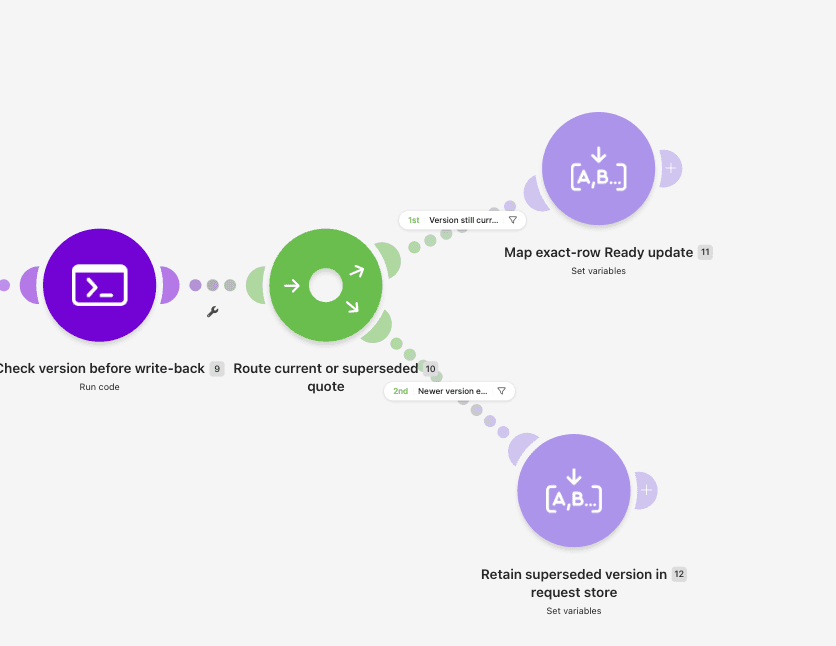
Step 13: Route Current and Superseded Quotations
Add Flow Control > Router after the version-checking Code module.
Create two routes.
Route 1: Version is still current
Add a filter:
- Name: Version still current.
- Field:
publish. - Condition: Boolean equals
true.
Add Tools > Set multiple variables.
Name it:
Map exact-row Ready update
Configure:
row_id: Map the validated Row ID returned by the version-checking module.pdf_url: Map its permanentstored_url.generated_version: Map its Quote Version.pdf_status: EnterReady.
Next, add Glide > Edit Row.
Select:
- App: Your quotation app.
- Table: The original quotation table.
- Row ID: Map
row_idfrom the Ready-update variables.
Update these fields:
- PDF URL: Map
pdf_url. - Generated Version: Map
generated_version. - PDF Status: Map
pdf_status.
After the Edit Row operation succeeds, update the request's data-store record to state:
completed
Keep the stored document link and quotation snapshot in the record.
Route 2: A newer version exists
Add another filter:
- Name: Newer version exists — no row update.
- Field:
publish. - Condition: Boolean equals
false.
Add Tools > Set multiple variables.
Name it:
Retain superseded version in request store
Configure:
request_key: Map the original request key.stored_url: Map the permanent stored document link.request_state: EnterSuperseded.
Add Data store > Update a record.
Update the request identified by its original key:
- State:
superseded. - Stored URL: Preserve the completed document link.
- Snapshot: Preserve the original quotation snapshot.
Do not change PDF URL, Generated Version, or PDF Status on the newer Glide row.
The old file can remain in storage for revision history or controlled retention.
Note: Re-reading the row and then using Edit Row is not an atomic conditional update. If a Glide user can edit the quotation between those operations, a race is still possible. For strict version protection, use an available source-supported conditional update or immutable quotation-version rows.
Step 14: Handle Failed Conversions and Write-Back Errors
Add error handlers to the conversion, download, storage, and Glide update operations.
Each failure should preserve the original Row ID, Quote Version, and request key.
Conversion or download failure
- Record the failed state in the Make data store.
- Keep the original quotation snapshot.
- Preserve any previous successful PDF URL and Generated Version on the Glide row.
- Re-read the current row before setting a failure status.
- Only write
Failedto the row when the failed request still represents the current version.
Storage failure
- Do not update Glide with the temporary PDF.co link.
- Preserve the failed request for inspection or an explicit retry.
- Keep the previous successful quotation PDF reference.
Glide write-back failure
The PDF may already exist in permanent storage.
In this case:
- Preserve the stored URL in the request's data-store record.
- Record the write-back error.
- Re-read the current Glide row and version.
- Retry only the write-back if the original quotation version is still current.
- Do not regenerate the PDF when the existing stored file is usable.
If the quotation has changed, mark the request as superseded instead of overwriting the newer row.
The workflow is not a single transaction across Glide, Make, PDF.co, and the storage provider. Keeping each request's snapshot and stored URL is important for recovery.
Step 15: Test the Complete Workflow
After configuring the scenario, run a test with the sample quotation.
Use the following request:
{
  "row_id": "row-example-204",
  "quote_version": "3"
}
Make sure the Glide row and approved source data match that request before running it.
Check the execution:
- The webhook receives the correct Row ID and Quote Version.
- Glide Get Row retrieves the matching quotation.
- The trusted authorization check succeeds.
- The normalized source contains the approved line items and totals.
- The validation Code module produces HTML and a versioned filename.
- The data-store request is claimed successfully.
- The original row's PDF Status changes to Generating without clearing the previous PDF URL.
- PDF.co generates the quotation PDF.
- HTTP downloads the completed result.
- The document is saved in the approved storage location.
- A fresh Glide read confirms the current version.
- The Ready route updates the original Glide row.
- The data-store request is marked completed.
The expected sample filename is:
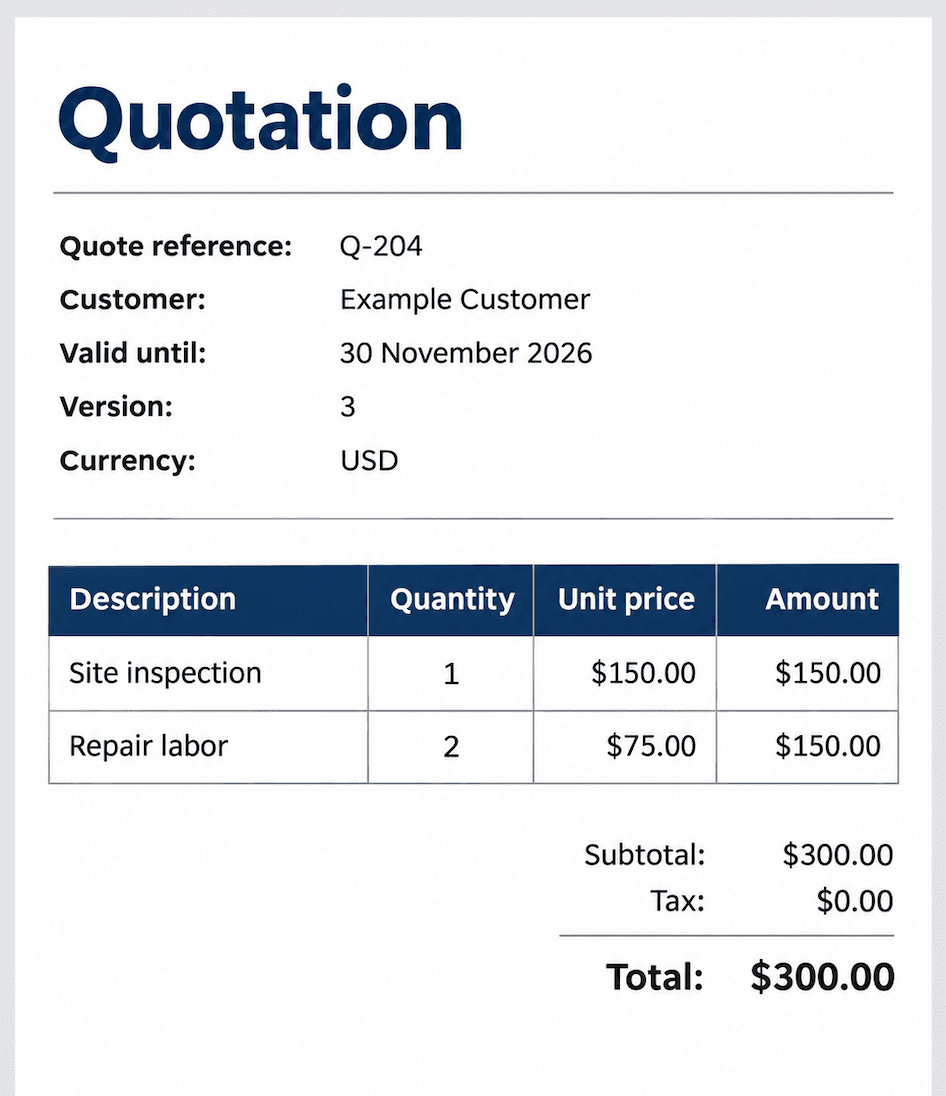
quote-row-example-204-v3.pdfOpen the PDF and confirm the customer, quote reference, valid-until date, version, line-item order, and totals.
The example should show:
- Customer: Example Customer.
- Quote Reference: Q-204.
- Currency: USD.
- Site inspection: 1 × 150.00, line total 150.00.
- Repair labor: 2 × 75.00, line total 150.00.
- Subtotal: 300.00.
- Tax: 0.00.
- Total: 300.00.
The values should match the approved source exactly.
Test duplicate requests and quotation changes
Before enabling the scenario for regular use, also test these cases:
- Repeated request: Trigger the same Row ID and Quote Version twice. The existing request should be reused or handled without creating a second PDF.
- Different customer rows: Use similarly named customers with different Row IDs and confirm that each document returns to its exact original row.
- Changed quotation: Increment Quote Version during generation. The older PDF should not overwrite the newer row's PDF URL.
- Missing authorization: Confirm that a request without trusted entitlement fails before conversion.
- Conversion failure: Confirm the previous successful PDF URL and Generated Version remain unchanged.
- Write-back failure: Confirm that retrying uses the already stored document rather than generating another copy.
- Unauthorized storage access: Confirm that the intended customer can access the saved PDF and another customer cannot.
Only enable routine use after the complete scenario, storage access, and recovery paths have been tested.
Troubleshooting
- Glide does not trigger the scenario: Check that Trigger Webhook is available for your app and that the action uses the correct Make webhook URL.
- The Row ID is missing: Confirm that the Glide action sends the immutable Row ID column rather than the row position or customer name.
- The retrieved quotation does not match: Check the requested Row ID and Quote Version. Do not bypass the mismatch validation.
- Authorization fails: Verify the trusted source-side entitlement check. Do not set
authorizedtotruemerely to suppress an error. - No line items appear: Confirm that the related-item read filters by the exact quotation Row ID and version and preserves the approved order.
- PDF.co conversion fails: Verify the connection, raw HTML input, generated HTML, and conversion status.
- Duplicate PDFs are generated: Check the request key, data-store lookup and claim branches, and scenario processing order.
- A PDF is saved to the wrong folder: Verify the trusted customer or quotation-to-folder mapping before the storage upload.
- The quotation was updated while generating: Confirm that the fresh Glide read detected the newer version and routed the old request to Superseded.
- The PDF exists but Glide is not updated: Reuse the stored URL and retry the version-checked write-back. Do not blindly start another conversion.
With Glide, Make, and PDF.co, you can automatically generate quotation PDFs and return their permanent links to the correct customer records.
The workflow retrieves approved quotation data, validates its Row ID and version, generates the HTML, and converts it into a PDF with PDF.co. The completed document is stored in an approved location and linked back to the original Glide row.
By adding request tracking and version checks, the scenario can also reduce duplicate generation and prevent older quotation PDFs from overwriting newer revisions.
Explore the PDF.co Make integration documentation and HTML to PDF conversion guide to learn more about document automation.
Related Tutorials