Generate Product Specification PDFs from Shopify with Make and PDF.co
Product specifications often contain information customers need before purchasing, such as dimensions, materials, model numbers, and care instructions. Keeping these details in a downloadable PDF can make them easier to reference, share, and print.
With Make and PDF.co, you can automatically generate specification PDFs from approved Shopify product data and attach them to the correct products.
In this tutorial, you'll build a Make scenario that retrieves product information from Shopify, generates a PDF specification sheet with PDF.co, and stores the completed document in Shopify Files. The scenario then updates the product's file-reference metafield so the PDF can be made available on its storefront page.
You'll also add version checks and file-processing validation to prevent outdated PDFs from replacing newer specifications.
Prerequisites
Before starting, you'll need:
- A Shopify store with permission to manage products, metafields, and files.
- A Make account with access to Make Code.
- A PDF.co account with an API key and available credits.
- An authorized Shopify connection in Make with the required product and file permissions.
- Product specifications stored in Shopify product fields or metafields.
- An approved process for determining when product specifications are ready to publish.
This tutorial uses Shopify's Admin GraphQL API through Make's native Shopify > Make a GraphQL API call module.
The example uses API version 2026-10. If your Shopify connection uses another supported version, verify that the GraphQL fields and mutations are compatible before running the scenario.
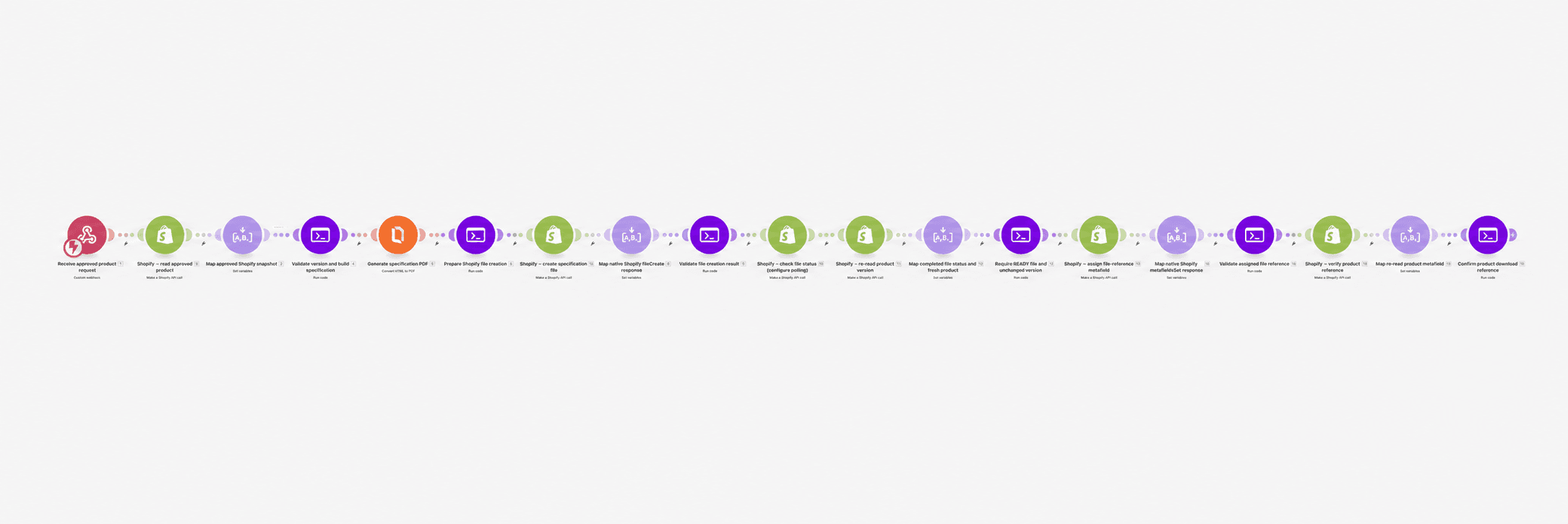
IN THIS TUTORIAL
Step 1: Prepare the Shopify Product Metafields
Start by identifying the product information you'll include in the PDF.
In Shopify Admin, open Settings > Custom data > Products and create or confirm the following metafield definitions.
Specification information
- Model Number:
custom.model_number - Dimensions:
custom.dimensions - Materials:
custom.materials - Care Instructions:
custom.care_instructions - Specification Version:
custom.specification_version
The Specification Version metafield must use the Single line text type in this example.
Use suitable text types for the other specification fields. The workflow reads their values as strings.
Generated PDF reference
Create another product metafield:
- Name: Specification PDF
- Namespace and key:
custom.specification_pdf - Type: File
- Reference type: One file
Configure this definition to accept generic files, including PDFs, rather than restricting it to images.
The workflow will eventually set this metafield to reference a PDF stored in Shopify Files.
Why a version field is important
The Specification Version identifies which approved product information the PDF represents.
For example:
- Version 1: Original product specifications.
- Version 2: Updated material information.
- Version 3: Revised dimensions and care instructions.
Whenever approved specification content changes, update the Specification Version.
The scenario checks that the version is unchanged before attaching the generated PDF. It also uses Shopify's metafield comparison digests to protect against certain concurrent updates.
For this protection to work, your product-management process must update custom.specification_version whenever the specification fields change.
Step 2: Prepare a Sample Shopify Product
Open a product in Shopify and populate its specification fields.
For example:
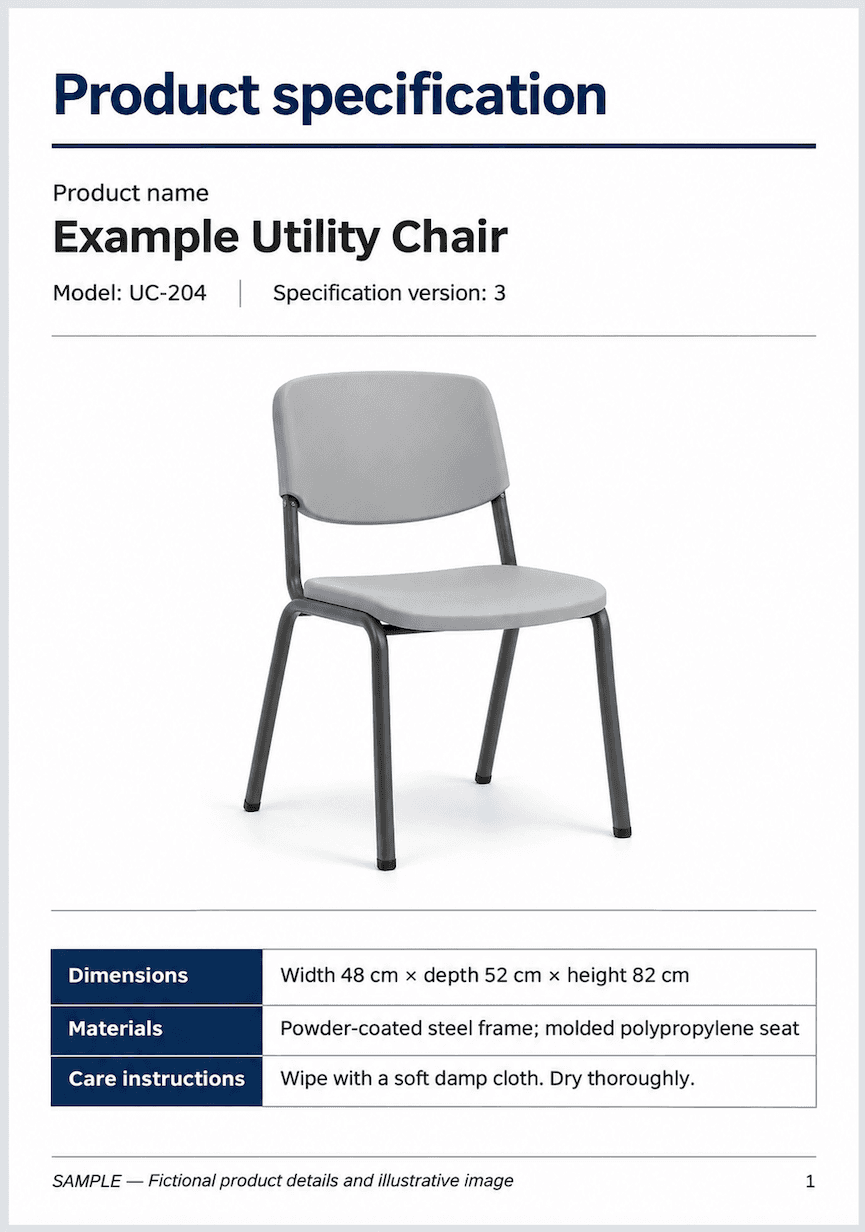
- Product title: Example Utility Chair
- Model Number: UC-204
- Dimensions: Width 48 cm × depth 52 cm × height 82 cm
- Materials: Powder-coated steel frame; molded polypropylene seat
- Care Instructions: Wipe with a soft damp cloth. Dry thoroughly.
- Specification Version: 3
You can also assign a featured product image.
The specification PDF will include the product title, model number, dimensions, materials, care instructions, and current specification version.
If an approved featured image URL is available, the HTML template can include it.
This example creates a product specification sheet. It does not generate certification, regulatory compliance, warranty, or safety claims that aren't present in the approved source data.
Step 3: Create a Make Scenario and Receive a Product Request
Create a new scenario in Make.
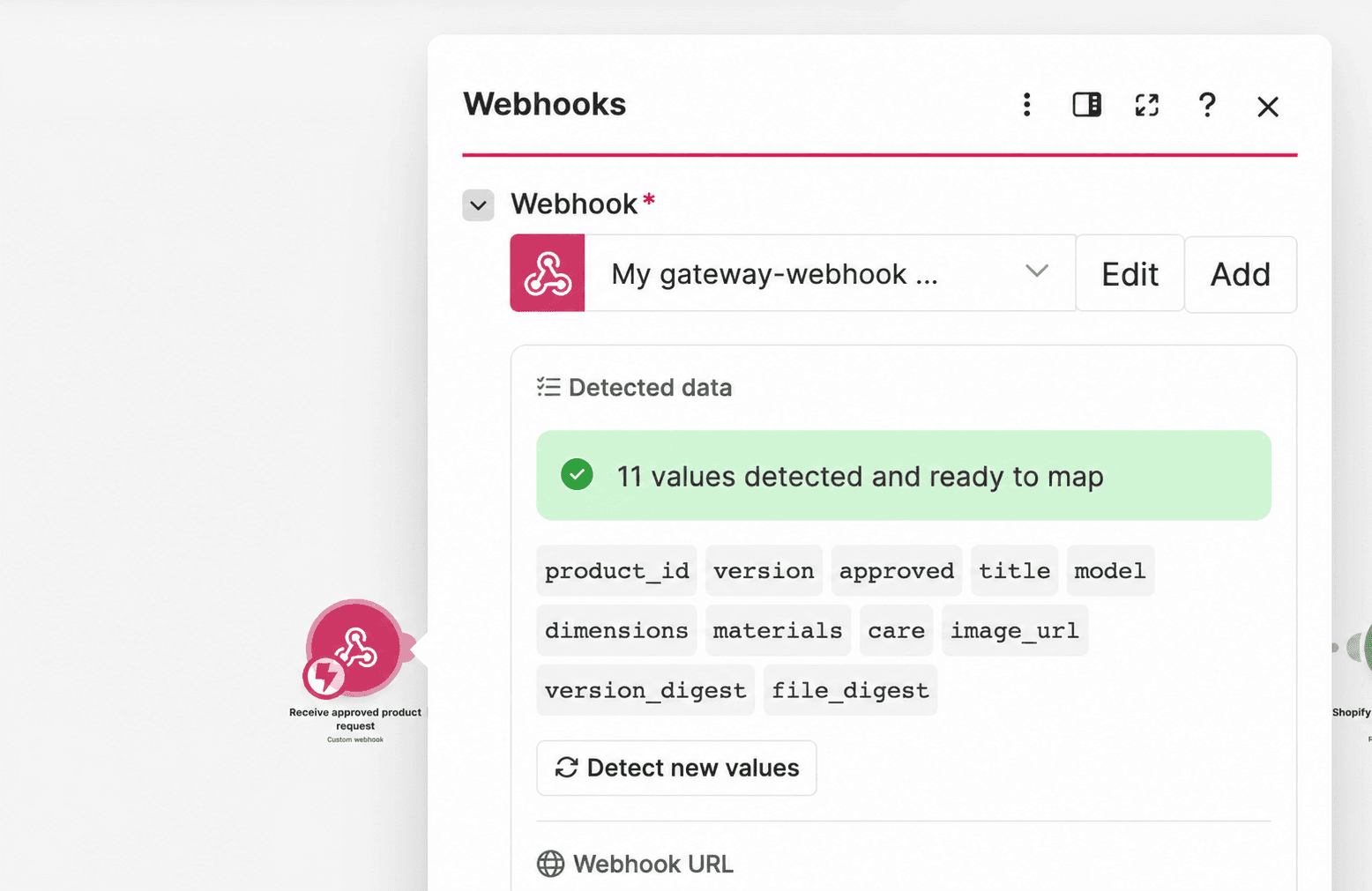
Add Webhooks > Custom webhook and name it:
Receive approved product request
Create a webhook and copy its URL.
The webhook receives the Shopify product ID and the specification version to generate.
For example:
{
  "product_id": "gid://shopify/Product/123456789",
  "specification_version": "3"
}
Replace the example product ID with the actual Shopify Product GID.
A Shopify Product GID uses this format:
gid://shopify/Product/123456789The webhook can be triggered by an authorized product-management workflow or a controlled batch process.
Protect the webhook using the supported authentication or access controls available to your request source and Make configuration.
Important: The webhook request is not proof that the specification is approved. The scenario must verify approval using your trusted product-management rules before generating the document.
If your request source is triggered by Shopify product updates, ensure that writing the generated PDF metafield doesn't repeatedly trigger the same generation process.
Step 4: Retrieve the Approved Product from Shopify
Add Shopify > Make a GraphQL API call.
Name it:
Read approved Shopify product
Connect your Shopify store.
Configure:
- Connection: Your authorized Shopify account.
- API Version:
2026-10. - Variables input format: JSON, if available.
- Simplify response: No, so the returned GraphQL response structure remains available.
- Query: Paste the following GraphQL query.
query ReadSpecification($id: ID!) {
  product(id: $id) {
    id
    title

    featuredMedia {
      ... on MediaImage {
        image {
          url
          altText
        }
      }
    }

    specVersion: metafield(
      namespace: "custom"
      key: "specification_version"
    ) {
      value
      type
      compareDigest
    }

    specFile: metafield(
      namespace: "custom"
      key: "specification_pdf"
    ) {
      value
      type
      compareDigest

      reference {
        ... on GenericFile {
          id
          url
          fileStatus
        }
      }
    }

    model: metafield(
      namespace: "custom"
      key: "model_number"
    ) {
      value
    }

    dimensions: metafield(
      namespace: "custom"
      key: "dimensions"
    ) {
      value
    }

    materials: metafield(
      namespace: "custom"
      key: "materials"
    ) {
      value
    }

    care: metafield(
      namespace: "custom"
      key: "care_instructions"
    ) {
      value
    }
  }
}
The query retrieves the product's stable ID, title, featured image, specification values, current specification version, and existing PDF reference.
It also retrieves two important comparison values:
specVersion.compareDigest: Represents the current specification-version metafield value.specFile.compareDigest: Represents the current PDF-reference metafield value.
These values will be used later to detect changes before writing the new PDF reference.
Configure the GraphQL variables
Add one query variable:
- Name:
id - Value: Map the webhook's
product_id.
If using JSON variable input, the structure is:
{
  "id": "gid://shopify/Product/123456789"
}
In Make, map the actual product ID rather than using the example value.
Run the scenario up to this module and inspect the Shopify response.
Confirm that the product exists and all required specification metafields contain values.
If the product or required fields are unavailable, stop the request rather than generating an incomplete specification.
Step 5: Prepare the Approved Product Snapshot
Add JSON > Create JSON after the Shopify GraphQL module.
Name it:
Build approved product snapshot
Create a structured object containing:
product_id: The product GID returned by Shopify.version: The currentspecVersion.value.approved: A Boolean derived from your trusted product-approval process.title: Shopify product title.model: The Model Number metafield value.dimensions: The Dimensions metafield value.materials: The Materials metafield value.care: The Care Instructions metafield value.image_url: An approved featured-image URL, or an empty string if none is included.version_digest: The currentspecVersion.compareDigest.file_digest: The currentspecFile.compareDigest, or JSONnullif the PDF-reference metafield does not yet exist.
For reference, the normalized snapshot should look like this:
{
  "product_id": "gid://shopify/Product/123456789",
  "version": "3",
  "approved": true,
  "title": "Example Utility Chair",
  "model": "UC-204",
  "dimensions": "Width 48 cm × depth 52 cm × height 82 cm",
  "materials": "Powder-coated steel frame; molded polypropylene seat",
  "care": "Wipe with a soft damp cloth. Dry thoroughly.",
  "image_url": "",
  "version_digest": "REPLACE_WITH_SHOPIFY_COMPARE_DIGEST",
  "file_digest": null
}
This is an example of the normalized data, not the raw Shopify GraphQL response.
The digest shown is a placeholder. Always map the actual value returned by Shopify.
If the product has no existing custom.specification_pdf metafield, use a real JSON null for file_digest, not the string "null".
Set approved to true only after your trusted approval process has confirmed the specification is ready to publish. The example GraphQL query does not independently determine approval.
Store the snapshot in Make variables
Add Tools > Set multiple variables.
Name it:
Map approved Shopify snapshot
Configure:
- Variable name:
snapshot_json - Value: Map the JSON object created above.
Also create:
- Variable name:
setup_complete - Value:
NO
Use One cycle as the variable lifetime.
After you finish configuring the source mappings, approval check, and necessary connections, change setup_complete to YES.
Add a filter before the next module:
- Name: Complete native Shopify setup
- Field:
setup_complete - Condition: Text equals
- Value:
YES
This prevents processing from continuing while required mappings are incomplete.
Step 6: Validate the Version and Build the Specification HTML
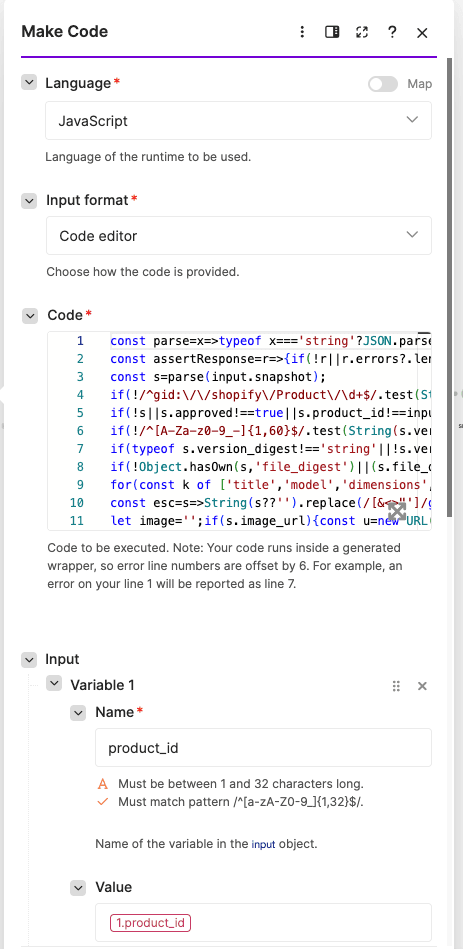
Add Make Code > Run code.
Name it:
Validate version and build specification
Configure:
- Language: JavaScript.
- Input format: Code editor.
- Additional dependencies: Leave empty.
Create these input variables:
product_id: Map the webhook'sproduct_id.version: Map the webhook'sspecification_version.snapshot: Mapsnapshot_jsonfrom the previous step.
Paste this complete JavaScript into the Code editor:
const parse=x=>typeof x==='string'?JSON.parse(x):x;
const assertResponse=r=>{if(!r||r.errors?.length)throw new Error('Shopify GraphQL error: '+JSON.stringify(r?.errors||'missing response'));};
const s=parse(input.snapshot);
if(!/^gid:\/\/shopify\/Product\/\d+$/.test(String(input.product_id)))throw new Error('Use the stable Shopify Product GID');
if(!s||s.approved!==true||s.product_id!==input.product_id||String(s.version)!==String(input.version))throw new Error('Unapproved, wrong-product or stale specification');
if(!/^[A-Za-z0-9_-]{1,60}$/.test(String(s.version)))throw new Error('Invalid specification version');
if(typeof s.version_digest!=='string'||!s.version_digest)throw new Error('Version metafield digest required');
if(!Object.hasOwn(s,'file_digest')||(s.file_digest!==null&&typeof s.file_digest!=='string'))throw new Error('Initial PDF digest required; use null for absent metafield');
for(const k of ['title','model','dimensions','materials','care'])if(!String(s[k]||'').trim())throw new Error('Missing approved field: '+k);
const esc=s=>String(s??'').replace(/[&<>"']/g,c=>({'&':'&','<':'<','>':'>','"':'"',"'":'''}[c]));
let image='';if(s.image_url){const u=new URL(s.image_url);if(u.protocol!=='https:'||u.username||u.password)throw new Error('Use an approved public HTTPS product image');image=`<img src="${esc(s.image_url)}" alt="${esc(s.title)}">`;}
const html=`<!doctype html><html><head><meta charset="utf-8"><style>body{font-family:Arial,sans-serif;margin:36px;line-height:1.5}h1{font-size:26px}img{max-width:100%;max-height:280px}table{width:100%;border-collapse:collapse}th,td{text-align:left;padding:12px;border-bottom:1px solid #ddd;white-space:pre-wrap}tr{break-inside:avoid}</style></head><body><h1>Product specification</h1><h2>${esc(s.title)}</h2><p>Model: ${esc(s.model)}<br>Specification version: ${esc(s.version)}</p>${image}<table><tr><th>Dimensions</th><td>${esc(s.dimensions)}</td></tr><tr><th>Materials</th><td>${esc(s.materials)}</td></tr><tr><th>Care instructions</th><td>${esc(s.care)}</td></tr></table></body></html>`;
return {...s,html,filename:'specification-'+s.product_id.split('/').pop()+'-v'+s.version+'.pdf'};The script validates:
- The requested Shopify Product GID.
- The approved product snapshot.
- The requested specification version.
- The presence of the version and PDF-reference comparison information.
- Required product specification fields.
- The optional featured-image URL.
It also escapes product text before inserting it into HTML.
The generated specification includes the product name, model number, version, dimensions, materials, and care instructions.
If a suitable product image is available, the HTML includes it above the specification details.
The script returns the validated snapshot, complete HTML, and output filename.
For the example product, the filename is:
specification-123456789-v3.pdfThe filename includes the product ID and specification version to distinguish documents generated for different revisions.
Step 7: Generate the Product Specification PDF with PDF.co
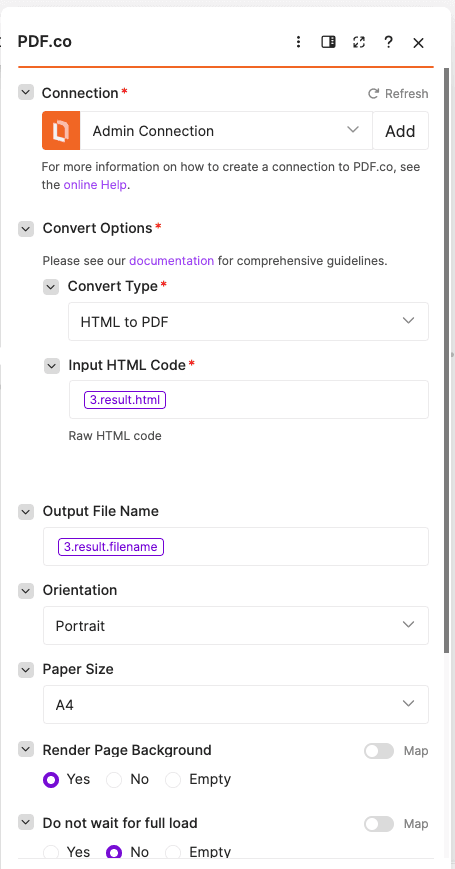
Add PDF.co > Convert HTML to PDF.
Name it:
Generate specification PDF
Create or select your PDF.co connection.
Configure:
- Convert Type: HTML to PDF.
- Input HTML Code: Map
htmlfrom the previous Code module. - Output File Name: Map
filenamefrom the previous Code module. - Execution Mode: Sync.
- Export Type: JSON Output.
- Paper Size: A4.
- Orientation: Portrait.
- Margins:
0. - Render Page Background: Yes.
- Do not wait for full load: No.
- Output Links Expiration:
60.
Use raw HTML input rather than a saved HTML template.
When the conversion finishes, PDF.co returns a temporary PDF URL.
Confirm that the module completed successfully and returned a valid URL before continuing.
If you use asynchronous conversion for larger documents, add job-status checking before the next step. A pending job ID is not a completed PDF URL.
Step 8: Prepare the Shopify File-Creation Request
Shopify Files provides the permanent storage for the specification PDF.
The PDF.co output URL is used as the source from which Shopify imports the document. It is not the final Shopify file-reference value.
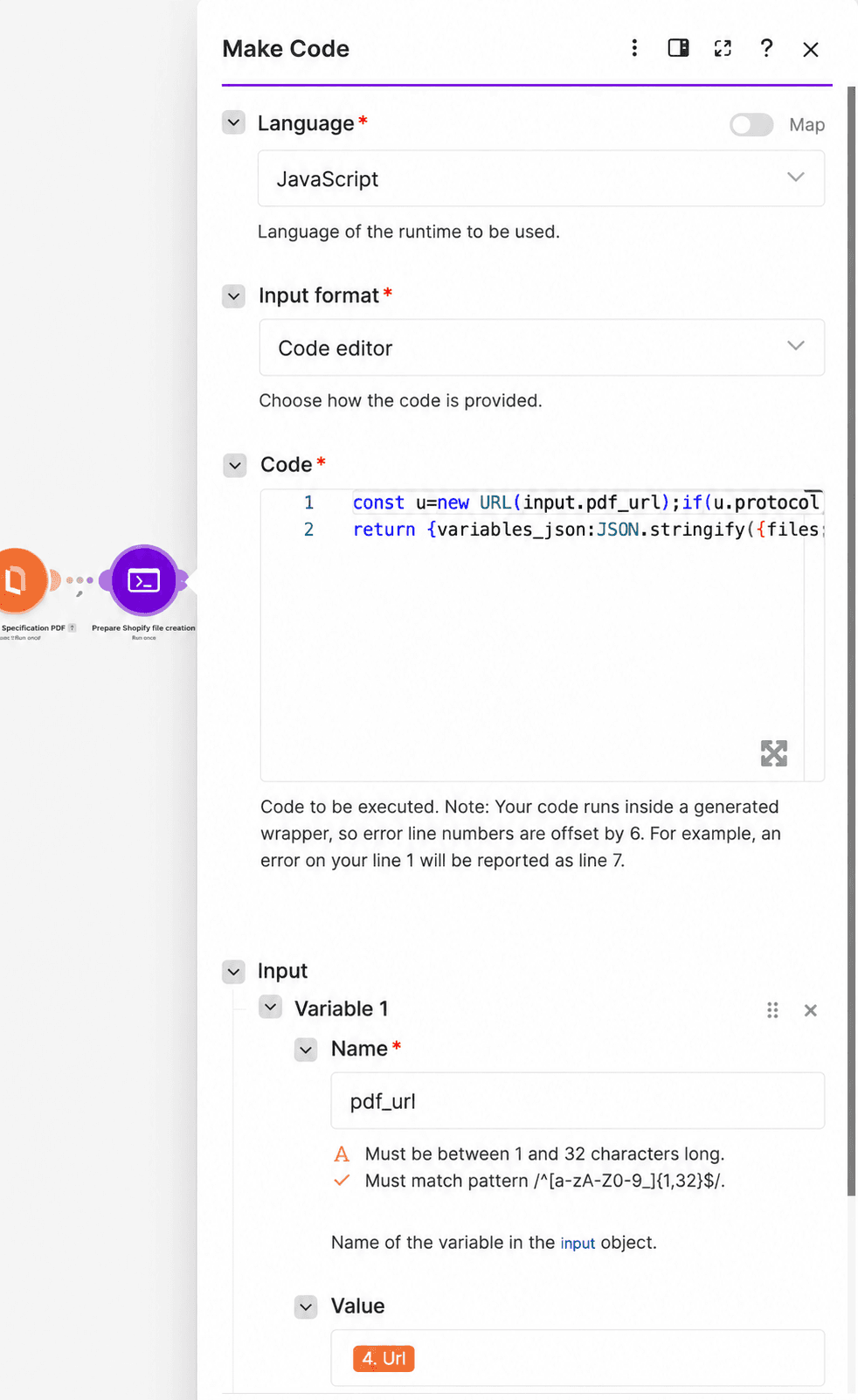
Add Make Code > Run code.
Name it:
Prepare Shopify file creation
Create one input variable:
pdf_url: Map the completedurlfrom PDF.co.
Paste this JavaScript:
const u=new URL(input.pdf_url);if(u.protocol!=='https:')throw new Error('Completed PDF URL required');
return {variables_json:JSON.stringify({files:[{originalSource:input.pdf_url,contentType:'FILE'}]})};
The script verifies the HTTPS URL and prepares Shopify's fileCreate variables.
The resulting JSON has this structure:
{
  "files": [
    {
      "originalSource": "https://example.com/completed-specification.pdf",
      "contentType": "FILE"
    }
  ]
}
The URL above is an example. In the scenario, use the completed PDF.co URL.
The content type FILE tells Shopify to create a generic file, rather than a product image or other media type.
Shopify must retrieve the document before the temporary PDF.co source URL expires.
Step 9: Create the PDF File in Shopify
Add Shopify > Make a GraphQL API call.
Name it:
Create specification file
Use the same Shopify connection and API version.
Paste this mutation into the Query field:
mutation CreateSpecification($files: [FileCreateInput!]!) {
  fileCreate(files: $files) {
    files {
      id
      fileStatus
    }

    userErrors {
      field
      message
    }
  }
}
Configure the files variable from the variables_json returned by the previous Code module.
If Make offers Variables input format: JSON, map the complete generated JSON object into the variables input. If the module uses separate variable entries, parse the generated object and map its files array.
Keep the response structure available for validation. Do not discard Shopify's userErrors field.
The mutation asks Shopify to import the PDF from the completed PDF.co URL.
Shopify returns a file ID and processing status.
A generic file ID has this format:
gid://shopify/GenericFile/123456789The Shopify file ID is what will later be stored in the product's file_reference metafield.
Important: Creating a file does not necessarily mean it is ready. Shopify processes uploaded files asynchronously.
Step 10: Validate Shopify File Creation
Add Tools > Set multiple variables.
Name it:
Map Shopify file creation response
Create:
response_json: Map the complete GraphQL response from the Shopify file-creation module.
The expected response must retain the data and errors structure. If Make returns the response under a Body or Data field, map the full GraphQL response envelope.
Next, add Make Code > Run code.
Name it:
Validate file creation result
Create one input:
response: Mapresponse_json.
Paste the following JavaScript:
const parse=x=>typeof x==='string'?JSON.parse(x):x;
const assertResponse=r=>{if(!r||r.errors?.length)throw new Error('Shopify GraphQL error: '+JSON.stringify(r?.errors||'missing response'));};
const r=parse(input.response);assertResponse(r);const d=r.data?.fileCreate;
if(!d||d.userErrors?.length)throw new Error('fileCreate failed: '+JSON.stringify(d?.userErrors||'missing result'));
if(d.files?.length!==1||!/^gid:\/\/shopify\/GenericFile\/\d+$/.test(d.files[0].id))throw new Error('Expected one Shopify GenericFile ID');
if(d.files[0].fileStatus==='FAILED')throw new Error('Shopify file processing failed');
return {file_id:d.files[0].id,status:d.files[0].fileStatus,variables_json:JSON.stringify({id:d.files[0].id})};
This script checks for:
- Top-level GraphQL errors.
- Errors returned by
fileCreate. - A valid Shopify GenericFile ID.
- An immediate file-processing failure.
It returns the file ID, current processing status, and variables for a later status query.
Save this file ID in your request-tracking system before attempting recovery or another upload.
If a later step fails, reusing the already-created Shopify file can avoid creating unnecessary duplicate files.
Step 11: Wait Until Shopify Finishes Processing the PDF
After file creation, Shopify may return a status such as UPLOADED or PROCESSING.
The file must reach READY before you attach it to the product.
Add Shopify > Make a GraphQL API call.
Name it:
Check Shopify file status
Use this query:
query SpecificationFileStatus($id: ID!) {
  node(id: $id) {
    ... on GenericFile {
      id
      fileStatus
      url
    }
  }
}
Map the query variable:
id: The GenericFile ID returned by the file-creation validation module.
The output identifies the file, its processing status, and its Shopify-hosted URL when available.
Add bounded status checking
Configure a controlled retry mechanism to check the file until processing finishes.
For example, allow up to 12 checks with approximately five seconds between attempts.
Handle each result:
- UPLOADED or PROCESSING: Wait and check again.
- READY: Confirm the expected file ID and a nonempty Shopify URL, then continue.
- FAILED: Stop processing and record the failure.
- Still unfinished after the attempt limit: Keep the request pending for inspection or later recovery.
In Make, this can be implemented with a bounded Repeater, Sleep, conditional routing, and persistent status tracking.
Ensure the READY path is released only once. Do not attach the next product-update mutation directly to a repeating branch that could execute multiple times.
Do not create another Shopify file simply because the first file is still processing.
The purpose of this step is to ensure that Shopify has finished importing the PDF before the workflow updates the product reference.
Step 12: Retrieve the Latest Product Version Again
A product's specification may have changed while the PDF was being generated and uploaded.
Before assigning the file, retrieve the current product information again.
Add Shopify > Make a GraphQL API call.
Name it:
Re-read product specification version
Use the same ReadSpecification GraphQL query from Step 4.
Map:
id: The original Shopify Product GID.
This second read provides the latest values of:
specVersion.valuespecVersion.compareDigestspecFile.compareDigest
The workflow will compare them with the values saved before generation.
If another process updated the specification version or PDF reference, the older PDF should not replace the newer one.
Step 13: Verify File Readiness and an Unchanged Specification
Add Tools > Set multiple variables.
Name it:
Map completed file status and fresh product
Create:
file_response_json: Map the complete final file-status GraphQL response showing a READY file.product_response_json: Map the complete fresh product GraphQL response from Step 12.
Next, add Make Code > Run code.
Name it:
Require READY file and unchanged version
Create these inputs:
file_response: Mapfile_response_json.product_response: Mapproduct_response_json.snapshot: Map the validated output from Validate version and build specification.file_id: Map the GenericFile ID from Validate file creation result.
Paste this JavaScript:
const parse=x=>typeof x==='string'?JSON.parse(x):x;
const assertResponse=r=>{if(!r||r.errors?.length)throw new Error('Shopify GraphQL error: '+JSON.stringify(r?.errors||'missing response'));};
const f=parse(input.file_response), r=parse(input.product_response), s=parse(input.snapshot);assertResponse(f);assertResponse(r);
const file=f.data?.node, product=r.data?.product;
if(!file||file.id!==input.file_id||file.fileStatus!=='READY'||!file.url)throw new Error('File must be READY before assigning the reference');
if(!product||product.id!==s.product_id||product.specVersion?.value!==String(s.version)||product.specVersion?.compareDigest!==s.version_digest)throw new Error('Specification changed during generation; retain file without linking');
if((product.specFile?.compareDigest??null)!==s.file_digest)throw new Error('PDF reference changed; do not overwrite');
const metafields=[{ownerId:s.product_id,namespace:'custom',key:'specification_pdf',type:'file_reference',value:file.id,compareDigest:s.file_digest},{ownerId:s.product_id,namespace:'custom',key:'specification_version',type:'single_line_text_field',value:String(s.version),compareDigest:s.version_digest}];
return {variables_json:JSON.stringify({metafields}),file_id:file.id,product_id:s.product_id,version:String(s.version),shopify_url:file.url};
The script verifies:
- The file is in READY status.
- The returned file ID matches the file created earlier.
- Shopify returned a valid file URL.
- The product ID is unchanged.
- The specification version and its comparison digest are unchanged.
- The existing PDF-reference comparison digest is unchanged.
If any check fails, stop the update.
A previously generated PDF may remain in Shopify Files without being linked to the product. Retain its ID for review or controlled cleanup rather than automatically deleting it.
Prepare the conditional metafield update
The script returns variables for metafieldsSet.
The new PDF reference uses:
- Owner: Original product GID.
- Namespace:
custom. - Key:
specification_pdf. - Type:
file_reference. - Value: The new Shopify GenericFile GID.
- compareDigest: The previous PDF-reference digest, or null if no previous reference exists.
The mutation also writes the same specification-version value using its original comparison digest.
Together, these values let Shopify reject conflicting metafield changes rather than blindly overwriting them.
Step 14: Assign the PDF to the Shopify Product
Add Shopify > Make a GraphQL API call.
Name it:
Assign specification PDF to product
Paste this mutation:
mutation AssignSpecification($metafields: [MetafieldsSetInput!]!) {
  metafieldsSet(metafields: $metafields) {
    metafields {
      owner {
        ... on Product {
          id
        }
      }

      namespace
      key
      type
      value
      compareDigest
    }

    userErrors {
      field
      message
      code
    }
  }
}
Map the metafields variable from the previous Code module's variables_json.
This mutation assigns the GenericFile ID to the product's custom.specification_pdf metafield.
It also conditionally rewrites the current custom.specification_version value.
Shopify's metafieldsSet mutation supports atomic updates and compare-and-set checks. If a supplied comparison digest no longer matches the stored value, the mutation returns an error rather than persisting a conflicting update.
If the mutation fails because the specification changed, do not remove the digest checks or retry blindly with newer digests. Review the current product version and generate a new PDF when appropriate.
Step 15: Validate the Metafield Update
Add Tools > Set multiple variables.
Name it:
Map Shopify metafield update response
Create:
response_json: Map the complete GraphQL response from themetafieldsSetoperation.
Add Make Code > Run code.
Name it:
Validate assigned file reference
Create these inputs:
response: Mapresponse_json.product_id: Map the original product ID from the READY-file validation module.file_id: Map the GenericFile ID from that module.
Paste this JavaScript:
const parse=x=>typeof x==='string'?JSON.parse(x):x;
const assertResponse=r=>{if(!r||r.errors?.length)throw new Error('Shopify GraphQL error: '+JSON.stringify(r?.errors||'missing response'));};
const r=parse(input.response);assertResponse(r);const d=r.data?.metafieldsSet;
if(!d||d.userErrors?.length)throw new Error('metafieldsSet failed: '+JSON.stringify(d?.userErrors||'missing result'));
const m=d.metafields?.find(x=>x.namespace==='custom'&&x.key==='specification_pdf');
if(!m||m.owner?.id!==input.product_id||m.type!=='file_reference'||m.value!==input.file_id)throw new Error('Mutation did not return expected product reference');
return {product_id:input.product_id,file_id:input.file_id,variables_json:JSON.stringify({id:input.product_id})};
This script checks for GraphQL errors, mutation errors, and unexpected metafield values.
It requires the mutation response to confirm:
- The intended product.
- The
custom.specification_pdfmetafield. - The
file_referencetype. - The expected Shopify GenericFile ID.
The module also prepares the variables needed for a final product read-back.
Step 16: Verify the Stored Product Reference
Even after a successful mutation, verify that the intended product references the completed PDF.
Add another Shopify > Make a GraphQL API call.
Name it:
Verify product PDF reference
Paste this query:
query VerifySpecification($id: ID!) {
  product(id: $id) {
    id

    specVersion: metafield(
      namespace: "custom"
      key: "specification_version"
    ) {
      value
    }

    specFile: metafield(
      namespace: "custom"
      key: "specification_pdf"
    ) {
      type
      value

      reference {
        ... on GenericFile {
          id
          fileStatus
          url
        }
      }
    }
  }
}
Map:
id: The original product GID.
The query retrieves the current product's specification version and PDF file reference.
Add Tools > Set multiple variables.
Name it:
Map verified product reference
Create:
response_json: Map the complete GraphQL response from the verification query.
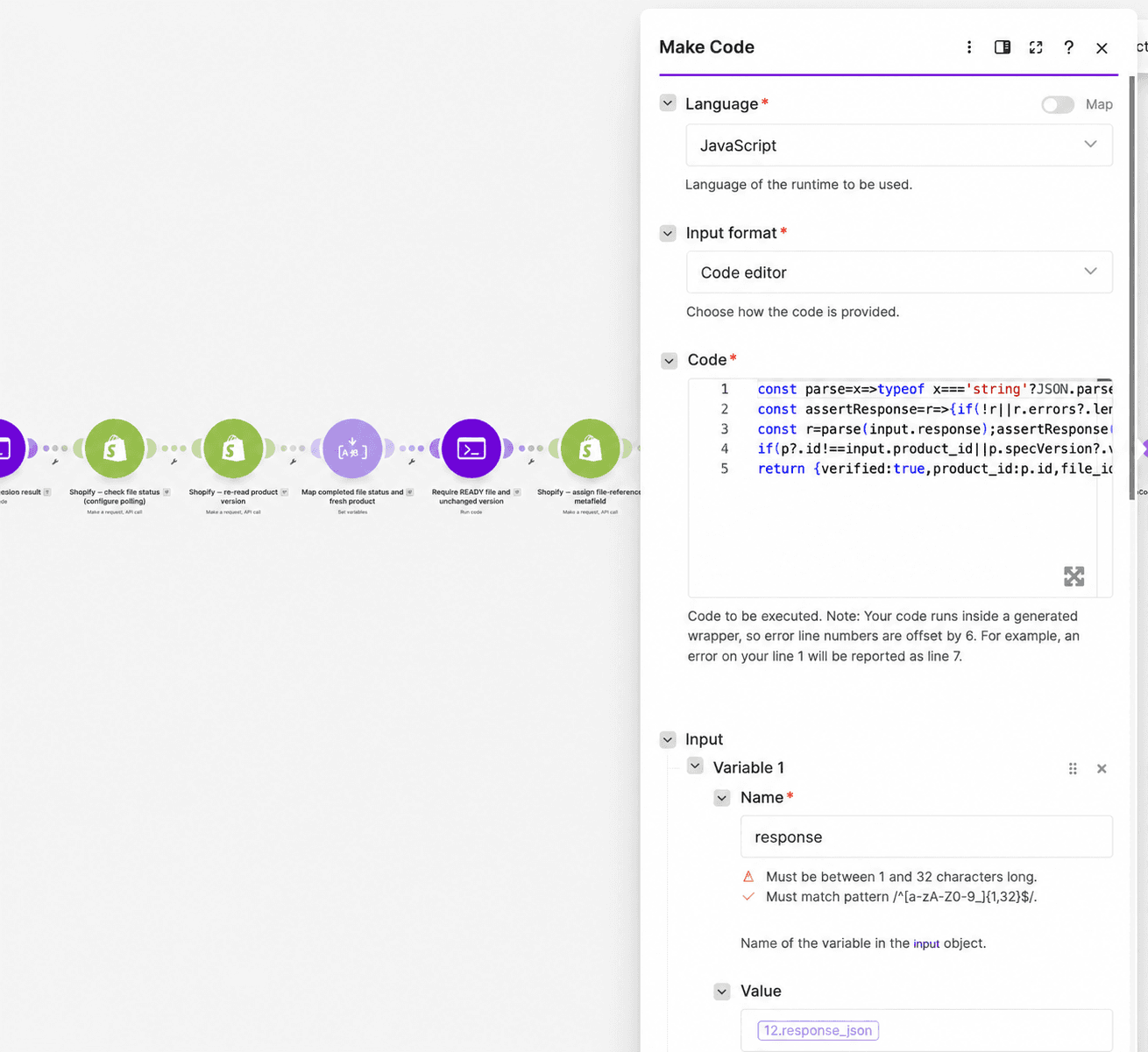
Then add Make Code > Run code.
Name it:
Confirm product download reference
Configure these inputs:
response: Mapresponse_json.product_id: Map the original product ID.file_id: Map the assigned GenericFile ID.version: Map the specification version used to generate the PDF.
Paste this JavaScript:
const parse=x=>typeof x==='string'?JSON.parse(x):x;
const assertResponse=r=>{if(!r||r.errors?.length)throw new Error('Shopify GraphQL error: '+JSON.stringify(r?.errors||'missing response'));};
const r=parse(input.response);assertResponse(r);const p=r.data?.product,m=p?.specFile;
if(p?.id!==input.product_id||p.specVersion?.value!==String(input.version)||m?.type!=='file_reference'||m.value!==input.file_id||m.reference?.id!==input.file_id||m.reference.fileStatus!=='READY'||!m.reference.url)throw new Error('Product metafield verification failed');
return {verified:true,product_id:p.id,file_id:m.value,download_url:m.reference.url,version:String(input.version)};
The final verification checks that:
- Shopify returned the correct product.
- The specification version matches the generated document.
- The PDF metafield is a file reference.
- The reference contains the expected GenericFile ID.
- The referenced file is READY.
- Shopify returned a downloadable file URL.
Only after this validation should the request be considered completed.
Step 17: Make the PDF Available on the Storefront
The PDF is now stored in Shopify Files and referenced by the product.
To make it downloadable, configure your Shopify product-page template to display the referenced file.
Depending on your theme, you can use the theme editor's dynamic-source options or add a suitable Liquid block.
For example, a product template can read the file-reference metafield:
{% assign spec_pdf = product.metafields.custom.specification_pdf.value %}

{% if spec_pdf and spec_pdf.url %}
  <a
    href="{{ spec_pdf.url | escape }}"
    target="_blank"
    rel="noopener"
  >
    Download product specification (PDF)
  </a>
{% endif %}
This example is for a product template that supports the referenced file object. The exact placement depends on your Shopify theme.
Shopify's generic-file objects expose a URL that can be used to link to an uploaded PDF.
After configuring the storefront, open a product page and confirm that the link appears and opens the correct document.
The Make scenario updates the file-reference metafield. It does not automatically modify or publish Shopify theme files.
Step 18: Add Request Tracking and Failure Handling
For production use, add a persistent Make data store to track the processing state of each specification request.
A suitable request key combines:
- Shopify store identifier.
- Product GID.
- Specification Version.
For example:
example-store:gid://shopify/Product/123456789:3Track:
- Request state.
- Product ID.
- Specification Version.
- Snapshot used to generate the HTML.
- PDF filename.
- Shopify GenericFile ID, once created.
- Final verified file URL.
Use states such as:
processingfile_processingcompletedfailedsuperseded
Check for an existing request before generating a new PDF.
If a request has already completed, verify its existing Shopify reference instead of automatically generating another document.
If a file has already been created but the product assignment failed, retain its file ID so the workflow can attempt a controlled recovery.
Conversion failure
If PDF.co fails:
- Record the failure.
- Do not create a Shopify file from an incomplete result.
- Leave the existing product PDF reference unchanged.
Shopify file-processing failure
If Shopify reports FAILED or never reaches READY within the configured limit:
- Retain the product ID, version, and file ID.
- Record the failure or pending state.
- Do not assign the unfinished file to the product.
Specification changed during generation
If the product's version or comparison digest has changed:
- Stop the update.
- Mark the older request as superseded.
- Keep the generated file unlinked for review.
- Generate a new PDF using the approved current version when needed.
Metafield update failure
If metafieldsSet returns an error:
- Preserve the previous product reference.
- Review the GraphQL error details.
- Do not remove
compareDigestto force the update. - Reassess the product version before retrying.
Final verification failure
If the mutation succeeded but the final product read-back doesn't match:
- Do not mark the request completed.
- Inspect the product metafield and Shopify file status.
- Record the mismatch for investigation.
Do not automatically delete previously referenced Shopify files. Another product or resource may still use them.
Step 19: Test the Complete Workflow
Before activating the scenario, run a test using a product with approved specification data.
Send a request like:
{
  "product_id": "gid://shopify/Product/123456789",
  "specification_version": "3"
}
Replace the example values with your real product ID and approved version.
Check each stage:
- The webhook receives the intended Product GID and version.
- Shopify returns the correct product and metafields.
- The approved snapshot contains all required specification values.
- The validation Code module creates the HTML and versioned filename.
- PDF.co generates a completed PDF.
- Shopify
fileCreatereturns a GenericFile ID. - The file-status check reaches READY.
- The fresh product query confirms the specification has not changed.
- The conditional metafield update succeeds.
- The final product query confirms the expected file reference.
- The storefront link opens the correct document.
For the sample product, the expected filename is:
specification-123456789-v3.pdfOpen the PDF and inspect:
- Product title.
- Model number.
- Specification version.
- Dimensions.
- Materials.
- Care instructions.
- Featured image, if included.
- Text formatting and page layout.
Also check that the file can be opened through the product-page download link.
Test a product without an existing PDF
Start with a product whose custom.specification_pdf metafield is empty.
Confirm that the workflow handles the missing initial reference with a null comparison digest, creates the PDF, and assigns the new GenericFile ID.
Test a product with an existing PDF
Use a product that already references a specification PDF.
Generate a new approved version and confirm that the old reference is replaced only after the new file is READY and the conditional metafield update succeeds.
Test a specification change during generation
Begin generating a PDF, then change the product's approved specification version before the final update.
The workflow should detect the version or digest mismatch and stop the older PDF from replacing the current reference.
Test slow or failed file processing
Verify that the scenario waits while Shopify reports a processing status.
If file processing fails or exceeds the bounded checking limit, the scenario must not publish an unfinished document reference.
Test GraphQL errors
Cause or simulate an unsuccessful Shopify mutation and confirm the scenario checks both top-level GraphQL errors and mutation-specific userErrors.
The request should not be considered complete simply because Shopify returned an HTTP 200 response.
Test repeated requests
Send the same product/version request more than once.
Confirm that request tracking prevents unnecessary duplicate PDF generation or file creation.
For a previously completed request, verify the stored file reference before deciding whether another generation is needed.
Troubleshooting
- The webhook receives an invalid product ID: Use the stable Shopify Product GID, not the product title or ordinary admin-page URL.
- Required specification fields are missing: Check the custom metafield definitions, their exact namespace and keys, and the data returned by the initial GraphQL query.
- The snapshot is rejected: Verify the trusted approval result, product ID, version, and comparison-digest mappings.
- PDF.co generates an empty or incorrect document: Check the HTML output from the validation Code module and confirm it is mapped to PDF.co's raw HTML input.
- Shopify cannot import the PDF: Confirm the PDF.co URL is still valid and accessible when
fileCreateruns. - The file remains in PROCESSING: Continue the bounded status-check process. Do not assign the file until it reaches READY.
- The file-reference update fails: Inspect Shopify's
metafieldsSeterrors. A digest mismatch may mean another process changed the version or PDF reference. - The metafield contains the wrong value: Confirm that the mutation uses the Shopify GenericFile GID, not the PDF.co URL.
- The download link doesn't appear: Verify the product has a
custom.specification_pdffile-reference metafield and that the storefront product template renders it. - The link points to an older document: Check the requested specification version, existing file reference, conditional update, and final read-back result.
- Repeated requests create duplicate files: Verify request tracking and reuse an existing GenericFile ID when recovering a partially completed request.
With Shopify, Make, and PDF.co, you can automatically generate product specification PDFs and connect them to the correct Shopify products.
The workflow retrieves approved product information, creates a formatted HTML specification sheet, and converts it to PDF using PDF.co. Shopify then imports the completed document into Files, and Make updates the product's file-reference metafield after verifying that the specification version is unchanged.
By checking file readiness, comparing metafield digests, and verifying the final product reference, the scenario helps prevent incomplete or outdated specification PDFs from replacing the current document.
Once the product-page template displays the referenced file, customers can download the specification directly from the Shopify storefront.
For additional guidance, see the PDF.co Make integration documentation, Shopify fileCreate documentation, and Shopify metafieldsSet documentation.
Related Tutorials