Important: This workflow formats amounts supplied by your accounting or order management system. It does not calculate or reconcile taxes, discounts, delivery subtotals, or the invoice total. The validation code checks the data’s structure and preserves the supplied display values.
Generate an Invoice Grouped by Delivery with Make and PDF.co
10 Minutes Read
When a customer receives several deliveries, you may need to include all of them in one invoice while keeping each delivery’s items and subtotal separate.
In this tutorial, you’ll build a Make scenario that receives approved invoice data, organizes the line items into delivery sections, generates one PDF with PDF.co, and saves the completed document to Google Drive.
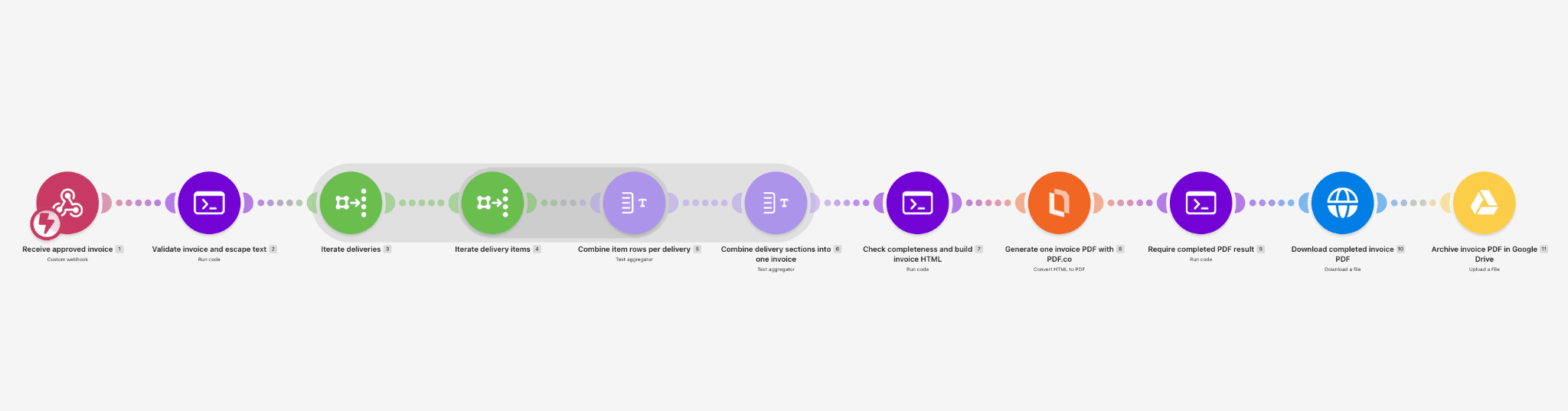
The scenario uses a webhook, three JavaScript modules, two Iterators, two Text aggregators, PDF.co, HTTP, and Google Drive.
Prerequisites
Before starting, prepare:
- A Make account with access to modules that run JavaScript.
- A PDF.co account with an API key and available credits.
- A Google Drive account and a folder for generated invoices.
- An HTTP client or terminal that can send a JSON POST request.
The mapping references below use module numbers from the example scenario. When building your own scenario, select the corresponding fields from Make’s mapping panel. If your module numbers differ, update the references accordingly.
IN THIS TUTORIAL
Step 1: Create a New Scenario and Add a Webhook
Create a new scenario in Make.
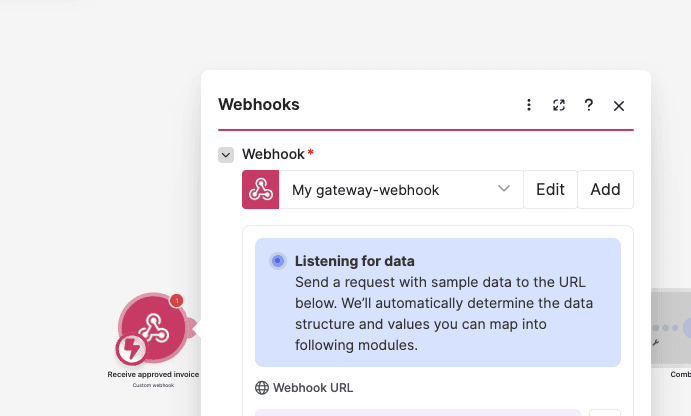
Add Webhooks → Custom webhook as the first module and name it:
Receive approved invoice
Open the module and create a webhook named:
Approved Invoice Webhook
Save the webhook and copy its generated URL. You’ll use that URL to send invoice data to the scenario.
Step 2: Send Sample Invoice Data
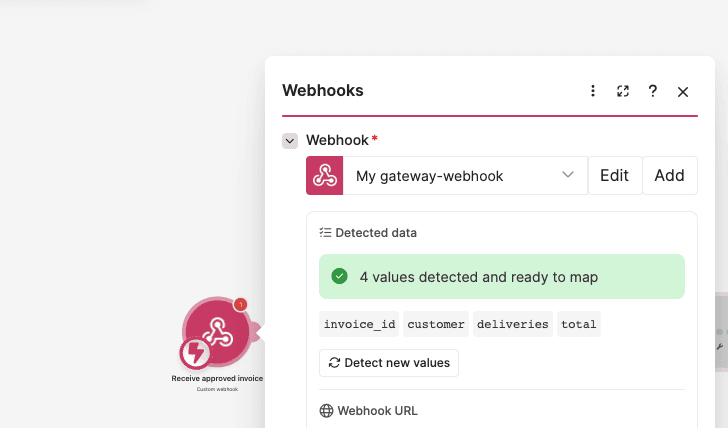
Use the following sample invoice to establish the webhook’s input structure. It contains invoice INV-204, two deliveries, three line items, and a total of 71.00.
{
  "invoice_id": "INV-204",
  "customer": "Example Customer",
  "deliveries": [
    {
      "delivery_id": "DEL-18",
      "date": "2026-11-02",
      "items": [
        {
          "description": "Blue folders",
          "quantity": 4,
          "line_total": "32.00"
        },
        {
          "description": "Storage boxes",
          "quantity": 2,
          "line_total": "24.00"
        }
      ],
      "subtotal": "56.00"
    },
    {
      "delivery_id": "DEL-19",
      "date": "2026-11-03",
      "items": [
        {
          "description": "Packing tape",
          "quantity": 3,
          "line_total": "15.00"
        }
      ],
      "subtotal": "15.00"
    }
  ],
  "total": "71.00"
}
Click Run once in Make, then send the sample using:
- Method: POST.
- URL: Your webhook URL.
- Content-Type:
application/json. - Request body: The JSON above.
To send the request from a terminal, save the sample as sample-invoice-input.json and replace the placeholder in this command with your webhook URL:
curl --request POST 'YOUR_MAKE_WEBHOOK_URL' \
  --header 'Content-Type: application/json' \
  --data-binary '@sample-invoice-input.json'
Open the webhook’s output and check that the invoice fields and nested arrays were received.
Keep monetary display values as strings, such as "32.00", so the scenario can preserve their decimal formatting.
Step 3: Add JavaScript to Validate the Invoice
Add a Code module after the webhook and name it:
Validate invoice and escape text
Configure:
- Language: JavaScript.
- Input format: Code editor.
- Additional dependencies: Leave empty.
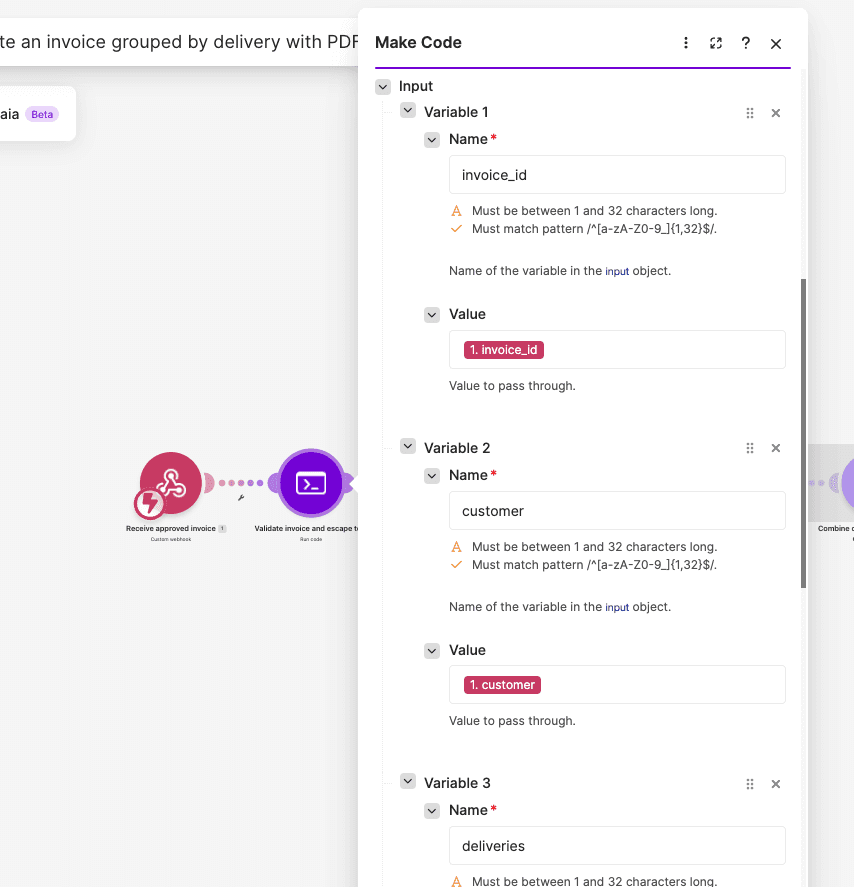
Under Input, create these variables:
invoice_id: Map the webhook’sinvoice_id—1.invoice_id.customer: Map the webhook’scustomer—1.customer.deliveries: Map the completedeliveriesarray —1.deliveries.total: Map the webhook’stotal—1.total.expected_delivery_ids: Leave empty for this sample. When your source supplies this optional array, map it from the webhook.
The optional expected_delivery_ids field lets the script compare the received deliveries against a separate list of expected delivery IDs. Without it, validation checks the deliveries that were received; it cannot detect a delivery that the source omitted entirely.
Paste this complete JavaScript into the Code field:
// Validate one approved invoice, then escape values for the native Text aggregators.
// Do not compute tax, discounts, subtotals or the payable total here.
// Input mappings come from the Custom webhook. No network calls are made.
const fail = message => { throw new Error(message); };
const object = (value, label) => {
if (!value || typeof value !== 'object' || Array.isArray(value)) {
fail(`${label} must be an object.`);
}
return value;
};
const text = (value, label) => {
if (typeof value !== 'string' || !value.trim()) {
fail(`${label} is required and must be text.`);
}
return value.trim();
};
const amount = (value, label) => {
// Preserve the source's approved display value, including decimal places.
if (typeof value === 'number') {
if (!Number.isFinite(value)) fail(`${label} must be finite.`);
return String(value);
}
if (typeof value !== 'string' || !value.trim()) {
fail(`${label} is required.`);
}
return value.trim();
};
const array = (value, label) => {
let decoded = value;
if (typeof decoded === 'string') {
try {
decoded = JSON.parse(decoded);
} catch {
fail(`${label} must be an array or a JSON-encoded array.`);
}
}
if (!Array.isArray(decoded)) fail(`${label} must be an array.`);
return decoded;
};
const escapeHtml = value => String(value).replace(/[&<>"']/g, ch => ({
'&': '&',
'<': '<',
'>': '>',
'"': '"',
"'": '''
}[ch]));
const isoDate = (value, label) => {
const s = text(value, label);
if (!/^\d{4}-\d{2}-\d{2}$/.test(s)) {
fail(`${label} must use YYYY-MM-DD.`);
}
const date = new Date(`${s}T00:00:00.000Z`);
if (
!Number.isFinite(date.getTime()) ||
date.toISOString().slice(0, 10) !== s
) {
fail(`${label} is not a valid calendar date.`);
}
return s;
};
const invoiceId = text(input.invoice_id, 'invoice_id');
const customer = text(input.customer, 'customer');
const total = amount(input.total, 'total');
const rawDeliveries = array(input.deliveries, 'deliveries');
if (!rawDeliveries.length) {
fail('deliveries must contain at least one delivery. Nothing will be generated.');
}
const deliveryIds = new Set();
let itemCount = 0;
const deliveries = rawDeliveries.map((entry, deliveryIndex) => {
const d = object(entry, `deliveries[${deliveryIndex}]`);
const deliveryId = text(
d.delivery_id,
`deliveries[${deliveryIndex}].delivery_id`
);
if (deliveryIds.has(deliveryId)) {
fail(`Duplicate delivery_id: ${deliveryId}.`);
}
deliveryIds.add(deliveryId);
const date = isoDate(d.date, `Delivery ${deliveryId}: date`);
const subtotal = amount(d.subtotal, `Delivery ${deliveryId}: subtotal`);
const rawItems = array(d.items, `Delivery ${deliveryId}: items`);
if (!rawItems.length) {
fail(`Delivery ${deliveryId} has no items. Do not silently omit it.`);
}
// Internal ordinal keys do not replace the source invoice/delivery/item IDs.
const deliveryKey = `d${deliveryIndex + 1}`;
const itemIds = new Set();
const items = rawItems.map((entry, index) => {
const item = object(
entry,
`Delivery ${deliveryId}: item ${index + 1}`
);
const description = text(
item.description,
`Delivery ${deliveryId}: item ${index + 1} description`
);
if (
!['string', 'number'].includes(typeof item.quantity) ||
String(item.quantity).trim() === ''
) {
fail(`Delivery ${deliveryId}: item ${index + 1} quantity is required.`);
}
const quantity = Number(item.quantity);
if (!Number.isFinite(quantity) || quantity <= 0) {
fail(`Delivery ${deliveryId}: item ${index + 1} quantity must be positive.`);
}
const lineTotal = amount(
item.line_total,
`Delivery ${deliveryId}: item ${index + 1} line_total`
);
let itemId = '';
if (
item.item_id !== undefined &&
item.item_id !== null &&
item.item_id !== ''
) {
itemId = text(item.item_id, `Delivery ${deliveryId}: item_id`);
if (itemIds.has(itemId)) {
fail(`Duplicate item_id within delivery ${deliveryId}: ${itemId}.`);
}
itemIds.add(itemId);
}
itemCount += 1;
return {
item_key: `${deliveryKey}-i${index + 1}`,
source_item_id: itemId,
description_html: escapeHtml(description),
quantity_html: escapeHtml(String(item.quantity).trim()),
line_total_html: escapeHtml(lineTotal)
};
});
return {
delivery_key: deliveryKey,
delivery_id: deliveryId,
delivery_id_html: escapeHtml(deliveryId),
date_html: escapeHtml(date),
subtotal_html: escapeHtml(subtotal),
items
};
});
// Optional extension: a source-system manifest detects deliveries omitted upstream.
// Without it, completeness is measured against the received deliveries array only.
const expectedInput = input.expected_delivery_ids;
if (
expectedInput !== undefined &&
expectedInput !== null &&
expectedInput !== ''
) {
const expectedIds = array(expectedInput, 'expected_delivery_ids').map(
(value, index) => text(value, `expected_delivery_ids[${index}]`)
);
if (!expectedIds.length || new Set(expectedIds).size !== expectedIds.length) {
fail('expected_delivery_ids must be a non-empty list of unique IDs when supplied.');
}
const expected = new Set(expectedIds);
const missing = expectedIds.filter(id => !deliveryIds.has(id));
const extra = [...deliveryIds].filter(id => !expected.has(id));
if (missing.length || extra.length) {
fail(
`Delivery manifest mismatch. Missing: ${missing.join(', ') || 'none'}. ` +
`Unexpected: ${extra.join(', ') || 'none'}.`
);
}
}
const manifest = deliveries.map(d => ({
delivery_key: d.delivery_key,
delivery_id: d.delivery_id,
item_keys: d.items.map(item => item.item_key),
subtotal_html: d.subtotal_html
}));
const safeId = invoiceId
.replace(/[\\/:*?"<>|\x00-\x1f]/g, '-')
.slice(0, 150);
if (!safeId || /^\.+$/.test(safeId)) {
fail('invoice_id cannot produce a valid filename.');
}
return {
invoice_id: invoiceId,
invoice_id_html: escapeHtml(invoiceId),
customer_html: escapeHtml(customer),
total_html: escapeHtml(total),
filename: `invoice-${safeId}.pdf`,
delivery_count: deliveries.length,
item_count: itemCount,
deliveries,
manifest_json: JSON.stringify(manifest)
};This script validates required fields, checks dates and positive quantities, rejects duplicate delivery IDs, and escapes displayed values before they are inserted into HTML. Optional item IDs are checked for duplicates within each delivery.
Save the module and test the scenario up to this point. For the supplied sample, inspect the Code module’s Result and confirm:
filename:invoice-INV-204.pdf.delivery_count:2.item_count:3.deliveries: Two validated delivery objects.manifest_json: A JSON string describing the expected delivery and item keys.
Step 4: Add an Iterator for Deliveries
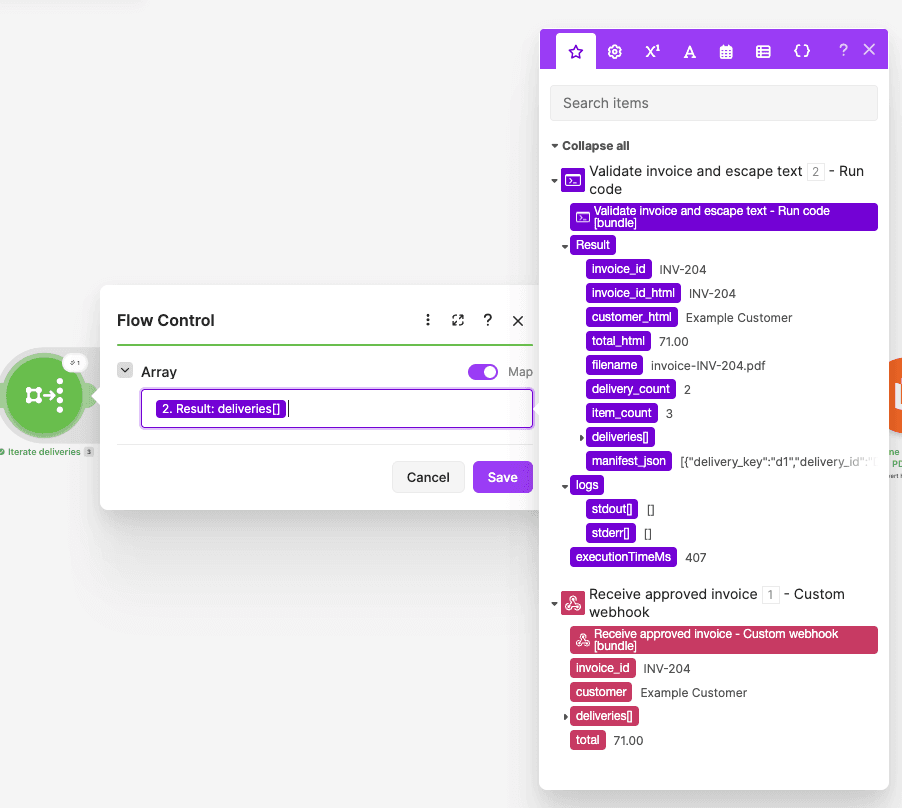
Add an Iterator after the validation module and name it:
Iterate deliveries
Configure:
- Array: Map Result → deliveries from the validation module —
2.result.deliveries.
This is the outer Iterator. Its input is the validated list of deliveries, rather than the original webhook array.
For the sample invoice, inspect the output for the two deliveries: DEL-18 and DEL-19.
Step 5: Add an Iterator for Delivery Items
Add another Iterator and name it:
Iterate delivery items
Configure:
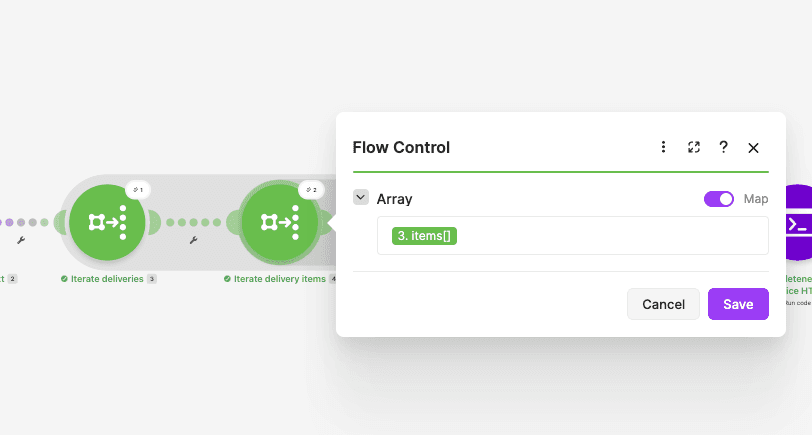
- Array: Map
itemsfrom the delivery Iterator —3.items.
This is the inner Iterator. It receives the items belonging to the current delivery.
For the sample:
DEL-18contains Blue folders and Storage boxes.DEL-19contains Packing tape.
Step 6: Combine Item Rows for Each Delivery
Add a Text aggregator after the item Iterator and name it:
Combine item rows per delivery
Configure:
- Source module: Iterate delivery items — module
4. - Row separator: Other.
- Separator: Leave empty.
Paste this HTML into the Text field:
<tr data-item-key="{{4.item_key}}"><td class="description">{{4.description_html}}</td><td class="quantity">{{4.quantity_html}}</td><td class="amount">{{4.line_total_html}}</td></tr>
The mapped fields all come from the item Iterator. Each item becomes an HTML row containing its description, quantity, and approved line total. The data-item-key attribute is used by the later completeness check.
Select the item Iterator as this aggregator’s source, not the delivery Iterator. The delivery-level aggregation is handled by the next module.
Step 7: Combine Delivery Sections into One Invoice
Add a second Text aggregator and name it:
Combine delivery sections into one invoice
Configure:
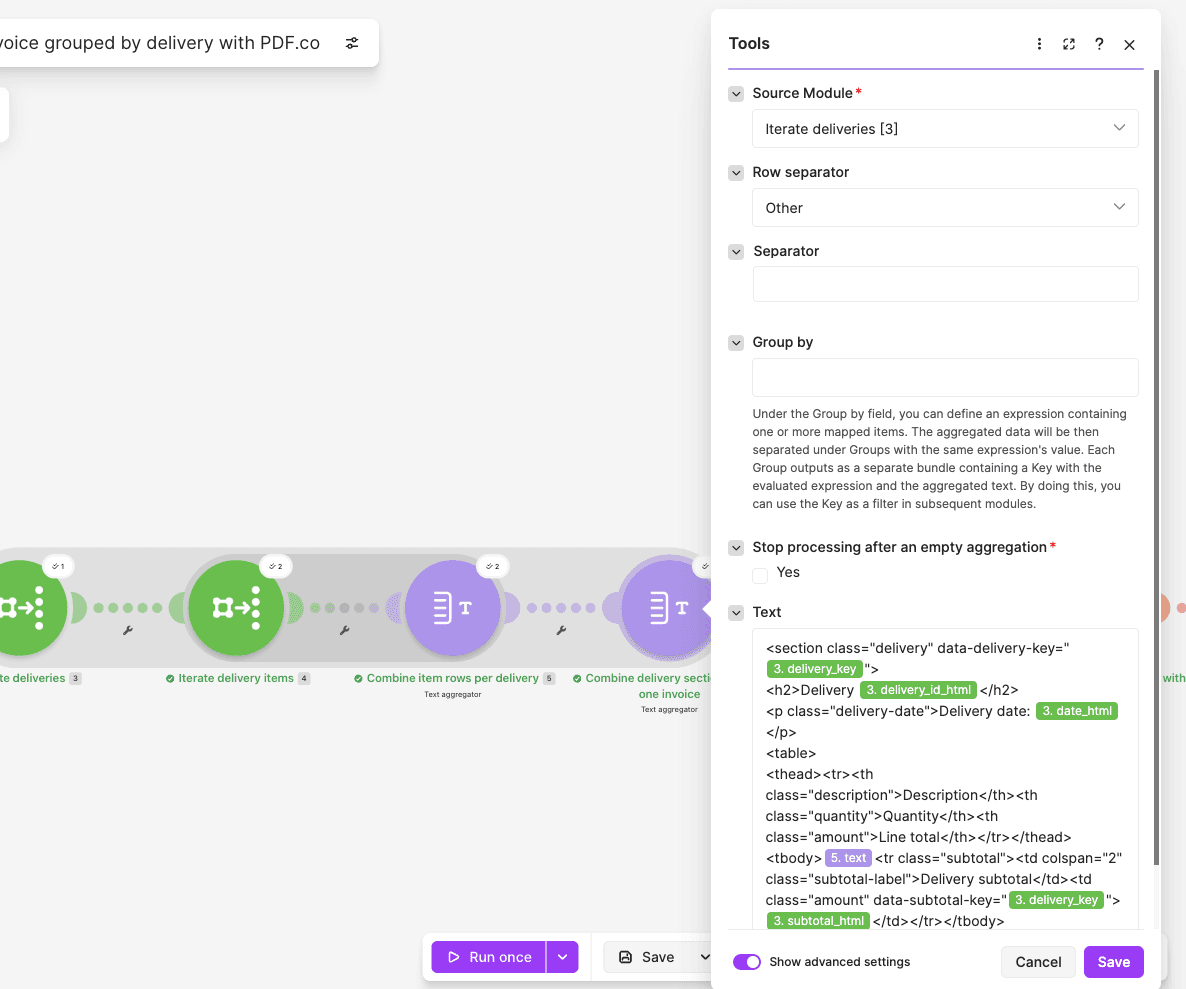
- Source module: Iterate deliveries — module
3. - Row separator: Other.
- Separator: Leave empty.
Paste the following HTML into the Text field:
<section class="delivery" data-delivery-key="{{3.delivery_key}}">
<h2>Delivery {{3.delivery_id_html}}</h2>
<p class="delivery-date">Delivery date: {{3.date_html}}</p>
<table>
<thead><tr><th class="description">Description</th><th class="quantity">Quantity</th><th class="amount">Line total</th></tr></thead>
<tbody>{{5.text}}<tr class="subtotal"><td colspan="2" class="subtotal-label">Delivery subtotal</td><td class="amount" data-subtotal-key="{{3.delivery_key}}">{{3.subtotal_html}}</td></tr></tbody>
</table>
</section>
The template combines the delivery ID, date, item rows from 5.text, and approved delivery subtotal. The aggregator’s source is the outer delivery Iterator, so this stage is configured to combine the delivery sections into one invoice body.
Keep the data-delivery-key, data-item-key, and data-subtotal-key attributes. The next script uses them to check the assembled HTML.
Also keep the subtotal value directly between its opening and closing <td> tags, as shown above. The script compares that cell’s contents exactly, so inserting spaces or line breaks around {{3.subtotal_html}} causes a subtotal mismatch.
Step 8: Verify the Grouped Content and Build the Invoice HTML
Add another Code module and name it:
Check completeness and build invoice HTML
Configure:
- Language: JavaScript.
- Input format: Code editor.
- Additional dependencies: Leave empty.
Create these input variables:
sections_html: Map the second Text aggregator’s text —6.text.invoice_id_html: Map2.result.invoice_id_html.customer_html: Map2.result.customer_html.total_html: Map2.result.total_html.filename: Map2.result.filename.manifest_json: Map2.result.manifest_json.delivery_count: Map2.result.delivery_count.item_count: Map2.result.item_count.
The script checks the assembled delivery sections against the manifest created in Step 3, then wraps the sections in a complete HTML document.
Paste this complete JavaScript into the Code field:
// Runs after BOTH Text aggregators: verify completeness before PDF.co.
const fail = message => { throw new Error(message); };

const requiredText = key => {
  if (typeof input[key] !== 'string' || !input[key].trim()) {
    fail(`Missing ${key} after aggregation.`);
  }
  return input[key];
};

const sections = requiredText('sections_html');
const invoiceIdHtml = requiredText('invoice_id_html');
const customerHtml = requiredText('customer_html');
const totalHtml = requiredText('total_html');
const filename = requiredText('filename');

let manifest;

try {
  manifest = JSON.parse(requiredText('manifest_json'));
} catch {
  fail('Missing or invalid invoice manifest after aggregation.');
}

if (!Array.isArray(manifest) || !manifest.length) {
  fail('The manifest must contain deliveries.');
}

const expectedItems = Number(input.item_count);
const expectedDeliveries = Number(input.delivery_count);

if (
  !Number.isSafeInteger(expectedItems) ||
  expectedItems < 1 ||
  !Number.isSafeInteger(expectedDeliveries) ||
  expectedDeliveries < 1 ||
  manifest.length !== expectedDeliveries
) {
  fail('Invalid expected delivery or item count.');
}

// Marker keys are generated internally, never from unescaped user text.
const blocks = [
  ...sections.matchAll(
    /<section\b[^>]*data-delivery-key="([^"]+)"[^>]*>([\s\S]*?)<\/section>/g
  )
];

if (blocks.length !== expectedDeliveries) {
  fail(
    `Delivery count mismatch: expected ${expectedDeliveries}, ` +
    `received ${blocks.length}.`
  );
}

let observedItems = 0;

for (let index = 0; index < manifest.length; index++) {
  const expected = manifest[index];
  const [, key, body] = blocks[index];

  if (key !== expected.delivery_key) {
    fail(`Delivery order/key mismatch at ${expected.delivery_id}.`);
  }

  const itemKeys = [
    ...body.matchAll(/<tr\b[^>]*data-item-key="([^"]+)"[^>]*>/g)
  ].map(match => match[1]);

  if (JSON.stringify(itemKeys) !== JSON.stringify(expected.item_keys)) {
    fail(
      `Missing, repeated or misplaced item rows in delivery ` +
      `${expected.delivery_id}.`
    );
  }

  const subtotalValues = [
    ...body.matchAll(
      /<td\b[^>]*data-subtotal-key="([^"]+)"[^>]*>([\s\S]*?)<\/td>/g
    )
  ];

  if (
    subtotalValues.length !== 1 ||
    subtotalValues[0][1] !== key ||
    subtotalValues[0][2] !== expected.subtotal_html
  ) {
    fail(`Subtotal mismatch in delivery ${expected.delivery_id}.`);
  }

  observedItems += itemKeys.length;
}

const allItemRows = [
  ...sections.matchAll(/<tr\b[^>]*data-item-key="([^"]+)"[^>]*>/g)
];

if (
  observedItems !== expectedItems ||
  allItemRows.length !== expectedItems
) {
  fail('The assembled item count does not match the approved source.');
}

// No tax, discounts, currency, terms or legal claims are invented here.
// Amounts below are supplied by the upstream accounting/order system.
const html = `<!doctype html>
<html lang="en">
<head>
<meta charset="utf-8">
<title>Invoice ${invoiceIdHtml}</title>
<style>
  * {
    box-sizing: border-box;
  }

  body {
    margin: 0;
    font-family: Arial, Helvetica, sans-serif;
    font-size: 12px;
    line-height: 1.45;
    color: #20242b;
  }

  header {
    margin-bottom: 22px;
    border-bottom: 2px solid #20242b;
    padding-bottom: 12px;
  }

  h1 {
    margin: 0 0 8px;
    font-size: 25px;
  }

  h2 {
    margin: 20px 0 4px;
    font-size: 16px;
    break-after: avoid;
    page-break-after: avoid;
  }

  .customer {
    margin: 0;
  }

  .delivery-date {
    margin: 0 0 8px;
    color: #555;
    break-after: avoid;
    page-break-after: avoid;
  }

  table {
    width: 100%;
    border-collapse: collapse;
    table-layout: fixed;
  }

  td, th {
    padding: 7px;
    border-bottom: 1px solid #ddd;
    text-align: left;
    vertical-align: top;
    overflow-wrap: anywhere;
  }

  th {
    background: #f3f4f6;
    font-weight: bold;
  }

  thead {
    display: table-header-group;
  }

  tr {
    break-inside: avoid;
    page-break-inside: avoid;
  }

  .description {
    width: 62%;
    white-space: pre-line;
  }

  .quantity {
    width: 13%;
    text-align: right;
  }

  .amount {
    width: 25%;
    text-align: right;
  }

  .subtotal {
    break-before: avoid;
    page-break-before: avoid;
    font-weight: bold;
  }

  .subtotal-label {
    text-align: right;
  }

  .invoice-total {
    margin-top: 22px;
    padding-top: 12px;
    border-top: 2px solid #20242b;
    text-align: right;
    font-size: 18px;
    font-weight: bold;
    break-inside: avoid;
    page-break-inside: avoid;
  }

  p {
    orphans: 3;
    widows: 3;
  }
</style>
</head>
<body>
<header>
  <h1>Invoice ${invoiceIdHtml}</h1>
  <p class="customer">Customer: ${customerHtml}</p>
</header>
${sections}
<p class="invoice-total">Total: ${totalHtml}</p>
</body>
</html>`;

return {
  html,
  filename,
  delivery_count: expectedDeliveries,
  item_count: expectedItems
};
This module checks delivery order, item keys, item counts, and the exact subtotal values in the assembled HTML. These are structural checks; they do not independently verify the invoice’s financial arithmetic or inspect the final rendered PDF.
Inspect the output and confirm that Result → html contains the invoice header, both delivery sections, and the final total.
Step 9: Generate the PDF with PDF.co
Add the PDF.co HTML to PDF module and name it:
Generate one invoice PDF with PDF.co
Create or select a PDF.co connection using your API key.
Configure:
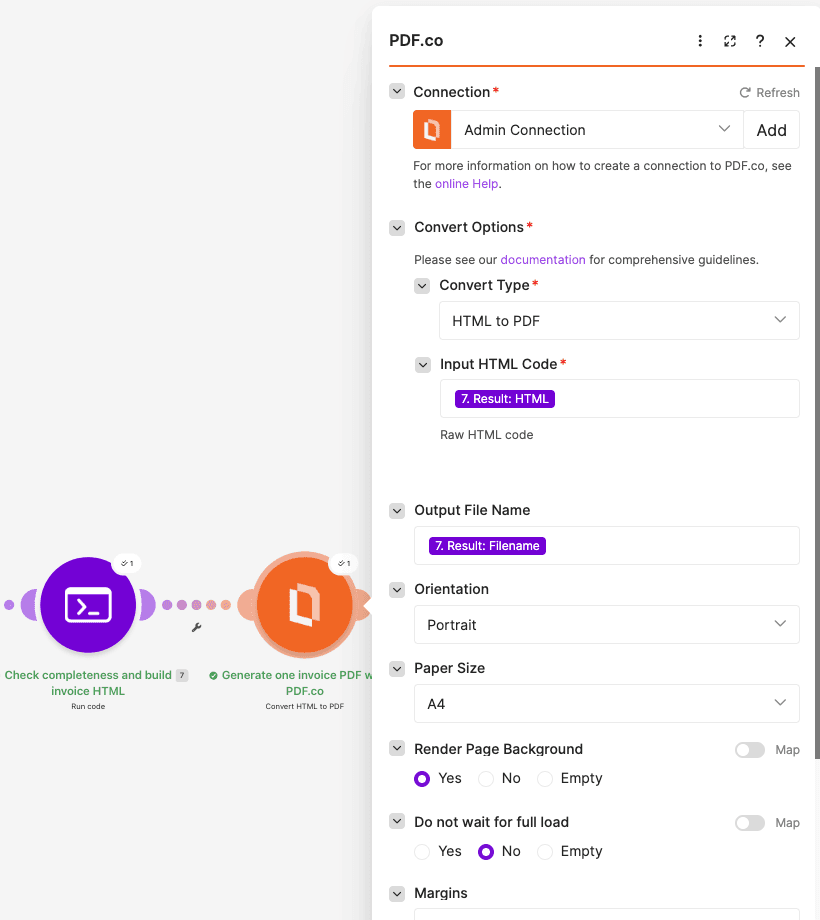
- Convert Type: HTML to PDF.
- Input HTML Code: Map
7.result.html. - Output File Name: Map
7.result.filename. - Paper Size: A4.
- Orientation: Portrait.
- Margins:
15mm. - Render Page Background: Yes.
- Do not wait for full load: No.
- Execution Mode: Async.
- Output Links Expiration:
60. - Export Type: JSON Output.
These settings match the supplied workflow configuration.
The scenario uses the returned PDF URL in the following steps. Select Async, rather than the separate check-later option, because the next module expects a result that includes a usable output URL.
Step 10: Verify the PDF.co Result
Add a third Code module and name it:
Require completed PDF result
Configure:
- Language: JavaScript.
- Input format: Code editor.
- Additional dependencies: Leave empty.
Create these input variables:
pdf_url: Map PDF.co’s URL —8.url.error: Map PDF.co’s error indicator —8.error.status: Map PDF.co’s status —8.status.filename: Map the HTML-building module’s filename —7.result.filename.
The script rejects an explicit error, an unsuccessful or unfinished status when supplied, an invalid output URL, or a filename that does not end in .pdf.
Paste this complete JavaScript:
// A submission/job ID alone is not a completed PDF. Fail before download.
const errorValue = input.error;

const noError =
  errorValue === undefined ||
  errorValue === null ||
  errorValue === '' ||
  errorValue === false ||
  errorValue === 0 ||
  String(errorValue).toLowerCase() === 'false';

if (!noError) {
  throw new Error(
    'PDF.co reported an error. Review the conversion module; ' +
    'do not archive a partial result.'
  );
}

const status = String(input.status ?? '').trim().toLowerCase();
const numeric = status === '' ? NaN : Number(status);

if (
  (
    Number.isFinite(numeric) &&
    (numeric < 200 || numeric >= 300 || numeric === 202)
  ) ||
  (
    status &&
    !Number.isFinite(numeric) &&
    !['success', 'complete', 'completed', 'finished'].includes(status)
  )
) {
  throw new Error(
    `PDF.co has not returned a successful completed result ` +
    `(status: ${status}).`
  );
}

const url = String(input.pdf_url ?? '').trim();

try {
  const parsed = new URL(url);

  if (
    !['https:', 'http:'].includes(parsed.protocol) ||
    !parsed.hostname ||
    parsed.username ||
    parsed.password
  ) {
    throw new Error();
  }
} catch {
  throw new Error(
    'No completed PDF URL was returned. Use Async wait mode, ' +
    'or finish Job Check before continuing.'
  );
}

const filename = String(input.filename ?? '').trim();

if (!filename.endsWith('.pdf')) {
  throw new Error('A PDF filename is required.');
}

return {
  pdf_url: url,
  filename
};
This module validates the response fields; it does not download or inspect the PDF itself.
If the conversion returns only a pending job rather than a completed output URL, do not bypass this check. A job-checking stage would need to complete before the download step. The supplied scenario does not include that additional stage.
Step 11: Download the Invoice PDF
Add HTTP → Download a file and name it:
Download completed invoice PDF
Configure:
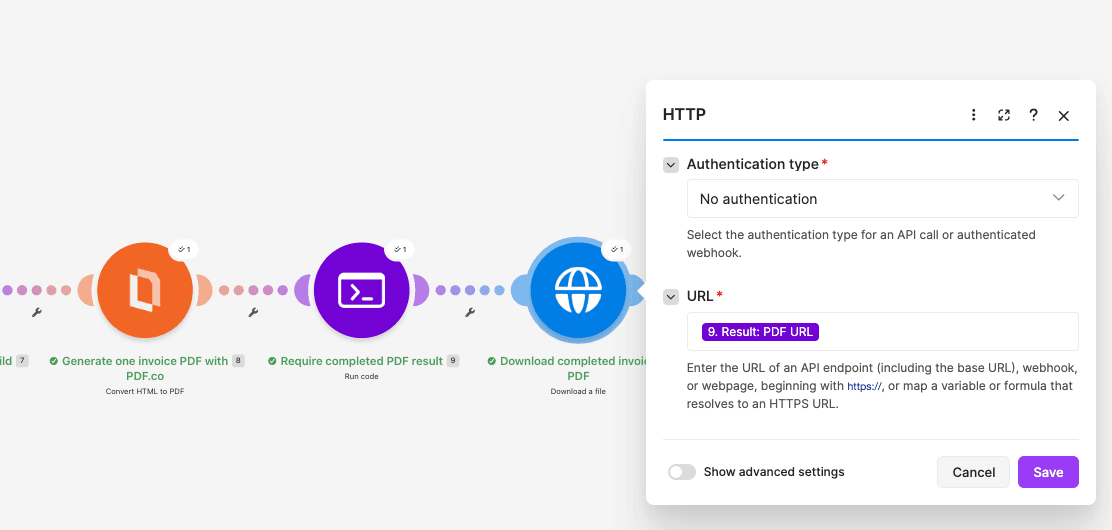
- Authentication type: No authentication.
- URL: Map
9.result.pdf_url. - Return error if HTTP request fails: Yes.
- Share cookies with other HTTP modules: No.
The downloaded file’s Data output is the binary file content used by the Google Drive upload module.
Step 12: Save the Invoice to Google Drive
Add Google Drive → Upload a file and name it:
Archive invoice PDF in Google Drive
Connect your Google Drive account and select the destination folder.
Configure:
- New Drive Location: My Drive.
- New Folder Location: Select your invoice archive folder.
- New File Name: Map
9.result.filename. - File Name: Map
9.result.filename. - Data: Map the HTTP module’s
10.data. - Convert a File: No.
Use the downloaded Data, not the PDF URL, in the upload’s file-data field. These filename and data mappings match the supplied workflow.
Step 13: Test the Complete Scenario
Save the scenario, click Run once, and send the sample invoice JSON to the webhook again.
Review the execution from left to right:
- Confirm that validation returns two deliveries and three line items.
- Check that the delivery Iterator receives both deliveries.
- Inspect the first Text aggregator’s output to confirm each delivery has its own item rows.
- Inspect the second Text aggregator’s output to confirm both delivery sections are combined.
- Confirm the HTML-building module completes without a delivery, item, or subtotal mismatch.
- Check that PDF.co returns a usable PDF URL and the response-validation module accepts it.
- Confirm the HTTP module downloads the file and Google Drive receives its binary data.
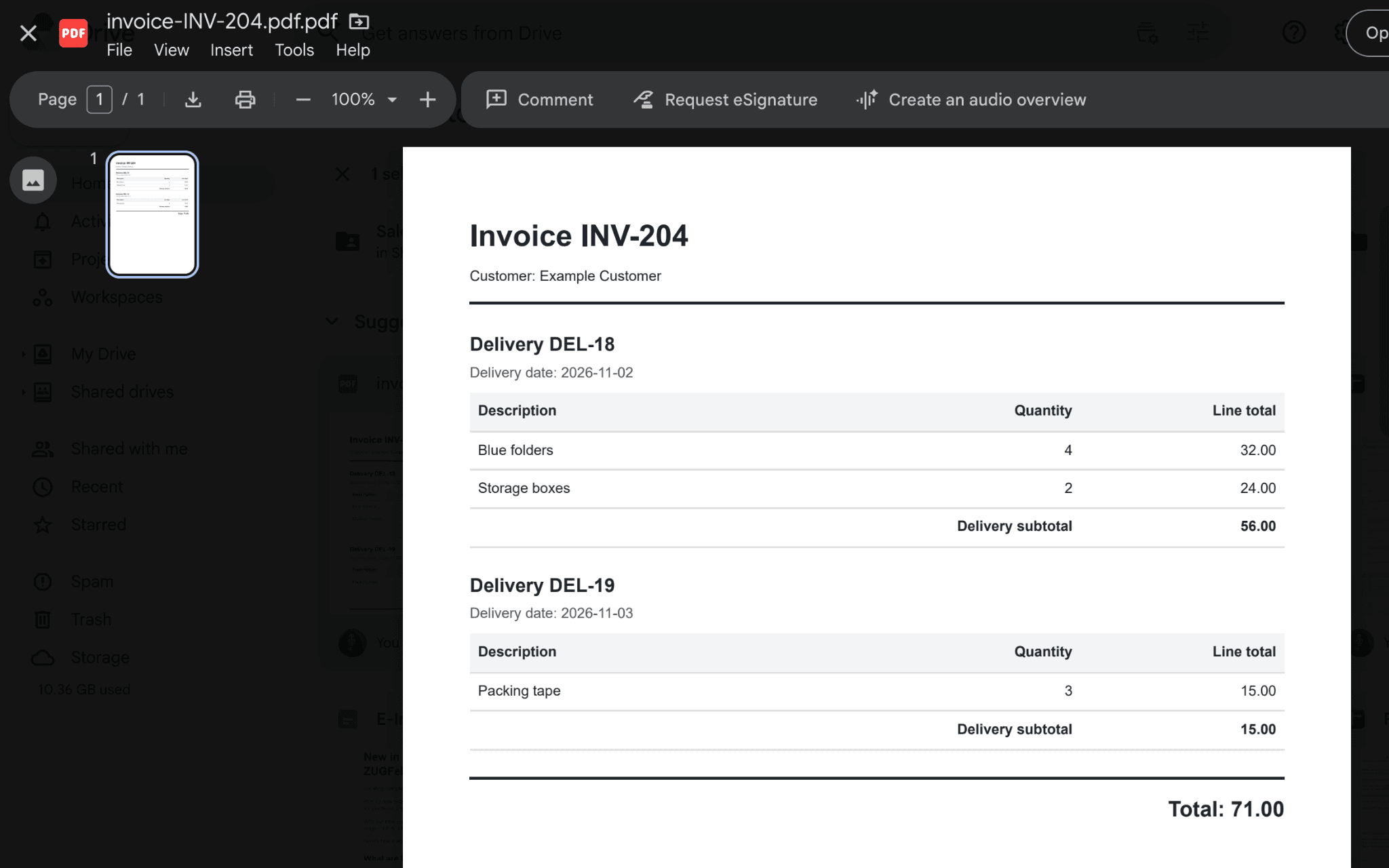
Locate the expected file in Google Drive:
invoice-INV-204.pdf
Open the PDF and compare it with the sample input:
- Invoice: INV-204.
- Customer: Example Customer.
- Delivery DEL-18 — November 2, 2026:
- Blue folders: quantity 4, line total 32.00. - Storage boxes: quantity 2, line total 24.00. - Delivery subtotal: 56.00.
- Delivery DEL-19 — November 3, 2026:
- Packing tape: quantity 3, line total 15.00. - Delivery subtotal: 15.00.
- Invoice total:
71.00.
The sample does not specify a currency, and the template does not add one.
Test the Validation Rules
Before using real invoice data, send a few deliberately invalid test payloads:
- Give both deliveries the same
delivery_id. - Replace a delivery date with an invalid date, such as
2026-02-30. - Set an item’s quantity to
0. - Replace one delivery’s
itemsarray with an empty array.
Each of these cases should stop at the first JavaScript module before PDF generation.
Troubleshooting
- The webhook receives no data: Check the webhook URL, confirm the request uses POST, and send the body as JSON while the scenario is listening.
- Validation reports a missing or invalid field: Review the Code module’s input mappings and the error message. Map the complete deliveries array, not a single delivery or a text label.
- `expected_delivery_ids` causes an error: Leave it empty for the provided sample. When supplied, it must be a non-empty array of unique IDs matching the deliveries received.
- Delivery or item counts do not match: Check both aggregator source modules. The first must use the item Iterator; the second must use the delivery Iterator. Keep the internal
data-*attributes in the HTML templates. - A subtotal mismatch appears even though the amount looks correct: Restore the subtotal cell exactly as shown in Step 7. Extra whitespace inside that cell changes the value compared by the script.
- No completed PDF URL is available: Review the PDF.co result and execution mode. Do not pass a pending job ID into the HTTP download step.
- Google Drive does not receive a valid file: Confirm that its Data field maps to the HTTP module’s binary
dataoutput, and check the connection and destination folder.
Conclusion
This scenario turns approved invoice data into one PDF organized by delivery. The JavaScript modules validate the input and assembled content, the Iterators and Text aggregators build the delivery sections, and PDF.co generates the document for archiving in Google Drive.
After completing the sample test, connect your source system to the webhook and supply invoice data using the same structure.
Related Tutorials