Generate and Email a Combined PDF Packet from Airtable Records with Make and PDF.co
When customers request multiple documents, sending a separate PDF for every record can make the information difficult to review and organize. A single combined PDF is often easier to download, share, and archive.
With Make and PDF.co, you can automatically generate PDFs from selected Airtable records, merge them in the requested order, and email the combined document as one attachment.
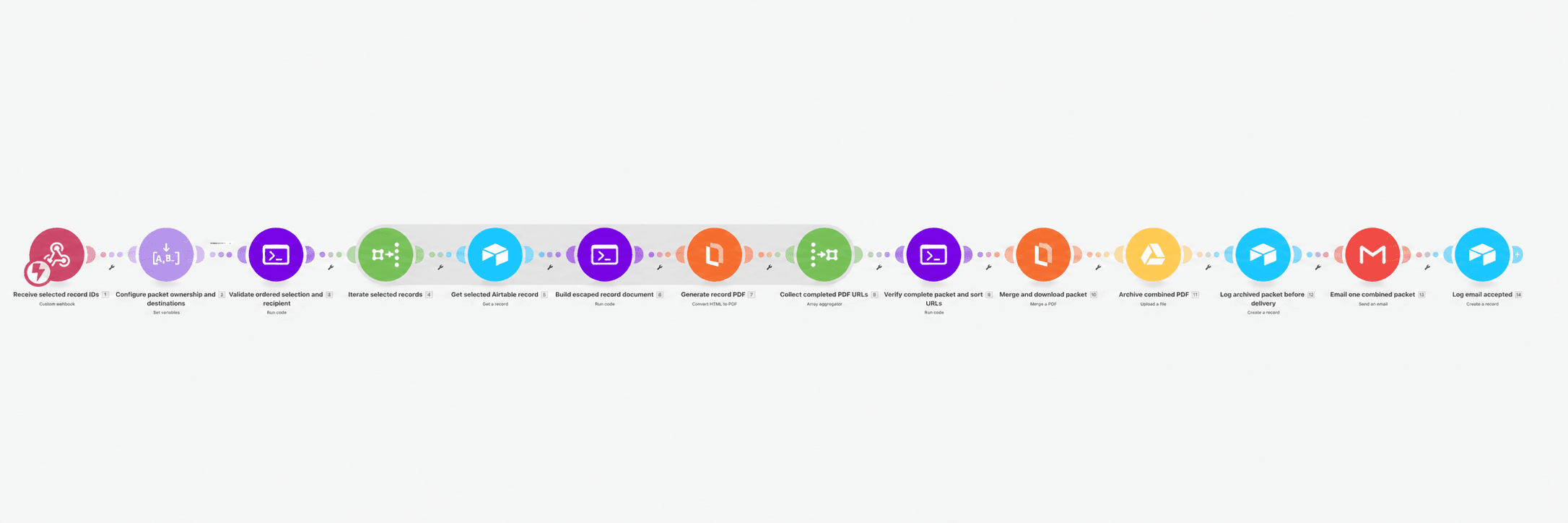
In this tutorial, you'll build a Make scenario that receives a list of selected Airtable record IDs, retrieves the approved record details, generates individual PDFs, and merges them using PDF.co. The scenario then archives the completed packet in Google Drive, logs the request in Airtable, and sends one email through Gmail.
You'll also configure validation, duplicate prevention, and error handling so missing records or failed conversions don't result in incomplete document packets.
Prerequisites
Before starting, you'll need:
- A Make account with access to Make Code and Data stores.
- An Airtable account containing the records you want to turn into PDFs.
- A PDF.co account with an API key and available credits.
- A Google Drive account with an approved folder for archived documents.
- A Gmail account authorized to send the document packets.
- An authenticated source for document requests and recipient information.
This workflow generates new PDFs from Airtable record data. It does not merge pre-existing PDF attachments stored in Airtable.
The example record structure uses the Airtable fields Title, Details, and Owner ID. You can customize the HTML and field mappings for your own business documents.
IN THIS TUTORIAL
Step 1: Prepare the Airtable Tables
Open your Airtable base and identify the table containing the records you want to include in PDF packets.
Each record should contain:
- Title: The document heading.
- Details: The text or description that will appear in the PDF.
- Owner ID: A stable identifier connecting the record to its authorized account or customer.
A record might contain:
- Title: Service Summary A.
- Details: Completed maintenance services for the selected property.
- Owner ID:
owner-example.
The scenario will also use Airtable's internal Record ID, which typically begins with rec.
Create a packet delivery log
Create a second Airtable table to track document packet generation and delivery.
Add these fields:
- Packet ID: A unique identifier for the requested packet.
- Stored File Link: The permanent Google Drive document URL.
- Archive File ID: The Google Drive file identifier.
- Document Count: Number of records included in the packet.
- Recipient: The authorized recipient email address.
- Delivery Status: The current packet delivery event.
- Ordered Record IDs: The IDs of the records included in the packet, in their selected order.
- Message ID: Optional Gmail message identifier.
The workflow creates a log record after archiving and another after Gmail accepts the email.
These are separate delivery events. If you prefer one record per packet, use Airtable's update operation instead of creating a second log record.
Step 2: Create the Make Scenario and Webhook
Sign in to Make and create a new scenario.
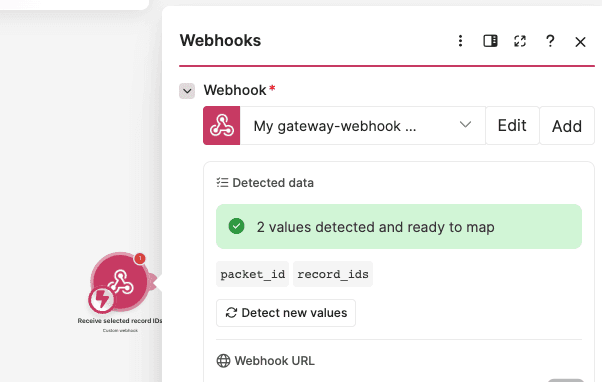
Add Webhooks > Custom webhook and name the module:
Receive selected record IDs
Create a webhook named:
Airtable PDF Packet Request
Save the webhook and copy its URL.
The webhook accepts a packet identifier and an ordered list of Airtable Record IDs.
For example:
{
  "packet_id": "PACK-204",
  "record_ids": [
    "recExampleA",
    "recExampleB",
    "recExampleC"
  ]
}
This example requests one packet containing three Airtable records.
The order of record_ids is significant. The finished PDF should contain the documents in exactly that order.
Click Run once in Make and send the sample JSON to the webhook using an HTTP POST request with the Content-Type: application/json header.
Inspect the webhook output and confirm that record_ids is an array.
Important: The webhook payload does not establish who owns the records or who should receive the packet. That information must come from a trusted account or authorization source.
Step 3: Resolve the Authorized Account and Recipient
Before retrieving documents, identify the account that owns the packet request.
Use your application's authenticated request context or an authorized lookup through the appropriate official Make app. For example, your account system may store:
- The authenticated account identifier.
- The email address authorized to receive document packets.
- The Airtable records that account is permitted to access.
Retrieve this information using trusted account data, not fields supplied by the webhook caller.
Create a JSON object representing the verified authorization context.
For example:
{
  "packet_id": "PACK-204",
  "owner_id": "owner-example",
  "recipient": "recipient@example.test",
  "authorized": true,
  "allowed_record_ids": [
    "recExampleA",
    "recExampleB",
    "recExampleC"
  ]
}
This is the normalized authorization-data format used by the workflow, not a webhook payload or raw Airtable response.
Set authorized to true only after your trusted authorization check succeeds. The recipient must be associated with the owning account, rather than copied from an arbitrary selected record.
Make sure that all selected Record IDs appear in the account's authorized record list.
If the owner or recipient cannot be verified, stop the request before generating any documents.
Step 4: Configure the Scenario Variables
Add Tools > Set multiple variables.
Name the module:
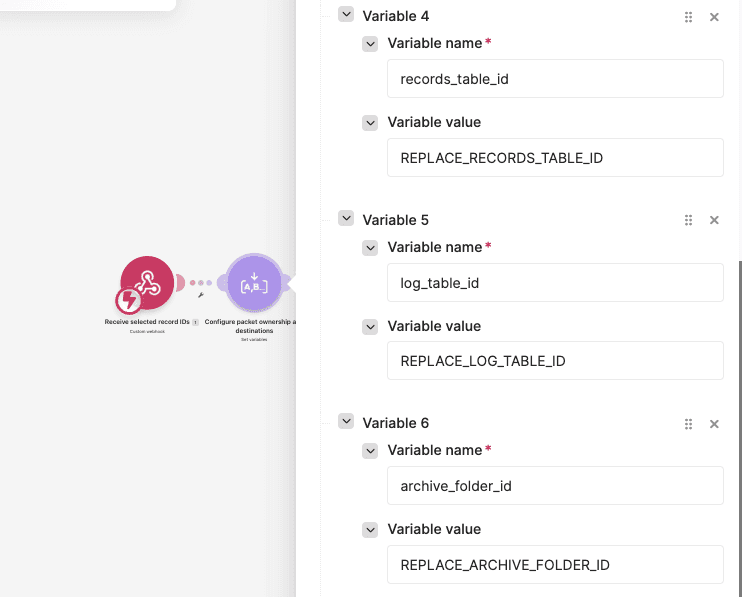
Configure packet ownership and destinations
Set the variable lifetime to One cycle.
Create these variables:
setup_complete: EnterNOinitially.owner_context_json: Map the verified JSON object from Step 3.base_id: Enter your approved Airtable base ID.records_table_id: Enter the source records table ID.log_table_id: Enter the packet delivery log table ID.archive_folder_id: Enter the approved Google Drive archive folder ID.
The base, table, and archive destinations are configuration values controlled by the scenario owner.
Do not accept these destinations from the webhook.
Once the connections, ownership lookup, field mappings, and failure-handling routes have been configured and tested, set setup_complete to YES.
Add a filter named:
Complete account-specific setup
Configure:
- Field:
setup_complete. - Condition: Text equals.
- Value:
YES.
This prevents the scenario from processing requests before the required setup is complete.
Step 5: Validate the Selected Record IDs
Add Make Code > Run code.
Name the module:
Validate ordered selection and recipient
Configure:
- Language: JavaScript.
- Input format: Code editor.
- Additional dependencies: Leave empty.
Under Input, create:
packet_id: Map the webhook'spacket_id.record_ids: Map the webhook's completerecord_idsarray.owner_context: Mapowner_context_jsonfrom the configuration variables.
Paste the following JavaScript into the Code editor:
const ctx=typeof input.owner_context==='string'?JSON.parse(input.owner_context):input.owner_context;
const ids=typeof input.record_ids==='string'?JSON.parse(input.record_ids):input.record_ids;
const packet=String(input.packet_id??'').trim();

if (!/^[A-Za-z0-9_-]{1,100}$/.test(packet))
  throw new Error('Invalid packet ID');

if (!ctx || ctx.authorized!==true || ctx.packet_id!==packet || !ctx.owner_id)
  throw new Error('Resolve authorized packet owner before generation');

if (!/^[^\s@<>,;]+@[^\s@<>,;]+\.[^\s@<>,;]+$/.test(ctx.recipient||''))
  throw new Error('Missing authorized owner recipient');

if (!Array.isArray(ids)||!ids.length)
  throw new Error('Select at least one record');

if (new Set(ids).size!==ids.length)
  throw new Error('Duplicate record IDs are not allowed');

if (!Array.isArray(ctx.allowed_record_ids))
  throw new Error('Missing trusted record allowlist');

for(const id of ids)
  if(
    typeof id!=='string' ||
    !/^rec[A-Za-z0-9]+$/.test(id) ||
    !ctx.allowed_record_ids.includes(id)
  )
    throw new Error('Invalid or unauthorized record: '+id);

return {
  packet_id:packet,
  owner_id:ctx.owner_id,
  recipient:ctx.recipient,
  expected_count:ids.length,
  selection:ids.map((record_id,i)=>({
    record_id,
    sequence:i+1
  })),
  filename:packet+'.pdf',
  request_key:JSON.stringify([ctx.owner_id,packet])
};
This script checks:
- The Packet ID is valid.
- The request has a verified owner.
- The recipient address is present.
- At least one record was selected.
- No Record ID is repeated.
- Every selected Record ID is authorized for the owning account.
Duplicate Record IDs are treated as an error rather than automatically removed.
The script also assigns a sequence number to each selected record.
For example:
[
  {
    "record_id": "recExampleA",
    "sequence": 1
  },
  {
    "record_id": "recExampleB",
    "sequence": 2
  },
  {
    "record_id": "recExampleC",
    "sequence": 3
  }
]
The sequence number will be used later to restore the original order before merging the PDFs.
The Code module returns:
packet_idowner_idrecipientexpected_countselectionfilenamerequest_key
Step 6: Prevent Duplicate Packet Requests
Before generating documents, add persistent request tracking so the same packet isn't regenerated or emailed repeatedly.
Open Data stores in Make and create a data store named:
airtable_pdf_packet_requests
Create fields for:
owner_id: The authorized account identifier.packet_id: The packet identifier.ordered_record_ids: The original selection in order.recipient: The authorized recipient.state: Current packet-processing state.archive_file_id: Google Drive file ID, once stored.stored_url: Permanent archive link, once available.message_id: Gmail message ID, if available.
Use request_key from the validation Code module as the data-store key.
This key combines the authenticated owner ID and Packet ID.
For example:
["owner-example","PACK-204"]Enable Sequential processing in the scenario settings.
Add a Data store > Get a record operation to check whether the request key already exists.
Handle the result as follows:
- New packet: Add a record using the request key, save the ordered selection and authorized recipient, and mark it
processing. Configure the add operation so an existing key cannot be silently overwritten. - Previously archived packet: Reuse the stored PDF rather than regenerating every record.
- Packet already accepted for email: Do not automatically resend it.
- Failed packet: Inspect the failure and recover from the last successful stage.
If the same owner reuses a Packet ID with a different record selection, reject the request rather than replacing the original selection.
This step adds persistent tracking beyond the core document-generation modules. Use the named module outputs in subsequent mappings if adding the data-store modules changes your Make module numbers.
Step 7: Iterate the Selected Airtable Records
Add Tools > Iterator.
Name it:
Iterate selected records
Configure:
- Array: Map the validation Code module's
result.selection.
The Iterator creates one bundle for each selected Record ID.
Each bundle includes:
record_idsequence
For the sample request, the Iterator produces three bundles.
The Iterator's sequence values will remain associated with their original Record IDs throughout PDF generation.
Step 8: Retrieve Each Airtable Record
Add Airtable > Get a Record after the Iterator.
Name it:
Get selected Airtable record
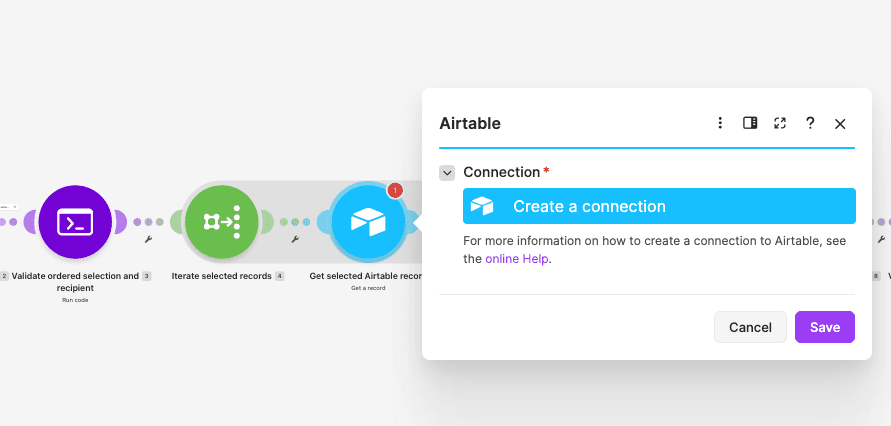
Connect your authorized Airtable account.
Configure:
- Base: Map the configured
base_id. - Table: Map the configured
records_table_id. - Record ID: Map
record_idfrom the Iterator. - Use Column ID: No, when using field names such as Title, Details, and Owner ID.
This retrieves the selected record's current details.
The example uses:
TitleDetailsOwner ID
If your table uses different field names, update the following Code module's input mappings.
Do not replace the Record ID with a record title or a search result. The document must be generated from the exact selected record.
Step 9: Validate the Record and Build Its HTML
Add Make Code > Run code.
Name it:
Build escaped record document
Configure JavaScript and Code editor.
Create these inputs:
packet_id: Map the validated Packet ID.owner_id: Map the validated owner ID.expected_id: Map the Record ID from the Iterator.actual_id: Map the ID returned by Airtable Get a Record.sequence: Map the sequence from the Iterator.record_owner: Map Airtable'sOwner ID.title: Map Airtable'sTitle.details: Map Airtable'sDetails.
Paste this JavaScript:
if(String(input.actual_id)!==String(input.expected_id))
throw new Error('Retrieved Airtable record does not match selected ID');
if(String(input.record_owner)!==String(input.owner_id))
throw new Error('Selected record belongs to a different owner: '+input.expected_id);
if(!String(input.title||'').trim()||!String(input.details||'').trim())
throw new Error('Map approved Title and Details fields for '+input.expected_id);
const esc=s=>String(s??'').replace(/[&<>"']/g,c=>({
'&':'&',
'<':'<',
'>':'>',
'"':'"',
"'":'''
}[c]));
const html=`<!doctype html>
<html>
<head>
<meta charset="utf-8">
<style>
body{
font-family:Arial,sans-serif;
margin:36px;
line-height:1.5
}
h1{
font-size:24px
}
.details{
white-space:pre-wrap
}
</style>
</head>
<body>
<h1>${esc(input.title)}</h1>
<p>
Packet: ${esc(input.packet_id)}<br>
Record: ${esc(input.expected_id)}<br>
Document ${esc(input.sequence)}
</p>
<div class="details">${esc(input.details)}</div>
</body>
</html>`;
return {
html,
filename:input.packet_id+'-'+input.sequence+'-'+input.expected_id+'.pdf'
};This script verifies that the retrieved Airtable record matches the selected Record ID and belongs to the authorized owner.
It also requires the mapped Title and Details fields.
The HTML includes the document heading, packet identifier, Record ID, sequence number, and record details.
Before inserting text into the HTML, the script escapes special characters such as <, >, &, and quotation marks.
For example, if a record title contains:
Maintenance & Inspection <November>it will appear as normal text rather than being interpreted as HTML markup.
The output includes:
html: Complete HTML for the selected record.filename: An individual PDF filename.
For example:
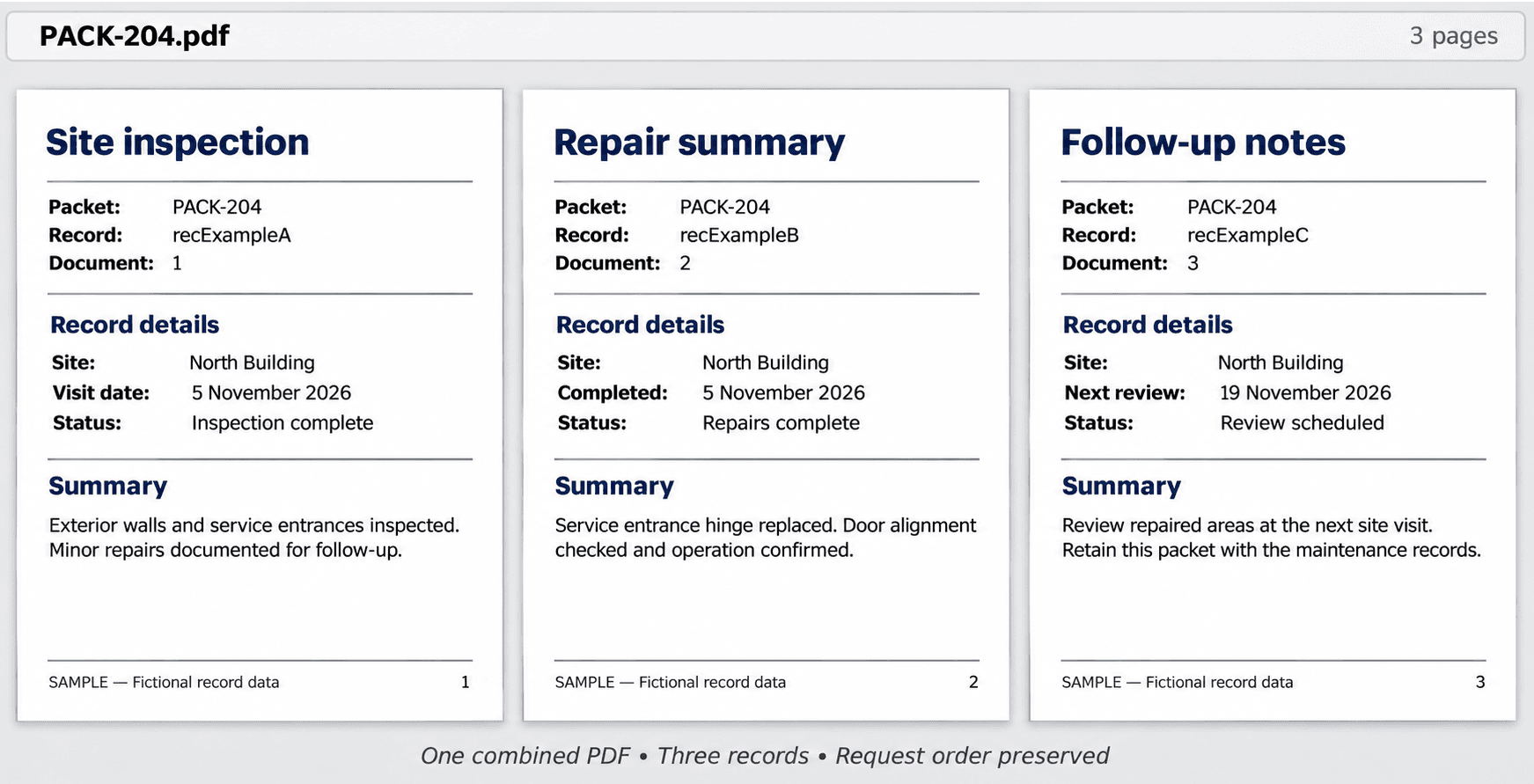
PACK-204-1-recExampleA.pdfThe sequence number in the filename makes it easier to identify the individual document's position within the packet.
Step 10: Generate a PDF for Each Airtable Record
Add PDF.co > Convert HTML to PDF.
Name it:
Generate record PDF
Create or select your PDF.co connection.
Configure:
- Convert Type: HTML to PDF.
- Input HTML Code: Map
htmlfrom the previous Code module. - Output File Name: Map its
filename. - Execution Mode: Sync.
- Export Type: JSON Output.
- Paper Size: A4.
- Orientation: Portrait.
- Margins:
0. - Render Page Background: Yes.
- Do not wait for full load: No.
- Output Links Expiration:
60.
Use raw HTML conversion.
The Code module generates the entire HTML document, so no saved PDF.co template is required.
When each conversion finishes, PDF.co returns a temporary download URL.
For the three-record example, the workflow should produce three individual PDF URLs.
Important: Map the HTML into the PDF.co module's Input HTML Code field. Selecting HTML to PDF alone is not sufficient.
Use completed conversion results only. If a record requires asynchronous processing, add job-status checking before collecting its URL. Do not treat a pending job ID as a completed document.
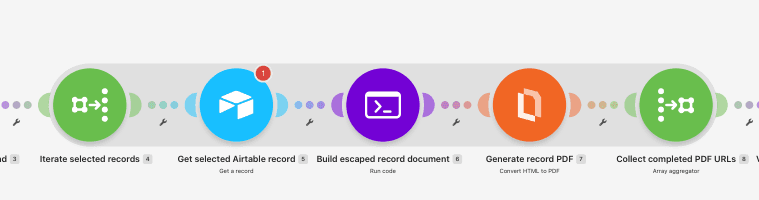
Step 11: Collect the Generated PDF URLs
Add Tools > Array aggregator.
Name it:
Collect completed PDF URLs
Configure:
- Source module: Iterate selected records.
- Target structure: Custom.
Include these fields for every generated document:
packet_id: Map the validated Packet ID.record_id: Map the current Record ID from the Iterator.sequence: Map the sequence from the Iterator.url: Map the completed URL returned by PDF.co HTML to PDF.
The resulting array should contain one object per selected record.
For example:
[
  {
    "packet_id": "PACK-204",
    "record_id": "recExampleA",
    "sequence": 1,
    "url": "https://example.invalid/record-a.pdf"
  },
  {
    "packet_id": "PACK-204",
    "record_id": "recExampleB",
    "sequence": 2,
    "url": "https://example.invalid/record-b.pdf"
  },
  {
    "packet_id": "PACK-204",
    "record_id": "recExampleC",
    "sequence": 3,
    "url": "https://example.invalid/record-c.pdf"
  }
]
The example URLs are placeholders.
Select the Iterator as the aggregator's source so all selected records are collected into one packet. The Array aggregator does not merge PDFs; it only collects their metadata.
The next module checks the array for missing, repeated, or unexpected documents.
Step 12: Verify the Packet and Restore Its Order
Add Make Code > Run code.
Name it:
Verify complete packet and sort URLs
Configure JavaScript and Code editor.
Create these inputs:
rows: Map the Array aggregator's output array.request: Map the complete Result object from the selection-validation Code module.
Paste this JavaScript:
const rows=typeof input.rows==='string'?JSON.parse(input.rows):input.rows;
const request=typeof input.request==='string'?JSON.parse(input.request):input.request;

if(!Array.isArray(rows)||rows.length!==request.expected_count)
  throw new Error(
    'Incomplete packet: expected '+
    request.expected_count+
    ' completed documents'
  );

const seen=new Set();

for(const row of rows){
  const expected=request.selection.find(
    x=>x.record_id===row.record_id
  );

  if(
    row.packet_id!==request.packet_id ||
    !expected ||
    Number(row.sequence)!==expected.sequence ||
    seen.has(row.record_id)
  )
    throw new Error(
      'Incorrect or duplicate packet document: '+
      row.record_id
    );

  let u;

  try{
    u=new URL(row.url);
  }catch{
    throw new Error(
      'Record has no completed PDF URL: '+
      row.record_id
    );
  }

  if(
    u.protocol!=='https:' ||
    u.username ||
    u.password ||
    row.url.includes(',')
  )
    throw new Error(
      'Invalid completed PDF URL: '+
      row.record_id
    );

  seen.add(row.record_id);
}

const ordered=[...rows].sort(
  (a,b)=>Number(a.sequence)-Number(b.sequence)
);

return {
  packet_id:request.packet_id,
  owner_id:request.owner_id,
  recipient:request.recipient,
  document_count:ordered.length,
  ordered_record_ids:ordered.map(x=>x.record_id),
  urls:ordered.map(x=>x.url).join(','),
  filename:request.filename,
  request_key:request.request_key
};
The script checks:
- The completed document count matches the requested count.
- Every returned Record ID belongs to the original selection.
- No document is duplicated.
- Every sequence number matches the original request.
- Every document has a valid HTTPS URL.
It then sorts the documents numerically by sequence.
Finally, it creates a comma-separated list of the ordered PDF URLs.
For example:
https://example.invalid/record-a.pdf,https://example.invalid/record-b.pdf,https://example.invalid/record-c.pdfThis is the format used by the PDF.co Merge a PDF module.
The script returns:
packet_idowner_idrecipientdocument_countordered_record_idsurlsfilenamerequest_key
If a selected record fails to generate, the completeness check must prevent the partial packet from being merged or sent.
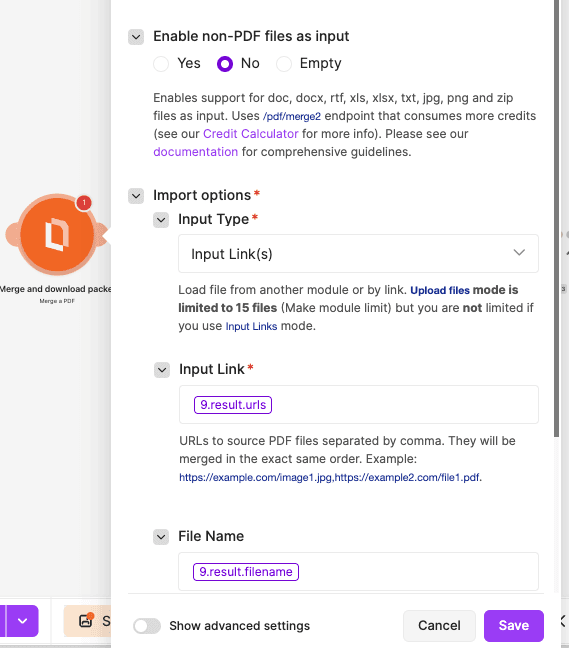
Step 13: Merge the PDFs into One Document
Add the native PDF.co > Merge a PDF module.
Name it:
Merge and download packet
Configure:
- Import Type: URL.
- URLs: Map
urlsfrom the packet-verification Code module. - Output File Name: Map its
filename. - Execution Mode: Sync.
- Export Type: Download a File.
- Output Links Expiration:
60.
The urls input must contain only the ordered, comma-separated PDF URLs.
Do not pass the entire Array aggregator object into this field.
PDF.co merges the selected documents into one PDF in the supplied order.
For example, the combined packet filename is:
PACK-204.pdfSelect Download a File as the export type. With this setting, the native PDF.co module provides the completed binary file data for the next operations.
You do not need to add a separate HTTP download module to this version of the workflow.
If the operation returns a pending asynchronous job instead of completed file data, add job-status handling before continuing.
Test both one-record and multi-record packets to confirm the native module returns the expected binary output.
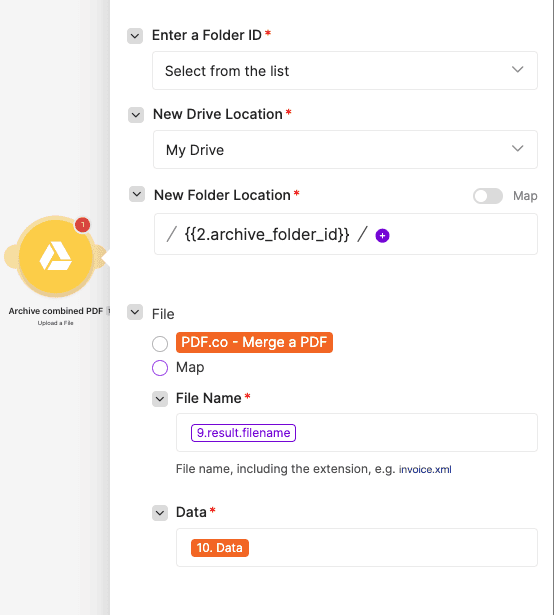
Step 14: Archive the Combined PDF in Google Drive
Add Google Drive > Upload a file.
Name it:
Archive combined PDF
Connect the approved Google Drive account.
Configure:
- New Drive Location: My Drive.
- New Folder Location: Map the configured
archive_folder_id. - New File Name: Map the packet's
filename. - File Name: Map the same filename.
- Data: Map the PDF.co Merge a PDF module's binary
dataoutput. - Convert a File: No.
The folder ID must come from the trusted scenario configuration, not from the webhook request.
After uploading, confirm that Google Drive returned a file ID.
A durable Google Drive browser link can use this format:
https://drive.google.com/file/d/STORED_FILE_ID/viewReplace STORED_FILE_ID with the ID returned by Google Drive.
Keep the archive folder private according to your organization's access policy. The stored link is separate from the temporary PDF.co conversion URLs.
Update the persistent packet ledger with:
- The archive file ID.
- The durable stored link.
- The final filename.
- The ordered Record IDs.
- The authorized recipient.
- State
archived.
This allows a failed email to be retried using the archived PDF rather than regenerating the entire packet.
Step 15: Log the Archived Packet in Airtable
Before sending the email, add Airtable > Create a Record.
Name it:
Log archived packet before delivery
Connect your Airtable account.
Configure:
- Base: Map the configured
base_id. - Table: Map the configured
log_table_id.
Map the delivery-log fields:
- Packet ID: Map the verified packet ID.
- Stored File Link: Map the permanent Google Drive link.
- Archive File ID: Map the Google Drive file ID.
- Document Count: Map the verified document count.
- Recipient: Map the authorized recipient.
- Delivery Status: Enter
Archived / Pending delivery. - Ordered Record IDs: Map the ordered Record IDs, serialized in a format appropriate for the Airtable field.
For example, the ordered IDs can be stored as a JSON string:
["recExampleA","recExampleB","recExampleC"]Confirm the log record was created before allowing the Gmail module to run.
This provides an archive event even if the subsequent email delivery attempt fails.
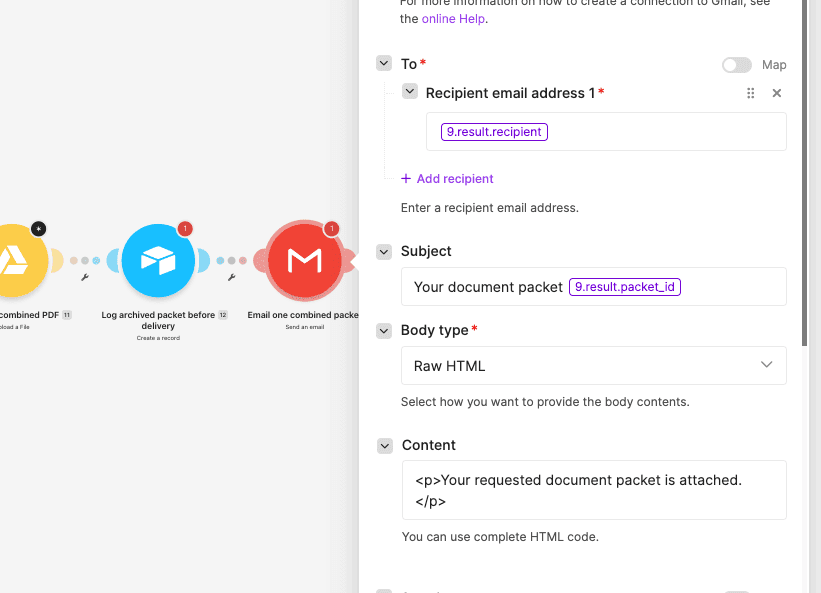
Step 16: Email the Combined PDF Packet
Add Gmail > Send an Email.
Name it:
Email one combined packet
Connect the authorized Gmail account.
Configure:
- To: Map
recipientfrom the verified packet result. - Subject:
Your document packetfollowed by the Packet ID. - Body type: Raw HTML.
- Attachments: One attachment containing the combined PDF.
Use this email body:
<p>Your requested document packet is attached.</p>Configure the attachment:
- File Name: Map the combined packet filename.
- Data: Map the PDF.co Merge a PDF module's binary
dataoutput.
The Gmail module must be positioned after the Array aggregator, completeness check, PDF.co merge, Google Drive archive, and archive log.
It must not run inside the selected-record Iterator.
This ensures the recipient receives one email containing one combined PDF rather than a separate email for each Airtable record.
The email recipient is taken from the verified ownership context, not from arbitrary data in the webhook.
A successful Gmail send operation means the provider accepted the message. It does not prove the message was delivered, opened, or read.
Step 17: Log the Email Result
Add another Airtable > Create a Record.
Name it:
Log email accepted
Connect the same Airtable account and select the packet delivery log table.
Map:
- Packet ID: The verified Packet ID.
- Stored File Link: The permanent Google Drive link.
- Archive File ID: The archived file ID.
- Document Count: The verified document count.
- Recipient: The authorized recipient.
- Delivery Status:
Email accepted. - Ordered Record IDs: The original ordered IDs.
- Message ID: Map the Gmail message ID if the module exposes it.
This creates a second event for the packet.
The first event records that the document was archived and pending delivery. The second records that Gmail accepted the email.
After confirming the Gmail result, update the persistent packet ledger to email_accepted and save the message ID if available.
Do not use an Email accepted status as proof of final delivery.
If the second Airtable log operation fails after Gmail succeeds, recover the logging step without automatically sending another email.
Step 18: Configure Failure Handling and Recovery
A document packet should not be treated as successful when any required record is missing.
Add error handlers to the following stages:
- Airtable record retrieval.
- Individual HTML generation.
- PDF.co HTML to PDF conversion.
- Array aggregation and packet completeness checks.
- PDF.co Merge a PDF.
- Google Drive archive upload.
- Airtable delivery logging.
- Gmail sending.
For each failure, retain:
- Packet ID and authorized owner ID.
- Original ordered Record IDs.
- The failing Record ID, when applicable.
- Failed operation and error message.
- Archive file ID, if already created.
- Email message ID or delivery-attempt information, if available.
Generation failures
If an Airtable lookup or PDF conversion fails:
- Stop the packet.
- Record the packet state as
incompleteorfailed. - Do not discard the failed record and send the remaining PDFs.
- Recover the failed operation before attempting to generate a complete packet.
Avoid Ignore or Resume routes that silently remove selected records from the packet.
Failure after archiving
If the combined PDF was successfully stored but Gmail failed:
- Keep the stored file ID and URL in the packet ledger.
- Use Google Drive > Download a File to retrieve the existing archived PDF.
- Reverify the packet owner and authorized recipient.
- Retry only the email step.
- Log the new delivery attempt.
Do not regenerate the individual PDFs or merge them again when the archived file is usable.
Uncertain email delivery
Sometimes the Gmail operation may time out after the provider has accepted the message.
In that case, sending another email immediately can create duplicates.
Check the relevant sent mailbox or provider records and any saved message ID before retrying.
A basic send-and-log workflow cannot guarantee exactly-once email delivery.
Logging failures
If an Airtable log operation fails after an email has been accepted, retry the log operation rather than sending another email.
Use the packet ledger and available provider evidence to determine the last successful stage.
Step 19: Test the Complete Workflow
After configuring the scenario, test it with a small set of Airtable records belonging to the same authorized account.
Begin with the sample request:
{
  "packet_id": "PACK-204",
  "record_ids": [
    "recExampleA",
    "recExampleB",
    "recExampleC"
  ]
}
Replace the example Record IDs with actual records you are authorized to use.
Check that:
- The webhook receives the Packet ID and ordered selection.
- The owner and recipient are verified through the trusted source.
- The validation module accepts the requested records.
- A new packet request is claimed in the persistent ledger.
- The Iterator processes every selected record.
- Airtable returns the correct record and owner for each ID.
- PDF.co generates one PDF for each record.
- The Array aggregator returns the expected number of completed document URLs.
- The completeness script verifies the original selection and restores its order.
- PDF.co merges the individual PDFs into one combined file.
- Google Drive archives the combined PDF.
- Airtable logs the archive event before email.
- Gmail sends one message with one combined attachment.
- Airtable records the email-accepted event.
Open the archived PDF and confirm that every selected document appears exactly once and in the requested order.
Test a one-record packet
Send a request containing only one authorized Record ID.
Confirm that the merge module handles the single-document input correctly and still returns one complete PDF packet.
Test a shuffled selection
Choose three records whose names are not in alphabetical order, such as:
- Service C.
- Service A.
- Service B.
Send their Record IDs in that order.
The combined PDF should preserve the requested sequence rather than sorting by record name.
Test duplicate and unauthorized IDs
Try requests containing:
- An empty Record ID array.
- A duplicate Record ID.
- An invalid Record ID.
- A record belonging to a different owner.
Each request should stop before generating or emailing unauthorized or incomplete documents.
Test a failed conversion
Cause one selected record's conversion to fail.
Confirm that the packet is not merged, archived, or emailed as though it were complete.
Test an email failure after archiving
Allow PDF generation, merging, and archiving to succeed, then test a Gmail failure.
Confirm that the packet remains recorded as archived and can be recovered using the stored PDF.
The recovery process should not create another merged document unnecessarily.
Test repeated requests
Send the same Packet ID and selection again.
Confirm that the persistent packet ledger recognizes the earlier request and does not automatically regenerate or resend a completed packet.
Also test the same Packet ID with a different selection. That request should be rejected rather than silently replacing the original.
Before routine use, confirm that the combined PDF is within the sending provider's attachment size limits. This workflow requires an actual PDF attachment and does not automatically substitute a download link when the file is too large.
Troubleshooting
- The webhook does not receive the selected IDs: Check that the source sends a JSON array and that Make detected the request structure correctly.
- Authorization fails: Confirm that the trusted account lookup returns the correct owner, recipient, and allowed Record IDs. Do not bypass the authorization check.
- Airtable cannot find a record: Check the exact Record ID, base, table, and account permissions.
- The record-owner check fails: Verify the source record's Owner ID. A selected record belonging to another account must not be included.
- The generated PDF is empty: Confirm that the HTML-building Code module returns
htmland that PDF.co's raw HTML input is mapped to that output. - The packet is missing records: Review the Iterator, Array aggregator source, and completeness-check errors.
- Documents appear in the wrong order: Confirm that the merge input comes from the verified, numerically sorted URL list.
- The Merge a PDF module fails: Check that its input is a comma-separated list of completed HTTPS PDF URLs, not an array object or unfinished job IDs.
- The archive fails: Verify that Google Drive receives the binary
dataoutput from PDF.co Merge a PDF and has permission to use the configured folder. - The recipient gets multiple emails: Check that Gmail is after aggregation and that the packet ledger rejects repeated sends.
- An archived packet is not emailed: Review the Gmail result and use the stored file for delivery recovery.
- The email was sent but not logged: Check the provider's sent-message records and retry only the logging operation if the original send was accepted.
With Airtable, Make, and PDF.co, you can automatically generate a set of documents, combine them into one PDF packet, and email the result to an authorized recipient.
The workflow retrieves selected Airtable records, builds individual PDFs using PDF.co, verifies that every requested document was generated, and merges them in the original selection order. The completed packet is archived in Google Drive before being emailed through Gmail.
By adding ownership verification, packet completeness checks, and persistent request tracking, you can also reduce duplicate processing and recover from delivery failures without recreating documents unnecessarily.
Explore the PDF.co Make integration documentation and PDF.co tutorials to learn more about document automation.
Related Tutorials