Generate Code 128 Document Separator Sheets with Make and PDF.co
When scanning large batches of documents, separator sheets can help identify where one document packet ends and another begins. Instead of manually creating and labeling each separator, you can generate them automatically using barcodes.
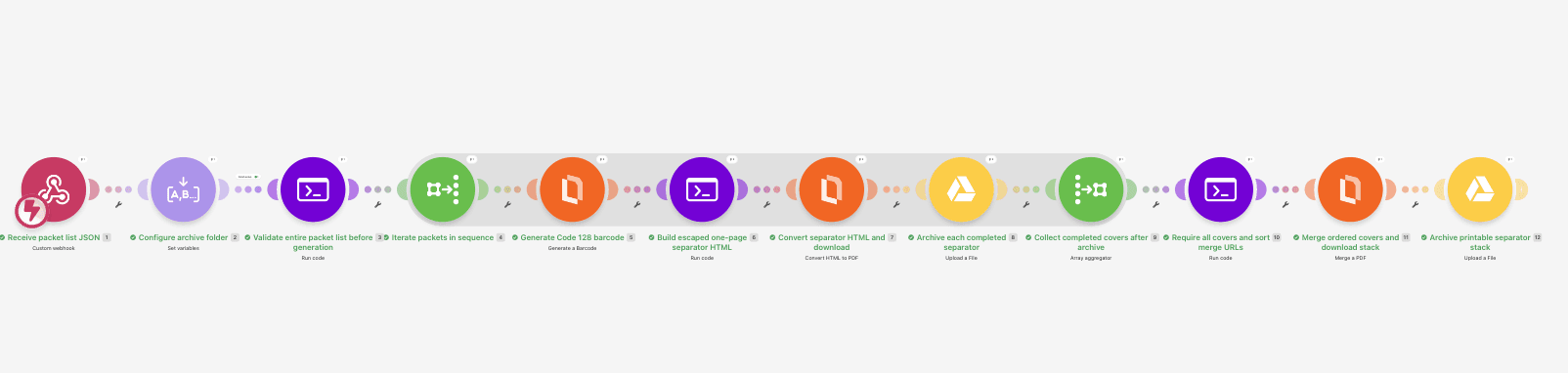
With Make and PDF.co, you can create a separate PDF cover sheet for every document packet, each containing a Code 128 barcode that identifies the packet. You can also combine all the cover sheets into one printable PDF in the correct sequence.
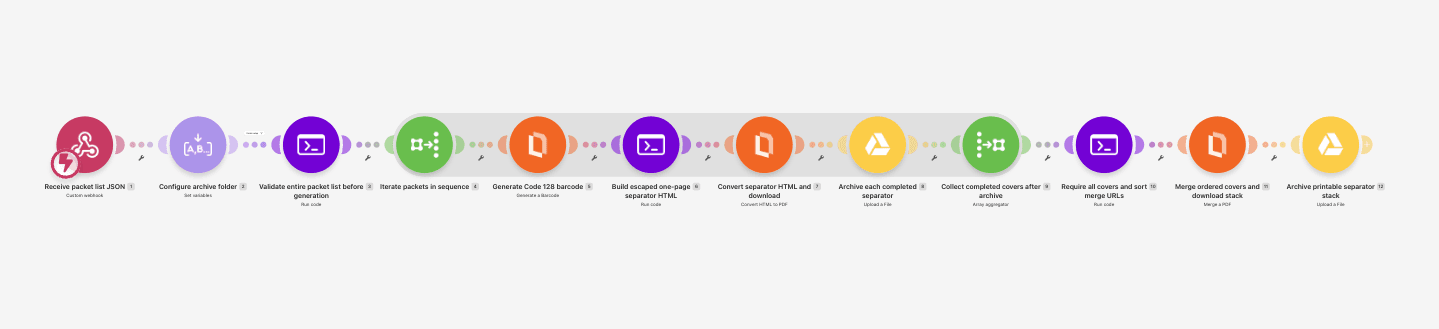
In this tutorial, you'll build a Make scenario that receives a list of document packets, validates their identifiers, generates Code 128 barcodes with PDF.co, and creates individual separator PDFs. The scenario then saves the PDFs to Google Drive, checks that every separator was generated successfully, and merges them into one printable stack.
The workflow generates separator sheets. It does not configure your scanner or automatically split scanned documents. Your scanning system must be configured separately to recognize the Code 128 barcodes and apply the appropriate document-separation rules.
Prerequisites
Before starting, you'll need:
- A Make account with access to Make Code.
- A PDF.co account with an API key and available credits.
- A Google Drive account with permission to upload files to your approved archive folder.
- A list of document packets containing unique packet IDs and numeric sequence values.
- A printer and barcode scanner for testing the completed separator sheets.
This tutorial uses PDF.co's native Make modules to generate barcodes, convert HTML into PDFs, and merge PDFs. No custom HTTP requests to PDF.co are required.
The sample workflow supports up to 20 packets per request and produces one individual separator PDF per packet, followed by one merged PDF containing the full set.
IN THIS TUTORIAL
Step 1: Prepare Your Document Packet List
Before building the scenario, decide how you'll identify each document packet.
Every packet needs three fields:
- packet_id: The unique identifier that will be encoded into the barcode.
- display_name: A readable label printed on the separator sheet.
- sequence: A positive integer determining the packet's position in the printed stack.
For example, you might have two packets:
- Packet ID:
PKT-204 - Display Name: Example account A
- Sequence: 1
And:
- Packet ID:
PKT-205 - Display Name: Example account B
- Sequence: 2
The barcode will contain only the packet ID.
For example:
PKT-204The display name appears as text on the PDF but is not encoded into the barcode.
This is useful when the scanning system needs a stable identifier rather than a potentially changing customer or account name.
Packet ID Requirements
This example accepts packet IDs containing:
- Letters.
- Numbers.
- Underscores.
- Hyphens.
Each packet ID must contain between 1 and 40 characters and must be unique within the batch.
Display names must contain between 1 and 100 characters and fit on one line.
Sequence numbers must be unique positive integers. They do not need to be consecutive.
Create a Sample JSON Request
For this tutorial, you'll send the complete packet list as JSON.
Create a file named packet-request.json containing:
{
  "batch_id": "BATCH-001",
  "packets": [
    {
      "packet_id": "PKT-205",
      "display_name": "Example account B",
      "sequence": 2
    },
    {
      "packet_id": "PKT-204",
      "display_name": "Example account A",
      "sequence": 1
    }
  ]
}
Notice that the packets appear in reverse order in the request.
The scenario will sort them numerically before generating the separator sheets. The finished merged PDF should place PKT-204 before PKT-205.
The batch_id provides a common filename prefix for all generated documents. It should be a safe identifier, not sensitive customer information.
This example uses JSON so the entire list can be validated before generation begins. If your packet list is maintained in a CSV file, add a CSV parsing and aggregation stage before validation.
Step 2: Create a Make Scenario with a Custom Webhook
Sign in to Make and create a new scenario.
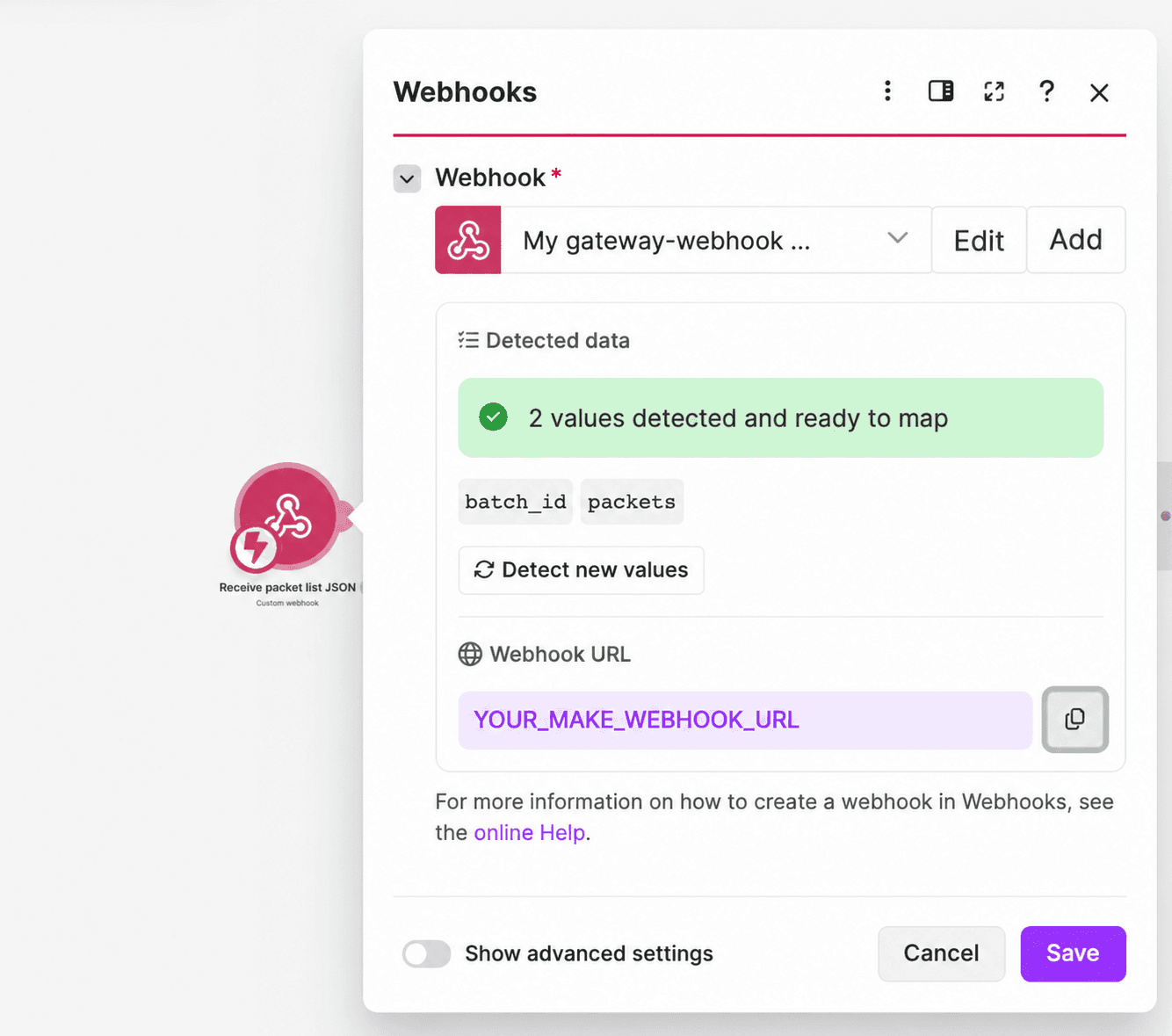
Add Webhooks > Custom webhook.
Name the module:
Receive packet list JSON
Create a webhook named:
Document Separator Batch Request
Save the webhook and copy its URL.
The webhook will receive the batch identifier and packet list.
Click Run once in Make.
Using a terminal or an API client, send the sample JSON request to the webhook.
For example:
curl --request POST 'YOUR_MAKE_WEBHOOK_URL' \
  --header 'Content-Type: application/json' \
  --data-binary '@packet-request.json'
Replace YOUR_MAKE_WEBHOOK_URL with your actual webhook URL.
Confirm that Make detects:
batch_idpacketspacket_iddisplay_namesequence
The packets field should be recognized as an array.
Keep the webhook restricted to an authorized request source. Do not publish the webhook URL or include authentication credentials in the packet list.
Step 3: Configure the Google Drive Archive Folder
Add Tools > Set multiple variables.
Name the module:
Configure archive folder
Set the variable lifetime to One cycle.
Create two variables:
setup_complete: EnterNO.archive_folder_id: Enter the ID of the approved Google Drive folder where the generated documents will be saved.
For example:
setup_complete = NO
archive_folder_id = YOUR_APPROVED_GOOGLE_DRIVE_FOLDER_ID
The folder ID can be found in your Google Drive folder URL.
Do not accept an arbitrary destination folder from the webhook.
The scenario will use this folder for both the individual separator PDFs and the final merged PDF.
Add a Setup Filter
Before the next module, add a filter named:
Finish setup
Configure:
- Field:
setup_complete - Condition: Text equals
- Value:
YES
Leave setup_complete set to NO while configuring the remaining modules.
Once the PDF.co and Google Drive connections, data mappings, and output settings are ready, change it to YES.
This prevents incomplete scenario configurations from generating files.
Step 4: Validate the Entire Packet List
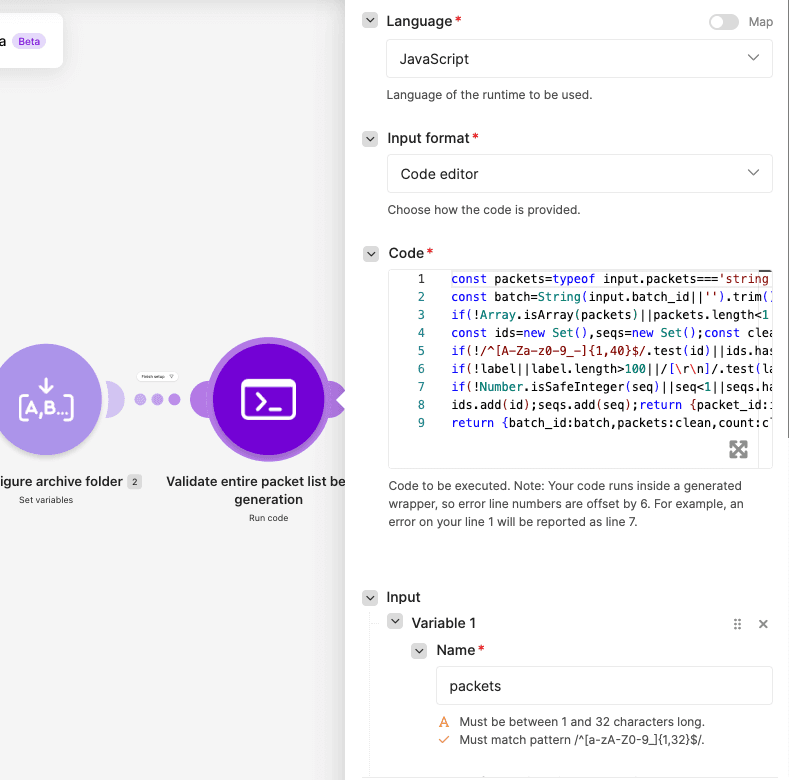
Add Make Code > Run code.
Name the module:
Validate entire packet list before generation
Configure:
- Language: JavaScript.
- Input format: Code editor.
- Additional dependencies: Leave empty.
Under Input, create:
packets: Mappacketsfrom the webhook.batch_id: Mapbatch_idfrom the webhook.
Paste this JavaScript:
const packets=typeof input.packets==='string'?JSON.parse(input.packets):input.packets;
const batch=String(input.batch_id||'').trim();if(!/^[A-Za-z0-9_-]{1,40}$/.test(batch))throw new Error('Supply a safe batch_id');
if(!Array.isArray(packets)||packets.length<1||packets.length>20)throw new Error('Tutorial batch must contain 1–20 packets');
const ids=new Set(),seqs=new Set();const clean=packets.map(p=>{const id=String(p.packet_id||'').trim(),label=String(p.display_name||'').trim(),seq=Number(p.sequence);
if(!/^[A-Za-z0-9_-]{1,40}$/.test(id)||ids.has(id))throw new Error('Missing, unsafe or duplicate packet ID');
if(!label||label.length>100||/[\r\n]/.test(label))throw new Error('Use a one-line display name of 1–100 characters');
if(!Number.isSafeInteger(seq)||seq<1||seqs.has(seq))throw new Error('Sequence must be a unique positive integer');
ids.add(id);seqs.add(seq);return {packet_id:id,display_name:label,sequence:seq,filename:batch+'-'+String(seq).padStart(4,'0')+'-'+id+'.pdf'};}).sort((a,b)=>a.sequence-b.sequence);
return {batch_id:batch,packets:clean,count:clean.length};
How the Validation Works
The script checks the batch before any barcode or PDF is generated.
It requires:
- A valid batch ID.
- Between 1 and 20 packets.
- A valid and unique packet ID for every packet.
- A nonempty, one-line display name.
- A unique positive integer sequence for every packet.
If any packet fails validation, the scenario stops instead of generating an incomplete batch.
The script also sorts the packets by sequence.
For the sample request, the sorted result is:
[
  {
    "packet_id": "PKT-204",
    "display_name": "Example account A",
    "sequence": 1,
    "filename": "BATCH-001-0001-PKT-204.pdf"
  },
  {
    "packet_id": "PKT-205",
    "display_name": "Example account B",
    "sequence": 2,
    "filename": "BATCH-001-0002-PKT-205.pdf"
  }
]
The four-digit sequence number in each filename makes the files easier to identify and sort.
The Code module returns:
batch_idpacketscount
The packets array contains the validated and sorted packet records.
Step 5: Iterate Through the Packets
Add Tools > Iterator.
Name it:
Iterate packets in sequence
Configure:
- Array: Map
packetsfrom the validation Code module.
The Iterator creates one bundle for every validated packet.
Each bundle contains:
packet_iddisplay_namesequencefilename
For the sample request, Make processes two packets.
The first is PKT-204, followed by PKT-205.
The next modules generate one barcode and one separator PDF for each packet.
Step 6: Generate the Code 128 Barcode with PDF.co
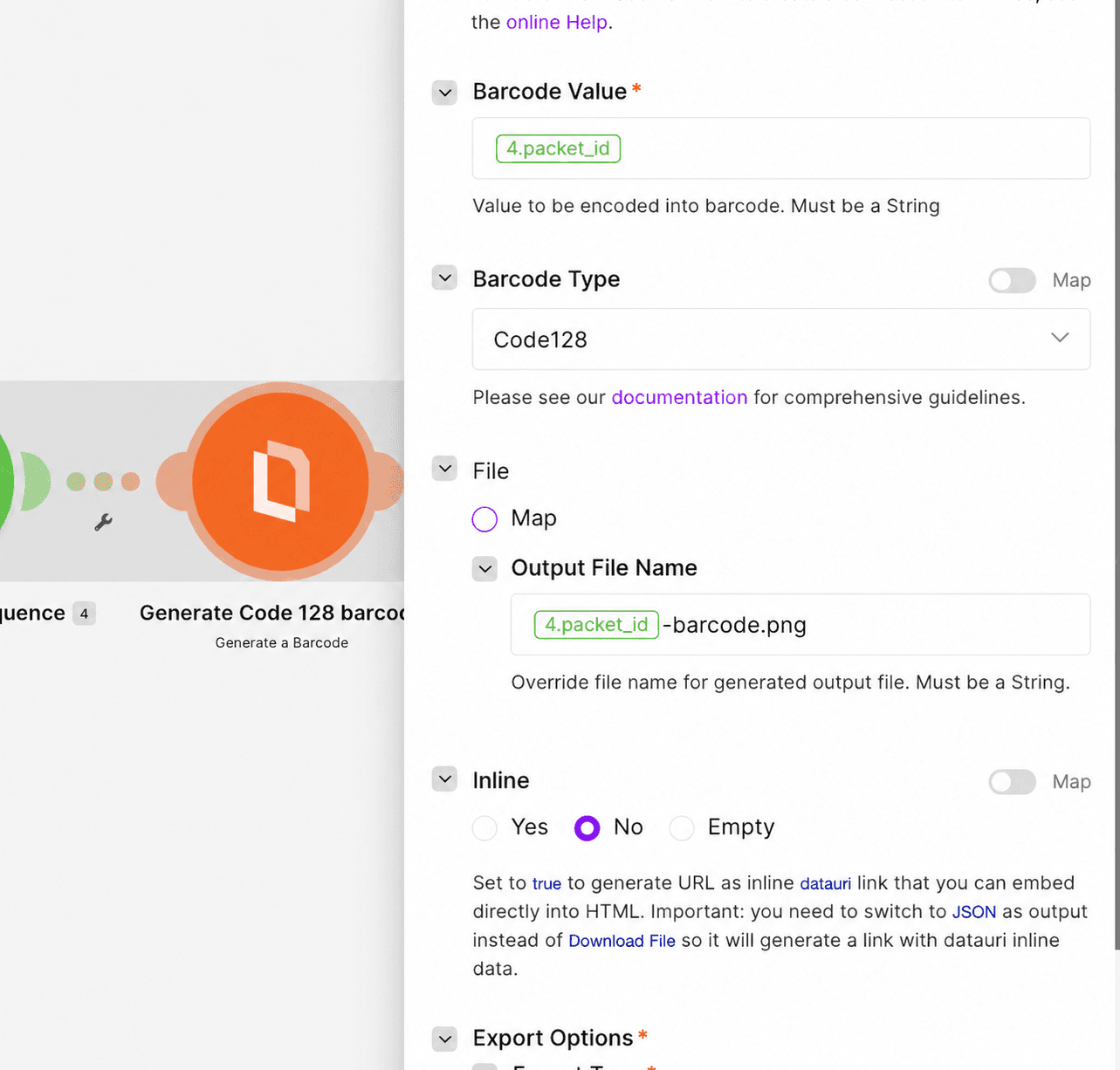
Add PDF.co > Generate a Barcode.
Name the module:
Generate Code 128 barcode
Create or select your PDF.co connection.
Configure:
- Barcode Type: Code128.
- Barcode Value: Map
packet_idfrom the Iterator. - Output File Name:
packet_idfollowed by-barcode.png. - Inline: No.
- Execution Mode: Sync.
- Export Type: JSON Output.
- Output Links Expiration:
60.
For example, when processing PKT-204, the barcode value is:
PKT-204The output image filename is:
PKT-204-barcode.pngPDF.co generates a barcode image and returns a temporary URL.
Code 128 is a one-dimensional barcode format commonly used for identification and tracking. It supports the letters, digits, and other characters allowed by this example's packet-ID validator.
The PDF.co barcode generator supports Code 128 alongside other barcode types. Be sure to select Code128, not QRCode or Code39.
Why Encode Only the Packet ID?
A stable packet identifier is easier for downstream software to compare against a document-management record.
For example, a scanner can decode:
PKT-204The document-management system can then associate that value with the appropriate packet.
The display name remains visible to the person handling the documents, but it does not affect the barcode value.
This workflow does not embed customer names or other confidential record details into the barcode.
Step 7: Build the Separator Sheet HTML
Add another Make Code > Run code module.
Name it:
Build escaped one-page separator HTML
Configure JavaScript and Code editor.
Create these inputs:
barcode_url: Map theurlreturned by the PDF.co barcode module.packet_id: Map the Packet ID from the Iterator.display_name: Map the Display Name from the Iterator.sequence: Map the Sequence from the Iterator.
Paste this JavaScript:
const u=new URL(input.barcode_url);if(u.protocol!=='https:')throw new Error('Completed barcode image URL required');
const esc=s=>String(s??'').replace(/[&<>"']/g,c=>({'&':'&','<':'<','>':'>','"':'"',"'":'''}[c]));
return {html:`<!doctype html><html><head><meta charset="utf-8"><style>@page{size:A4;margin:0}body{font-family:Arial,sans-serif;text-align:center;margin:0;padding:120px 40px 40px}h1{font-size:30px}h2{font-size:36px;overflow-wrap:anywhere}p{font-size:20px;overflow-wrap:anywhere}.barcode{background:#fff;padding:28px;margin:36px auto}img{max-width:85%;height:auto;display:block;margin:auto}.sequence{font-size:14px;color:#444}</style></head><body><h1>Document packet</h1><h2>${esc(input.packet_id)}</h2><div class="barcode"><img src="${esc(u.href)}" alt="Barcode for ${esc(input.packet_id)}"></div><p>${esc(input.packet_id)}</p><p>${esc(input.display_name)}</p><p class="sequence">Sequence ${esc(input.sequence)}</p></body></html>`};The script creates a complete HTML document containing:
- A Document Packet heading.
- The packet identifier.
- The Code 128 barcode image.
- The packet identifier printed again below the barcode.
- The readable display name.
- The numeric sequence.
It also escapes the packet ID and display name before inserting them into HTML.
For example, a display name containing an ampersand is treated as document text rather than HTML markup.
Separator Sheet Layout
The HTML is designed for an A4 portrait page.
Its CSS includes:
@page {
  size: A4;
  margin: 0;
}

body {
  font-family: Arial, sans-serif;
  text-align: center;
  margin: 0;
  padding: 120px 40px 40px;
}

.barcode {
  background: #fff;
  padding: 28px;
  margin: 36px auto;
}

img {
  max-width: 85%;
  height: auto;
  display: block;
  margin: auto;
}
These styles keep the barcode centered and preserve its aspect ratio.
The white background and padding provide additional separation between the barcode and surrounding content.
However, the layout is a starting template. The physical barcode width, bar thickness, quiet zones, printer resolution, and scaling settings must be tested with your actual scanner.
The Code module returns one field:
html
This contains the complete HTML for the current packet's separator sheet.
Step 8: Convert Each Separator Sheet to PDF
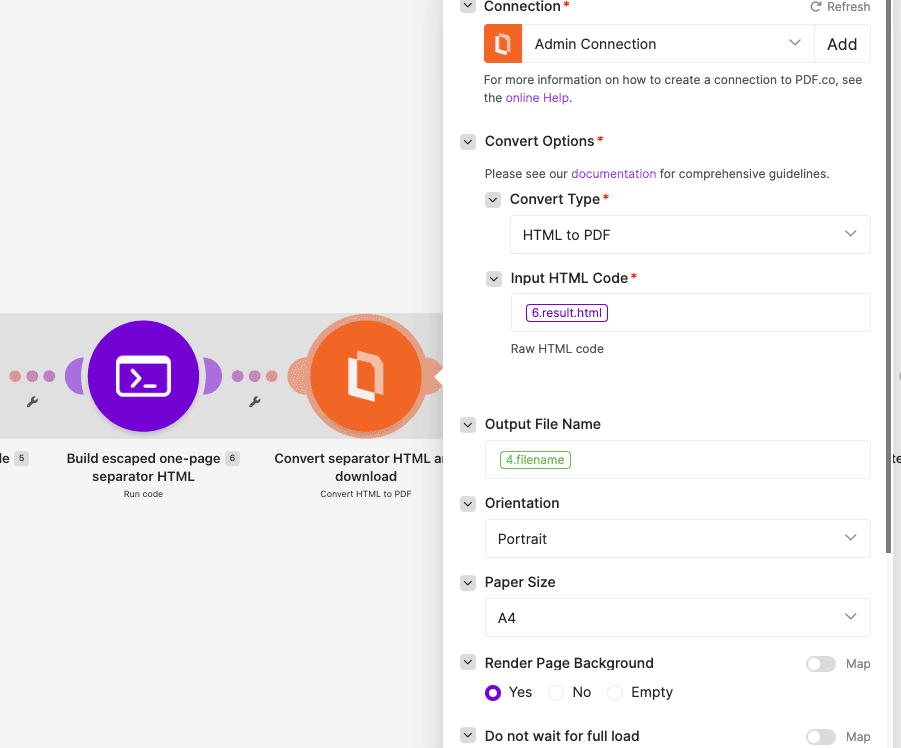
Add PDF.co > Convert HTML to PDF.
Name it:
Convert separator HTML and download
Configure:
- Convert Type: HTML to PDF.
- Input HTML Code: Map
htmlfrom the previous Code module. - Output File Name: Map
filenamefrom the packet Iterator. - Execution Mode: Sync.
- Export Type: Download a File.
- Paper Size: A4.
- Orientation: Portrait.
- Margins:
0. - Render Page Background: Yes.
- Do not wait for full load: No.
- Output Links Expiration:
60.
Use raw HTML input rather than a saved HTML template.
The PDF.co module renders the separator HTML and downloads the completed PDF.
For PKT-204, the output filename is:
BATCH-001-0001-PKT-204.pdfFor PKT-205, the output filename is:
BATCH-001-0002-PKT-205.pdfThe workflow expects the conversion module to provide two outputs:
data: Binary PDF content for Google Drive.url: Temporary completed PDF URL for the final merge.
Verify that your installed PDF.co Make module exposes both outputs when Export Type is set to Download a File.
If your module version does not provide both, adjust the export and download mapping before continuing. The final merge cannot use an unavailable URL.
Open a test PDF and confirm that the barcode image loaded and the separator fits on one page. The HTML layout alone does not guarantee a one-page result for every possible label.
Step 9: Archive Each Individual Separator PDF
Add Google Drive > Upload a File.
Name it:
Archive each completed separator
Connect the approved Google Drive account.
Configure:
- New Drive Location: My Drive.
- New Folder Location: Map
archive_folder_idfrom the configuration module. - New File Name: Map
filenamefrom the packet Iterator. - File Name: Map the same filename.
- Data: Map the binary
dataoutput from the PDF.co HTML-to-PDF module. - Convert a File: No.
This saves every separator PDF as an individual archived document.
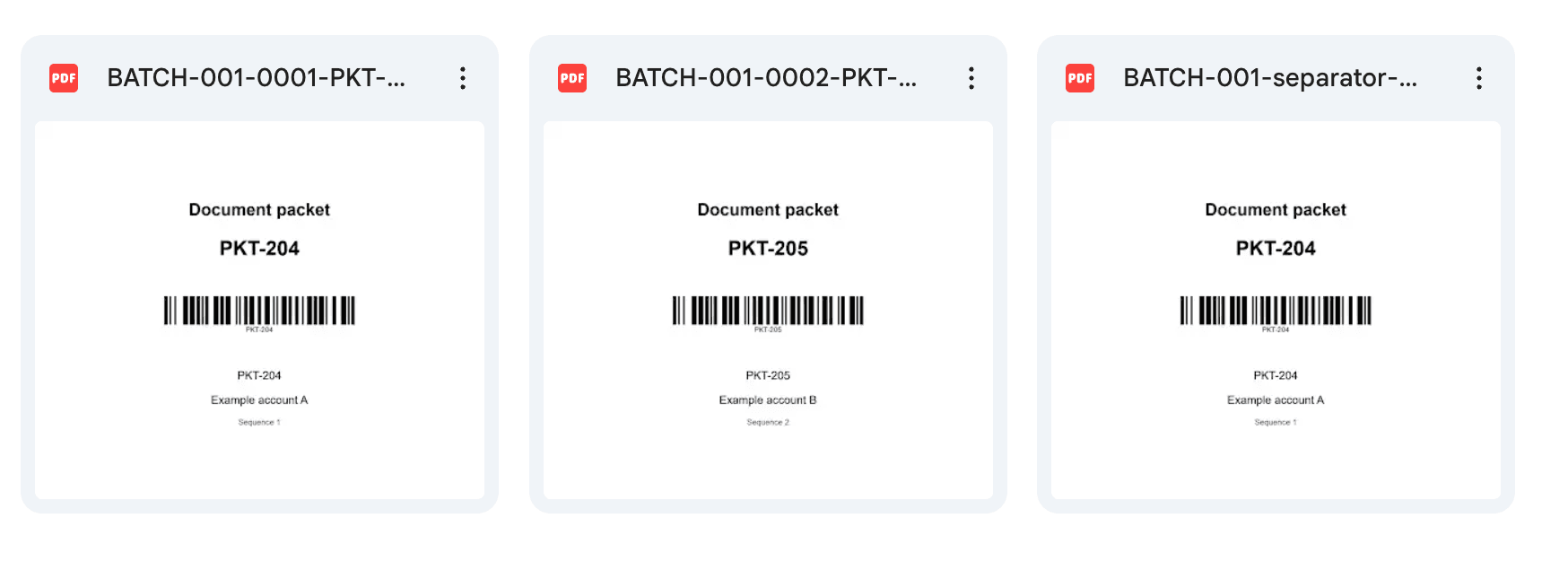
For the sample batch, Google Drive should contain:
BATCH-001-0001-PKT-204.pdf
BATCH-001-0002-PKT-205.pdf
The files can be accessed individually if one separator needs to be printed or reviewed separately.
After each upload, confirm that Google Drive returned a file ID.
The next stage uses this ID as evidence that the individual PDF was archived before including it in the final stack.
Step 10: Collect the Completed Separator PDFs
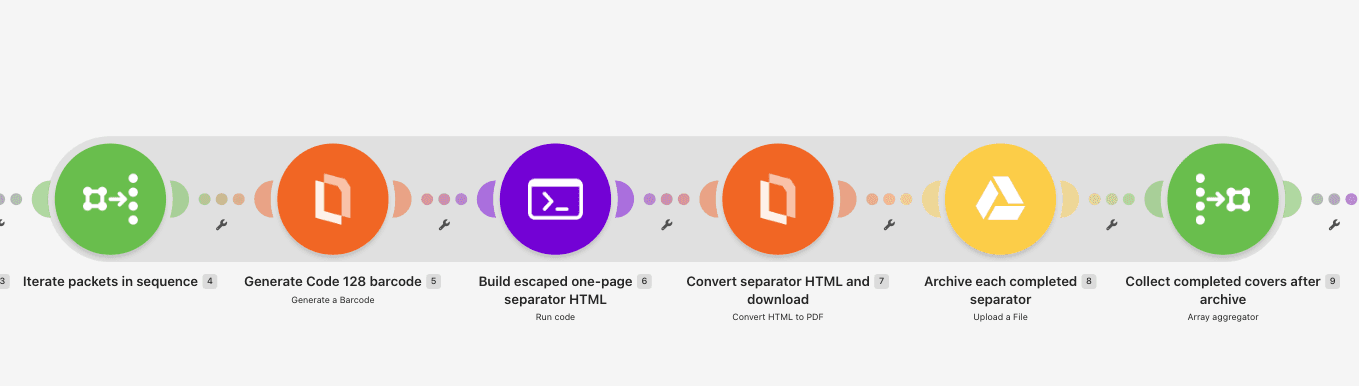
Add Tools > Array aggregator.
Name it:
Collect completed covers after archive
Configure:
- Source module: Iterate packets in sequence.
- Target structure: Custom.
Aggregate the following fields for each completed packet:
packet_id: Map the Packet ID from the Iterator.sequence: Map the Sequence from the Iterator.url: Map the completed temporary PDF URL from PDF.co HTML to PDF.file_id: Map the file ID returned by Google Drive.
For the sample batch, the aggregated result should resemble:
[
  {
    "packet_id": "PKT-204",
    "sequence": 1,
    "url": "https://example.invalid/separator-204.pdf",
    "file_id": "EXAMPLE_DRIVE_FILE_ID_204"
  },
  {
    "packet_id": "PKT-205",
    "sequence": 2,
    "url": "https://example.invalid/separator-205.pdf",
    "file_id": "EXAMPLE_DRIVE_FILE_ID_205"
  }
]
The URLs and file IDs above are placeholders.
Use the actual outputs from PDF.co and Google Drive.
Why Aggregate After Archiving?
Each selected packet must produce a separator PDF and a corresponding archived file.
If you aggregate only barcode results or HTML output, the scenario cannot confirm that the individual PDFs were successfully saved.
By collecting each packet's PDF URL and Google Drive file ID, the next module can check for missing or incomplete results before merging.
The Array aggregator should run after the individual archive module, not before it.
Step 11: Verify the Complete Batch and Sort the Merge URLs
Add Make Code > Run code.
Name it:
Require all covers and sort merge URLs
Configure JavaScript and Code editor.
Create these inputs:
rows: Map the Array aggregator's output array.expected: Map the validatedpacketsarray from the first Code module.batch_id: Map the validated batch ID from the first Code module.
Paste this JavaScript:
const rows=typeof input.rows==='string'?JSON.parse(input.rows):input.rows;
const expected=typeof input.expected==='string'?JSON.parse(input.expected):input.expected;
if(!Array.isArray(rows)||rows.length!==expected.length)throw new Error('Incomplete cover batch; do not merge');
const ids=new Set();for(const r of rows){const e=expected.find(e=>e.packet_id===r.packet_id);if(!e||ids.has(r.packet_id)||Number(r.sequence)!==e.sequence||!r.file_id)throw new Error('Missing, duplicate or incorrect cover');ids.add(r.packet_id);const u=new URL(r.url);if(u.protocol!=='https:'||r.url.includes(','))throw new Error('Completed PDF URL required');}
rows.sort((a,b)=>Number(a.sequence)-Number(b.sequence));return {urls:rows.map(r=>r.url).join(','),filename:input.batch_id+'-separator-stack.pdf',count:rows.length};
The script checks the entire batch before merging.
It requires:
- The number of completed covers to match the number of requested packets.
- Every completed cover to belong to the original packet list.
- No duplicate packet IDs.
- Matching sequence numbers.
- A nonempty Google Drive file ID for every cover.
- A usable HTTPS URL for every completed PDF.
If a separator is missing, duplicated, or lacks an archive file ID, the script stops the merge.
Restore the Correct Order
Even though the original packet list was sorted before iteration, the workflow sorts the completed results again.
This ensures that the merge operation uses the intended numeric order.
For the sample batch, the expected order is:
- PKT-204
- PKT-205
The script returns a comma-separated list of PDF URLs.
For example:
https://example.invalid/separator-204.pdf,https://example.invalid/separator-205.pdfPDF.co uses this ordered list as the input to its Merge PDF operation.
The script also returns:
filename: The final stack filename.count: The number of verified covers.
For the sample request, the final filename is:
BATCH-001-separator-stack.pdfStep 12: Merge the Separator PDFs into One Printable Stack
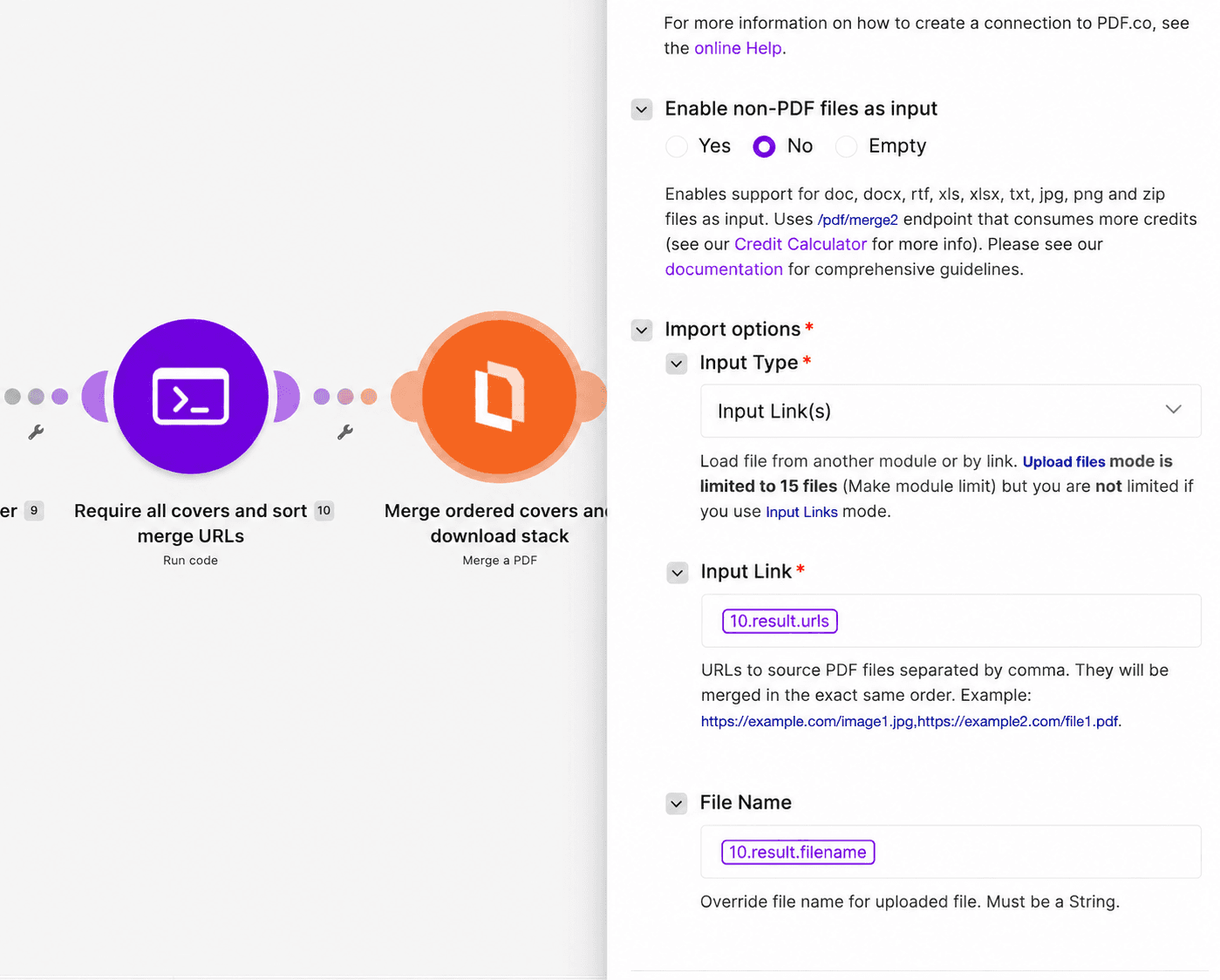
Add PDF.co > Merge a PDF.
Name it:
Merge ordered covers and download stack
Configure:
- Import Type: URL.
- URLs: Map
urlsfrom the batch-verification Code module. - Output File Name: Map its
filename. - Execution Mode: Sync.
- Export Type: Download a File.
- Output Links Expiration:
60.
The URLs must be comma-separated and appear in the intended order.
Do not map the entire Array aggregator object into the URL field.
PDF.co merges the individual separator PDFs into one document.
For example:
BATCH-001-separator-stack.pdfThe expected merged stack contains two separator sheets:
- Page 1: PKT-204.
- Page 2: PKT-205.
The pages appear in sequence order even though the original request listed PKT-205 first.
The Merge PDF operation uses temporary PDF.co URLs, so the merge should finish before those links expire.
For larger batches or long-running operations, use a completion-tracking design rather than assuming synchronous execution will always finish within the available runtime.
Step 13: Archive the Printable Separator Stack
Add Google Drive > Upload a File.
Name it:
Archive printable separator stack
Configure:
- New Drive Location: My Drive.
- New Folder Location: Map the approved
archive_folder_id. - New File Name: Map the final stack filename.
- File Name: Map the same filename.
- Data: Map the binary
dataoutput from PDF.co Merge a PDF. - Convert a File: No.
This saves the merged PDF as a separate document.
For the sample batch, the approved archive folder will contain:
BATCH-001-0001-PKT-204.pdf
BATCH-001-0002-PKT-205.pdf
BATCH-001-separator-stack.pdf
The first two PDFs are the individual separator sheets.
The third PDF is the combined printable stack.
The overall run should be considered successful only after the merged stack has been saved and the resulting file verified.
The Google Drive folder's display order does not determine the page order of the merged PDF. That order is controlled by the sorted URL list used in the merge.
Step 14: Test the Complete Workflow
After connecting PDF.co and Google Drive, check the module mappings and change:
setup_complete = YESKeep the scenario in test mode.
Run the scenario and send the sample JSON request again.
Confirm:
- The webhook receives
BATCH-001and its two packets. - The validation Code module accepts the input and sorts the packets by sequence.
- The Iterator processes PKT-204 before PKT-205.
- PDF.co generates a Code 128 barcode for each packet ID.
- Each barcode is included in its separator-sheet HTML.
- PDF.co converts each separator sheet into a PDF.
- Both individual PDFs are saved in Google Drive.
- The Array aggregator returns exactly two completed covers.
- The completeness check confirms both packet IDs, sequences, URLs, and archive IDs.
- PDF.co merges the PDFs in sequence order.
- The final printable stack is saved in Google Drive.
Verify the Output Files
Open both individual separator PDFs.
Each should contain:
- Document Packet heading.
- Correct packet ID.
- Code 128 barcode.
- Readable packet label.
- Correct sequence number.
Confirm that each individual document contains exactly one page.
Next, open the merged separator stack.
For the sample input, it should contain two pages, with PKT-204 before PKT-205.
Do not rely only on the number of returned URLs. Inspect the PDF pages themselves.
Step 15: Print and Test the Barcodes
Before using the separator sheets in a production scanning process, test them with your actual printer and scanner.
Print the merged stack using the paper size, scaling, and print-quality settings you intend to use operationally.
Avoid using automatic scaling settings that reduce the barcode too much.
Inspect the printed sheets to confirm:
- Every barcode is fully visible.
- The bars have sufficient contrast.
- The barcode is not cropped or distorted.
- There is adequate white space around the barcode.
- The printed packet ID matches the intended identifier.
- Each separator fits on one page.
Scan the Printed Code 128 Barcodes
Use the scanner that will process your document packets.
Scan the Code 128 barcode for PKT-204.
The decoded value should be exactly:
PKT-204Then scan PKT-205.
Its decoded value should be:
PKT-205Repeat the test using the shortest and longest packet IDs allowed by your process.
If your organization uses longer identifiers, they may require different physical barcode dimensions.
Configure Downstream Document Separation
If your scanning software supports barcode-based document separation, configure it to recognize the selected Code 128 format.
Test whether the scanning software should:
- Start a new document when it detects a separator barcode.
- Use the decoded packet ID as the document identifier.
- Retain the separator sheet in the scanned output.
- Remove the separator sheet after identifying the packet.
The exact configuration depends on your scanner and document-management software.
This Make scenario creates printable separators. The downstream scan-and-split rules must be configured and verified separately.
Step 16: Test Invalid and Incomplete Batches
Before enabling the scenario for routine use, test the validation and recovery behavior.
Test a Duplicate Packet ID
Send a batch containing the same packet ID twice.
For example:
{
  "batch_id": "BATCH-002",
  "packets": [
    {
      "packet_id": "PKT-204",
      "display_name": "Example account A",
      "sequence": 1
    },
    {
      "packet_id": "PKT-204",
      "display_name": "Example account B",
      "sequence": 2
    }
  ]
}
The validation module should reject the request.
No separator PDFs should be generated.
Test a Duplicate Sequence
Create two packets with different IDs but the same sequence.
The scenario should stop because the print order is ambiguous.
Test an Empty Packet List
Send a request with an empty packets array.
The validation module should reject the request before barcode generation.
Test an Invalid Packet ID
Try packet IDs containing unsupported characters or values longer than 40 characters.
The scenario should stop rather than creating an unsafe or incorrectly labeled barcode.
Test More Than 20 Packets
Send a request containing 21 packets.
The validation module should reject it because this synchronous example supports batches of up to 20 packets.
To process larger batches, extend the workflow with persistent completion tracking and suitable asynchronous job handling rather than simply increasing the limit.
Test a Barcode Generation Failure
Cause or simulate a failure in the barcode-generation module.
The scenario should not create a finished separator PDF without a valid barcode image.
Do not substitute a blank image or ignore the failure.
Test an Individual PDF Failure
If any separator fails to convert or archive, the final stack should not be treated as complete.
Previously generated individual PDFs may remain in Google Drive.
Keep those files available for review rather than silently discarding evidence of the partial run.
Test a Missing Completed Cover
Remove a completed cover from the test aggregation input or simulate an incomplete result.
The completeness Code module should reject the batch.
Test a Duplicate Completed Cover
Simulate two completed cover records with the same packet ID.
The completeness check should prevent the merge.
Test a Merge Failure
If PDF.co cannot merge the individual PDFs:
- Stop the final archive step.
- Preserve the individual archived separator files.
- Review the ordered PDF URLs.
- Retry the merge using completed, accessible PDFs.
Do not mark a partial stack as successful.
Step 17: Configure Error Handling and Recovery
The supplied workflow uses synchronous barcode generation, HTML-to-PDF conversion, and PDF merging.
For production use, add failure handling around barcode generation, individual PDF conversion, Google Drive uploads, and the merge operation.
Barcode or Conversion Failure
If PDF.co fails to generate a barcode or separator PDF:
- Stop the affected operation.
- Preserve the batch ID and packet ID.
- Record the failure.
- Do not continue with a fabricated URL or empty PDF.
Individual Archive Failure
If an individual separator PDF was generated but could not be archived:
- Keep the completed file data available for recovery where possible.
- Verify Google Drive access and the destination folder.
- Do not allow the final completeness check to accept an item with no archived file ID.
Merge Failure
If merging fails:
- Preserve the individual completed separator PDFs.
- Inspect the temporary PDF URLs.
- Use fresh accessible URLs if the original links have expired.
- Retry the merge only after verifying the complete intended batch.
Final Archive Failure
If the merged stack was generated but the Google Drive upload failed:
- Do not mark the batch completed.
- Retry the archive operation using the completed merged PDF when possible.
- Avoid regenerating every individual separator unnecessarily.
Repeated Requests
The example does not include persistent duplicate-request prevention.
Sending the same batch again may create additional Google Drive files, even when the filenames are identical.
For recurring or production use, add a Make data store keyed by Batch ID.
Track:
- Batch ID.
- Expected packet IDs and sequences.
- Processing state.
- Individual archived file IDs.
- Final merged file ID.
- Completion status.
For example, use states such as:
processingpartialcompletedfailed
When recovering a partially completed batch, inspect the existing files before creating replacements.
Using a unique Batch ID per request also makes archived output easier to distinguish.
Troubleshooting
- The webhook doesn't receive the packets array: Check that the request uses JSON with
Content-Type: application/jsonand that Make detected the array structure. - The scenario stops at the setup filter: Confirm
setup_completeis set toYESafter configuring all required modules. - Packet validation fails: Check the Batch ID, Packet IDs, display names, sequence numbers, and 20-packet limit.
- The packets appear in the wrong order: Confirm the validation Code module sorts by numeric sequence and the final completeness module sorts the merge URLs again.
- PDF.co generates the wrong barcode type: Select Code128, not QRCode or Code39.
- The barcode encodes the wrong value: Map the Iterator's
packet_idto the Barcode Value field. Do not map the display name. - The barcode doesn't appear in the PDF: Confirm the barcode module returns a completed image URL and that the HTML module receives it.
- The separator PDF contains extra pages: Inspect the HTML, label lengths, font sizes, margins, and PDF.co page settings.
- The PDF.co module doesn't return the expected fields: Verify that your current export configuration exposes both the completed PDF URL and binary Data. Adjust the mapping before enabling the merge.
- The individual files aren't archived: Check the Google Drive connection, destination folder, filenames, and binary Data mapping.
- The Array aggregator returns too few covers: Confirm its source is the packet Iterator and that failed operations are not being silently omitted.
- The merge fails: Verify the input contains a comma-separated list of completed, accessible PDF URLs in the correct order.
- The merged pages are out of sequence: Confirm the merge uses
urlsfrom the final sorting Code module rather than unsorted aggregator output. - The printed barcode won't scan: Check physical size, print scaling, contrast, bar width, and white space. Test with the actual scanner.
- The scanner doesn't separate documents: Confirm that your downstream scanning software recognizes Code 128 and has appropriate separator rules configured.
- Repeated runs create duplicate files: Add persistent batch tracking and reuse previously generated files during controlled recovery.
With Make and PDF.co, you can automatically generate Code 128 document separator sheets for batches of records or physical documents.
The workflow receives a list of packets, validates their identifiers and sequence numbers, and generates one Code 128 barcode and separator PDF for each packet. It then archives the individual PDFs, verifies that every requested cover was completed, and merges them into a single printable stack.
By encoding only the packet identifier, the separator sheets can provide consistent labels for downstream document-scanning workflows without requiring customer names or other sensitive details in the barcode.
Once you've tested the generated PDFs with your actual printer and scanner, you can incorporate the separator stack into a document-handling process that supports barcode-based separation.
For more information, explore the PDF.co Make integration documentation, Barcode Generator API, and PDF Merge API.
Related Tutorials