Create a Property Maintenance Photo Report from monday.com with Make and PDF.co
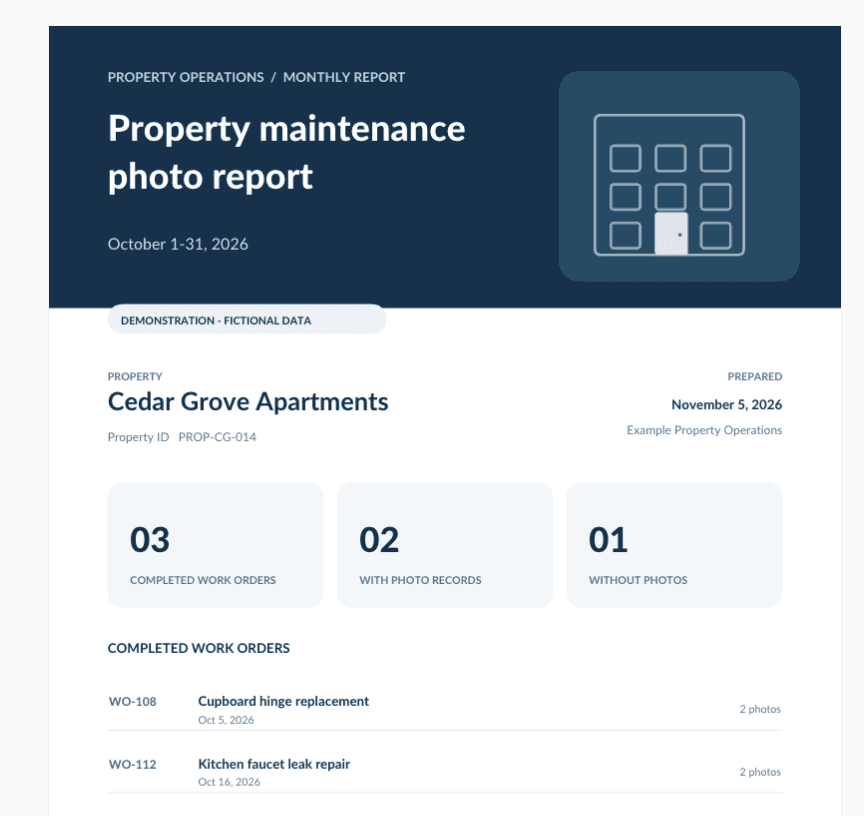
A property manager may need one report containing several completed work orders, with notes and photos for each job. Instead of assembling the document manually, you can use Make to collect the records and PDF.co to generate a single PDF.
In this tutorial, you will build a scenario from an empty Make canvas. It receives a request for one property and reporting period, retrieves the matching monday.com work orders, checks their uploaded photos, creates the report, and saves it in the property's approved Google Drive folder. Finally, it writes the stored file link and reporting period back to a monday.com report record.
The report is a maintenance record, not an invoice. Billing calculations and automatic customer delivery are not included.
Prerequisites
- A Make account with access to Make Code and permission to create the scenario and its connections.
- A monday.com account that can read the work-orders and reports boards, access their uploaded photos, update report columns, and add work-order updates.
- A PDF.co account with an API key and available conversion credits.
- A Google Drive connection with access to the approved property archive folders.
- An HTTP client or terminal for sending the sample webhook request.
This version supports PNG and JPEG images uploaded directly to the configured monday.com Files column. External cloud links, monday docs, other file formats, subitems, and archived or deleted work orders are outside its scope.
How the scenario is organized
The main path contains 26 modules. Build them in the order below, then add the error-handler routes. The module numbers used in the mappings refer to that main path, not to the tutorial's step numbers.
Select values from Make's mapping panel rather than entering field labels as ordinary text. If your scenario assigns different module numbers, choose the corresponding named module and output. For every Code module, select JavaScript, use Code editor, and leave Additional dependencies empty.
The workflow uses a report-request webhook, not a preconfigured monthly schedule. Its sample request specifies a November reporting window; it does not automatically schedule a run or send the finished report to anyone.
IN THIS TUTORIAL
Step 1: Prepare the monday.com Boards and Report Record

Set up the work-orders board
Create or identify these columns. The titles can differ, but their types must match:
- Property ID - Text: A stable identifier such as
PROP-18. Do not use the property name for grouping. - Work Order ID - Text: A nonempty identifier that is unique within the selected property and reporting period.
- Completed At - Date: A completion date, optionally with a time. A blank value means the item is not completed for this workflow.
- Work Summary - Text or Long Text: The description of the completed work.
- Photos - Files: PNG or JPEG photos uploaded directly to monday.com. Every attachment in this column is selected for the report, so place unrelated files in another column.
- Reported Period - Text: A required column in this implementation. The scenario does not update this column on each work order or use it to exclude previously reported items.
Use active, top-level work-order items. This scenario treats a valid Completed At value as evidence of completion; it does not check a separate Done or Status column.
The code reads the raw Date-column value and interprets its date and time as UTC. A date without a time is treated as midnight UTC and labeled "date only" in the report. Choose request boundaries that match this convention. The period includes its start and excludes its end.
Set up the reports board
Create a report item for the property and reporting period. The reports board needs:
- Property ID - Text: The same stable property ID used on the work orders.
- Archive Folder ID - Text: The approved Google Drive folder ID, not a folder URL.
- Reported Period - Text: Filled after the PDF is archived.
- Report Link - Link: Filled with the stored Google Drive document link.
- Report Status - Text: The scenario writes
Generated - review requiredorNeeds attention. Use a Text column, not a Status column.
Prepopulate Property ID and Archive Folder ID on the report item. Record its numeric item ID and both board IDs. Also record the internal column IDs for all fields above; visible column titles are not substitutes for these IDs.
The folder comes from this verified report item, not from the webhook. Confirm the connected Google account can upload to it and that the intended readers have suitable access. The scenario does not widen Google Drive sharing permissions.
Step 2: Create the Scenario and Receive a Report Request
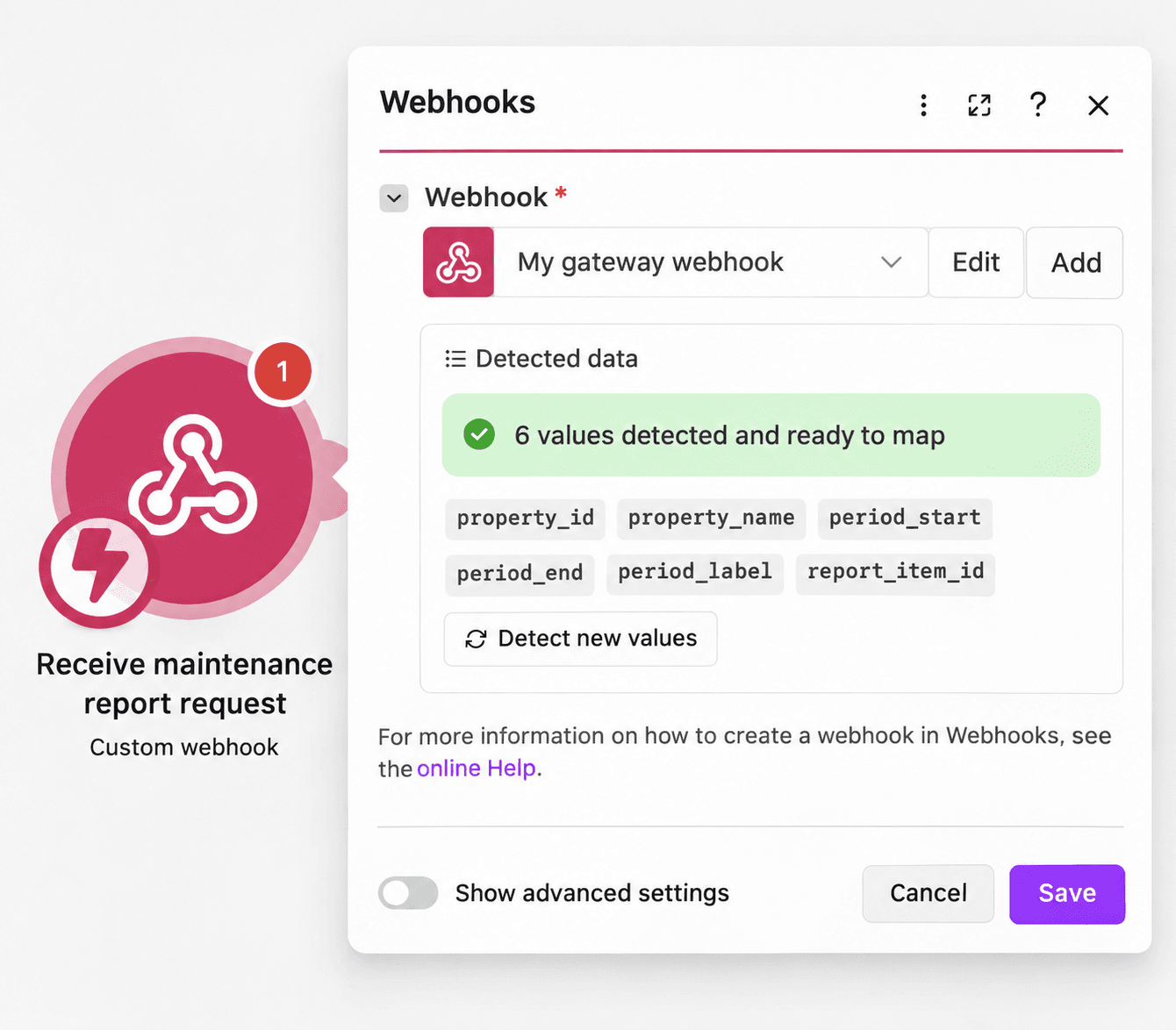
Create an empty scenario and leave it inactive while configuring it. Add Webhooks > Custom webhook as module 1 and name it Receive maintenance report request.
Create the webhook, leave JSON pass-through off, and copy its URL. Use Make's webhook access controls for your authorized request source. Do not put the webhook address in public content.
Replace the report_item_id placeholder below with the numeric ID of your existing report item, keeping it inside quotation marks. Set the property fields to match that item.
{
  "property_id": "PROP-18",
  "property_name": "Example Property",
  "period_start": "2026-11-01T00:00:00Z",
  "period_end": "2026-12-01T00:00:00Z",
  "period_label": "November 2026",
  "report_item_id": "REPLACE_WITH_YOUR_MONDAY_REPORT_ITEM_ID"
}
Click Run once and send this body to the webhook using an HTTP POST request with Content-Type: application/json.
To send it from a terminal, save the body as sample-report-request.json and substitute your webhook URL:
curl --request POST 'YOUR_MAKE_WEBHOOK_URL' \
  --header 'Content-Type: application/json' \
  --data-binary '@sample-report-request.json'
Check the webhook output for all six request fields:
property_id: The stable property identifier used for selection.property_name: A display heading only; it is not used for selection or authorization.period_start: The inclusive start timestamp, including a timezone offset.period_end: The exclusive end timestamp, including a timezone offset.period_label: A human-readable label. The code supplies a boundary-based label when this is blank.report_item_id: The numeric ID of the existing report item, supplied as text.
Step 3: Configure and Validate the Request
Add Make Code as module 2 and name it Configure and validate report.
Use JavaScript and the Code editor. Add the following input variables, keeping their names exactly as shown.
Request mappings
property_id: Map1.property_id.property_name: Map1.property_name.period_start: Map1.period_start.period_end: Map1.period_end.period_label: Map1.period_label.report_item_id: Map1.report_item_id.
Board configuration
work_orders_board_id: Enter the numeric ID of the work-orders board as text.reports_board_id: Enter the numeric ID of the reports board as text.
Work-order column configuration
property_column_id: Enter the internal ID of Property ID.work_order_column_id: Enter the internal ID of Work Order ID.completed_column_id: Enter the internal ID of Completed At.summary_column_id: Enter the internal ID of Work Summary.photos_column_id: Enter the internal ID of Photos.reported_period_column_id: Enter the internal ID of the work-orders board's Reported Period.
Report-record column configuration
report_property_column_id: Enter the internal ID of the report item's Property ID column.report_folder_column_id: Enter the internal ID of Archive Folder ID.report_period_column_id: Enter the internal ID of the reports board's Reported Period.report_link_column_id: Enter the internal ID of Report Link.report_status_column_id: Enter the internal ID of Report Status.
Retrieval limits
page_size: Enter100.max_pages: Enter20.max_photo_mb: Enter15.
Use each input name once. Do not add API keys or tokens to these inputs or to the code. Provider credentials belong in their Make connections.
Paste this complete script into the Code editor:
// Make Code. Request fields are mapped from the Custom webhook; configuration
// fields are set by the scenario owner. No tokens or credentials belong here.
const text = (v) => String(v ?? '').trim();
const need = (ok, message) => { if (!ok) throw new Error(message); };
const c = {};
for (const k of [
  'property_id', 'property_name', 'period_start', 'period_end', 'period_label',
  'report_item_id', 'work_orders_board_id', 'reports_board_id',
  'property_column_id', 'work_order_column_id', 'completed_column_id',
  'summary_column_id', 'photos_column_id', 'reported_period_column_id',
  'report_property_column_id', 'report_folder_column_id',
  'report_period_column_id', 'report_link_column_id', 'report_status_column_id'
]) c[k] = text(input[k]);
for (const k of ['property_id', 'property_name']) {
  need(c[k].length > 0 && c[k].length <= 160, `${k} is required (maximum 160 characters).`);
}
for (const k of ['report_item_id', 'work_orders_board_id', 'reports_board_id']) {
  need(/^[1-9][0-9]*$/.test(c[k]), `Configure a numeric monday.com ${k}.`);
}
const columnKeys = Object.keys(c).filter(k => k.endsWith('_column_id'));
for (const k of columnKeys) need(/^[A-Za-z0-9_]+$/.test(c[k]), `Configure the actual column ID in ${k}, not its display title.`);
const workColumns = ['property_column_id','work_order_column_id','completed_column_id','summary_column_id','photos_column_id','reported_period_column_id'].map(k => c[k]);
const reportColumns = ['report_property_column_id','report_folder_column_id','report_period_column_id','report_link_column_id','report_status_column_id'].map(k => c[k]);
need(new Set(workColumns).size === workColumns.length, 'Work-order column IDs must be distinct.');
need(new Set(reportColumns).size === reportColumns.length, 'Report-record column IDs must be distinct.');
function timestamp(v, key) {
  need(/^\d{4}-\d{2}-\d{2}T\d{2}:\d{2}:\d{2}(?:\.\d{1,3})?(?:Z|[+-]\d{2}:\d{2})$/.test(v), `${key} must be an ISO timestamp with a UTC offset, for example 2026-11-01T00:00:00Z.`);
  const d = v.slice(0,10);
  const dt = new Date(`${d}T00:00:00Z`);
  need(Number.isFinite(dt.getTime()) && dt.toISOString().slice(0,10) === d, `Invalid date in ${key}.`);
  const n = Date.parse(v); need(Number.isFinite(n), `Invalid timestamp in ${key}.`); return n;
}
c.start_ms = timestamp(c.period_start, 'period_start');
c.end_ms = timestamp(c.period_end, 'period_end');
need(c.end_ms > c.start_ms, 'period_end must be after period_start.');
c.period_label ||= `${c.period_start} to ${c.period_end} (end excluded)`;
need(c.period_label.length <= 240, 'period_label exceeds 240 characters.');
c.page_size = Number(input.page_size || 100);
c.max_pages = Number(input.max_pages || 20);
c.max_photo_mb = Number(input.max_photo_mb || 15);
need(Number.isInteger(c.page_size) && c.page_size >= 1 && c.page_size <= 500, 'page_size must be 1-500.');
need(Number.isInteger(c.max_pages) && c.max_pages >= 1 && c.max_pages <= 100, 'max_pages must be 1-100.');
need(Number.isFinite(c.max_photo_mb) && c.max_photo_mb > 0 && c.max_photo_mb <= 100, 'max_photo_mb must be greater than 0 and at most 100.');
c.started_ms = Date.now();
const q = JSON.stringify;
c.item_fields = `id name column_values(ids: ${q(workColumns)}) { id type text value ... on FileValue { files { __typename ... on FileAssetValue { asset_id name is_image asset { id name public_url file_extension file_size } } ... on FileLinkValue { name url kind } ... on FileAssetInvalidValue { asset_id name error } } } }`;
const initialQuery = `query {
  source_boards: boards(ids: [${q(c.work_orders_board_id)}]) {
    id columns { id type }
    items_page(limit: ${c.page_size}, query_params: { rules: [{ column_id: ${q(c.property_column_id)}, compare_value: [${q(c.property_id)}], operator: any_of }] }) {
      cursor items { ${c.item_fields} }
    }
  }
  report_boards: boards(ids: [${q(c.reports_board_id)}]) { id columns { id type } }
  report_items: items(ids: [${q(c.report_item_id)}]) { id name board { id } column_values(ids: ${q(reportColumns)}) { id type text value } }
}`;
return { config_json: JSON.stringify(c), initial_query: initialQuery, max_pages: c.max_pages };
The script returns config_json, initial_query, and max_pages. The first query requests the matching property items, board column types, and report record. The next validation stage checks that the configured columns and report item match the request.
Step 4: Fetch and Combine Every Result Page
A single page is not necessarily the complete set of work orders. Add the following modules to keep requesting pages while a next-page query remains.
Module 3: Initialize page query
Add Tools > Set variable and name it Initialize page query.
- Variable name:
report_query. - Variable lifetime: One cycle.
- Variable value: Map
2.result.initial_query.
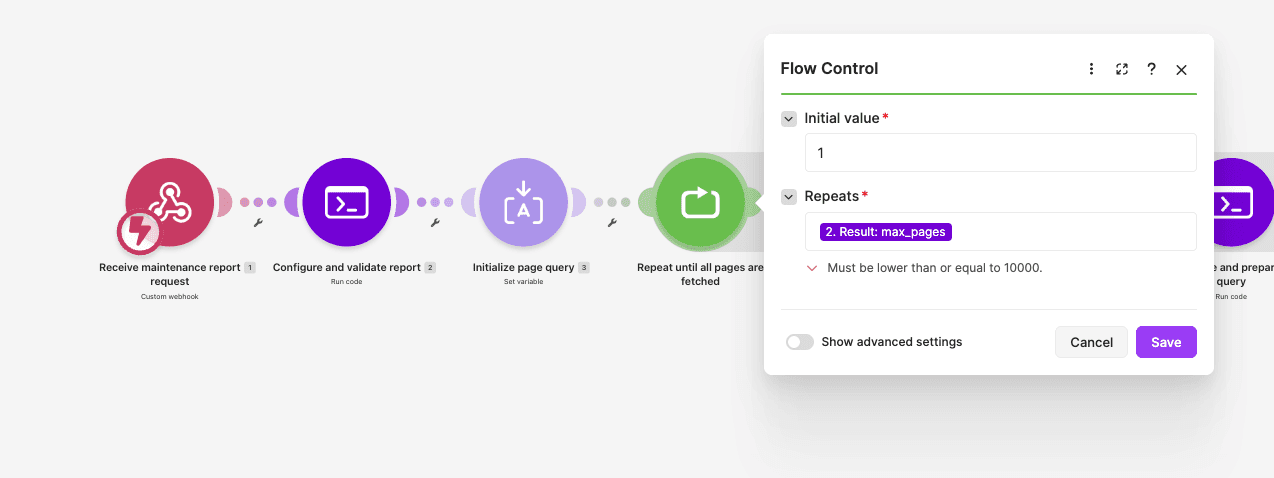
Module 4: Repeat until all pages are fetched
Add a Repeater.
- Initial value:
1. - Repeats: Map
2.result.max_pages. - Step:
1.
This is a bounded repeater, not an unbounded loop. Its remaining repetitions are still evaluated after pagination finishes, but the filter below prevents further API calls when the current query is empty.
Module 5: Read current page query
Add Tools > Get variable.
- Variable name:
report_query.
Module 6: Fetch a work-order page
Add monday.com's Execute a GraphQL Query operation from the version 2 app, and connect the account that can access both boards.
- Method: POST.
- Query: Map
5.report_query. - Operation Name: Leave empty.
- Variables Data Source: Array.
- Variables: Leave empty.
The query is already assembled by the Code module, so it does not require separate variable entries. The supplied workflow does not pin an API Version value; retain a compatible selection in your installed module and verify the returned fields during testing.
On the connection from module 5 to module 6, add a filter named More pages remain:
- Value:
5.report_query. - Text condition: Does not equal.
- Comparison value: Empty text.
Module 7: Check page and prepare next query
Add a JavaScript Code module named Check page and prepare next query.
Create these inputs:
config_json: Map2.result.config_json.page_number: Map4.i.response_body: Map6.body.response_data: Map6.data.response_errors: Map6.errors.
The script accepts the response under Body or Data. Map the response wrapper that your installed GraphQL module actually returns; an unavailable alternate can remain empty. Preserve GraphQL errors when they are exposed separately. Inspect a real module output rather than inventing a missing wrapper.
Paste this script:
const c = JSON.parse(input.config_json);
const num = Number(input.page_number);
const parse = v => typeof v === 'string' ? JSON.parse(v) : v;
let envelope = input.response_body;
if (envelope == null || envelope === '') envelope = input.response_data;
envelope = parse(envelope);
if (!envelope || typeof envelope !== 'object') throw new Error('monday.com returned no GraphQL response body. Check this module output mapping.');
const extraErrors = input.response_errors;
if (envelope.errors?.length || (Array.isArray(extraErrors) && extraErrors.length)) throw new Error('monday.com returned GraphQL errors. Review the execution; do not build a partial report.');
const data = envelope.data ?? envelope;
let page, report = null;
if (num === 1) {
  const source = data.source_boards?.[0];
  const reportBoard = data.report_boards?.[0];
  const item = data.report_items?.[0];
  if (!source || String(source.id) !== c.work_orders_board_id || !source.items_page) throw new Error('Work-order board is missing or inaccessible.');
  if (!reportBoard || String(reportBoard.id) !== c.reports_board_id || !item || String(item.id) !== c.report_item_id || String(item.board?.id) !== c.reports_board_id) throw new Error('Report record or report board is missing, inaccessible, or mismatched.');
  const check = (columns, mapping) => {
    const types = new Map((columns || []).map(x => [x.id, x.type]));
    for (const [key, allowed] of Object.entries(mapping)) if (!allowed.includes(types.get(c[key]))) throw new Error(`Column ${key} must have type ${allowed.join(' or ')}. Check the configured ID.`);
  };
  check(source.columns, {property_column_id:['text'], work_order_column_id:['text'], completed_column_id:['date'], summary_column_id:['text','long_text'], photos_column_id:['file'], reported_period_column_id:['text']});
  check(reportBoard.columns, {report_property_column_id:['text'], report_folder_column_id:['text'], report_period_column_id:['text'], report_link_column_id:['link'], report_status_column_id:['text']});
  const values = new Map(item.column_values.map(v => [v.id, v]));
  const propertyId = String(values.get(c.report_property_column_id)?.text ?? '').trim();
  if (propertyId !== c.property_id) throw new Error('The report record Property ID does not match the requested property.');
  const folder = String(values.get(c.report_folder_column_id)?.text ?? '').trim();
  if (!/^[A-Za-z0-9_-]{10,}$/.test(folder)) throw new Error('Set the approved Google Drive folder ID on the report record. Do not paste a folder URL.');
  report = { item_id: c.report_item_id, board_id: c.reports_board_id, folder_id: folder, name: item.name };
  page = source.items_page;
} else {
  page = data.next_items_page;
}
if (!page || !Array.isArray(page.items)) throw new Error('Expected a paginated monday.com items response.');
if (!Number.isInteger(num) || num < 1 || num > c.max_pages) throw new Error('Invalid pagination sequence.');
const cursor = page.cursor == null || page.cursor === '' ? null : String(page.cursor);
const next = cursor ? `query { next_items_page(limit: ${c.page_size}, cursor: ${JSON.stringify(cursor)}) { cursor items { ${c.item_fields} } } }` : '';
return {
  page_json: JSON.stringify({ page_number:num, cursor, items:page.items, report, fetched_ms:Date.now() }),
  next_query: next
};
On the first page, this code verifies the work-orders board, reports board, report item, required column types, exact Property ID, and archive folder ID. For subsequent pages, it reads next_items_page.
It returns a serialized page in page_json and the next query in next_query. When the returned cursor is empty, the next query is empty too.
Module 8: Store next page query
Add Tools > Set variable.
- Variable name:
report_query. - Variable lifetime: One cycle.
- Variable value: Map
7.result.next_query.
Module 9: Combine retrieved pages
Add Tools > Text aggregator.
- Source module: Repeater 4.
- Text: Map
7.result.page_json. - Row separator: Other.
- Separator: A single actual newline, not the two literal characters
\n. - Stop processing after an empty aggregation: Disabled.
The result is one serialized page per line. The next module checks that pages are consecutive, cursors do not repeat, and the final page has no remaining cursor. Reaching max_pages does not make a partial response acceptable.
Step 5: Select and Sort Completed Work Orders
Add JavaScript Code module 10, named Select and sort completed work orders.
Create these inputs:
config_json: Map2.result.config_json.pages_jsonl: Map9.text.
Paste the following script:
const c = JSON.parse(input.config_json);
const packets = String(input.pages_jsonl || '').split('\n').filter(s => s.trim()).map(s => JSON.parse(s));
const need = (ok, message) => { if (!ok) throw new Error(message); };
need(packets.length > 0, 'No board pages were returned.');
const cursors = new Set();
for (let i=0;i<packets.length;i++) {
const p=packets[i];
need(p.page_number === i+1, 'Missing or out-of-order page in the board response.');
if (i < packets.length-1) need(!!p.cursor, 'Pages appeared after the cursor was exhausted.');
if(p.cursor) { need(!cursors.has(p.cursor), 'A pagination cursor repeated.'); cursors.add(p.cursor); }
}
need(!packets.at(-1).cursor, 'More work-order pages remain. Increase max_pages or narrow the property request; the partial report was stopped.');
const report = packets[0].report;
need(!!report, 'No verified report record was retrieved.');
const esc = value => String(value).replace(/[&<>"']/g, ch=>({'&':'&','<':'<','>':'>','"':'"',"'":'''}[ch]));
const reportStatus = status => `change_multiple_column_values(board_id: ${JSON.stringify(c.reports_board_id)}, item_id: ${JSON.stringify(c.report_item_id)}, column_values: ${JSON.stringify(JSON.stringify({[c.report_status_column_id]:status}))}) { id }`;
const reportAttention = `mutation { status: ${reportStatus('Needs attention')} note: create_update(item_id: ${JSON.stringify(c.report_item_id)}, body: ${JSON.stringify('Maintenance report was not finalized. Check the Make execution for retrieval, image, completeness, or storage errors before rerunning.')}) { id } }`;
const seenItems = new Set(), selected=[];
for(const p of packets) for(const item of p.items) {
const id = String(item.id || '');
need(/^[1-9][0-9]*$/.test(id), 'Invalid monday.com item ID.');
need(!seenItems.has(id), `Item ${id} occurred on more than one result page.`); seenItems.add(id);
const values = new Map((item.column_values || []).map(v=>[v.id,v]));
const property = String(values.get(c.property_column_id)?.text ?? '').trim();
// Verify the stable ID even though the API request already filters it.
if(property !== c.property_id) continue;
const dateValue = values.get(c.completed_column_id)?.value;
let completed;
if(dateValue == null || dateValue === '' || dateValue === 'null') continue;
try { completed=typeof dateValue === 'string' ? JSON.parse(dateValue) : dateValue; }
catch { throw new Error(`Work order item ${id} has malformed Completed At data.`); }
if(!completed?.date) continue;
const d=String(completed.date), time=String(completed.time || '00:00:00');
need(/^\d{4}-\d{2}-\d{2}$/.test(d) && /^\d{2}:\d{2}:\d{2}$/.test(time), `Invalid Completed At on item ${id}.`);
const iso = `${d}T${time}Z`, ms = Date.parse(iso);
need(Number.isFinite(ms) && new Date(ms).toISOString().slice(0,19) === iso.slice(0,19), `Invalid Completed At on item ${id}.`);
if(ms < c.start_ms || ms >= c.end_ms) continue;
const workId=String(values.get(c.work_order_column_id)?.text ?? '').trim();
need(workId.length>0, `Selected item ${id} has no Work Order ID.`);
const summary=String(values.get(c.summary_column_id)?.text ?? '').trim();
const photosValue=values.get(c.photos_column_id);
need(photosValue && Array.isArray(photosValue.files), `The selected Photos column on item ${id} did not return its files collection.`);
const workAttention=`mutation { status: ${reportStatus('Needs attention')} note: create_update(item_id: ${JSON.stringify(id)}, body: ${JSON.stringify(`Photo processing needs attention for report ${c.report_item_id}. A photo could not be retrieved or is not a supported uploaded PNG/JPEG. The report was not finalized. Check the Make execution and retry after resolving it.`)}) { id } }`;
const photos=photosValue.files.map((f,index)=>({
kind:'photo',photo_key:`${id}-${index+1}`, source_type:f.__typename,
asset_id:String(f.asset_id || f.asset?.id || ''),
filename:String(f.name || f.asset?.name || `Photo ${index+1}`),
is_image:f.is_image === true, public_url:String(f.asset?.public_url || ''),
extension:String(f.asset?.file_extension || '').toLowerCase().replace(/^\./,''),
file_size:Number(f.asset?.file_size || 0), fetched_ms:p.fetched_ms
}));
selected.push({ item_id:id,work_order_id:workId,completed_ms:ms,
work_order_id_html:esc(workId), completed_html:esc(completed.time ? `${d} ${time} UTC` : `${d} (date only)`),
summary_html:esc(summary || 'No work summary recorded.'), photo_count:photos.length,
photo_keys_json:JSON.stringify(photos.map(f=>f.photo_key)),
photos:photos.length?photos:[{kind:'no_photo'}], attention_query:workAttention
});
}
selected.sort((a,b)=>a.completed_ms-b.completed_ms || (a.work_order_id < b.work_order_id ? -1 : a.work_order_id > b.work_order_id ? 1 : 0));
need(selected.length>0, 'No completed work orders matched this Property ID and period. No PDF was generated.');
need(new Set(selected.map(w=>w.work_order_id)).size === selected.length, 'Duplicate Work Order IDs in the selected property and period.');
const filename=`maintenance-${c.property_id.replace(/[^A-Za-z0-9_-]+/g,'-')}-${c.period_start.slice(0,10)}-${c.report_item_id}.pdf`;
return {
work_orders:selected, work_order_count:selected.length,
manifest_json:JSON.stringify(selected.map(w=>({item_id:w.item_id,photo_count:w.photo_count,photo_keys:JSON.parse(w.photo_keys_json)}))),
property_html:esc(c.property_name), property_id_html:esc(c.property_id),
period_html:esc(c.period_label), period_boundary_html:esc(`${c.period_start} <= completed < ${c.period_end}`),
folder_id:report.folder_id, filename,
report_attention_query:reportAttention,
started_ms:c.started_ms, max_photo_mb:c.max_photo_mb
};This step rechecks the exact Property ID, reads completion dates, applies period_start <= completed < period_end, and sorts by completion time followed by Work Order ID. Duplicate selected Work Order IDs stop processing.
A missing or blank completion date is not selected. If no completed work orders match, the scenario stops without generating an empty PDF.
For each selected item, the code prepares escaped text, photo identities, and an error-reporting mutation. Work orders without photos receive an internal no_photo entry so they can continue through the later aggregation path. This is not a photo placeholder displayed in the report.
Inspect the output before proceeding. Confirm work_order_count, folder_id, filename, and the contents of work_orders against your test board.
Step 6: Iterate Work Orders and Their Photos
Add Iterator 11, named Iterate work orders.
- Array: Map
10.result.work_orders.
Add Iterator 12, named Iterate work-order photos.
- Array: Map
11.photos.
The outer Iterator establishes the work-order boundary. The inner Iterator processes that work order's photo entries. Keep these boundaries when configuring both Text aggregators later.
Step 7: Validate Each Selected Photo URL
Add JavaScript Code module 13, named Check current photo download link.
On the connection from the photo Iterator to this module, add a filter named Work order has a photo:
- Value:
12.kind. - Text condition: Equals.
- Comparison value:
photo.
The filter excludes the internal no_photo entry from the download path. It is not a filter for silently dropping invalid attachments; real photo entries continue into validation.
Create these inputs:
source_type: Map12.source_type.is_image: Map12.is_image.asset_id: Map12.asset_id.extension: Map12.extension.public_url: Map12.public_url.file_size: Map12.file_size.fetched_ms: Map12.fetched_ms.photo_key: Map12.photo_key.filename: Map12.filename.max_photo_mb: Map10.result.max_photo_mb.
Paste the following script:
// Uploaded monday.com photos only. Other attachment types need explicit handling.
const text=v=>String(v??'');
const need=(v,m)=>{if(!v) throw new Error(m);};
need(input.source_type === 'FileAssetValue', 'This photo entry is an external link, monday doc, or invalid asset. Attach a PNG/JPEG to the Photos column.');
need(input.is_image === true || text(input.is_image).toLowerCase()==='true', 'The Photos column contains a non-image attachment.');
need(/^[1-9][0-9]*$/.test(text(input.asset_id)), 'Image asset ID is missing.');
need(['jpg','jpeg','png'].includes(text(input.extension).toLowerCase()), 'This starter supports uploaded PNG and JPEG photos only.');
const url=text(input.public_url).trim();
let parsed; try { parsed=new URL(url); } catch { throw new Error('No usable image download URL returned by monday.com.'); }
need(parsed.protocol==='https:' && !parsed.username && !parsed.password, 'Image download URL must be HTTPS.');
const fetched=Number(input.fetched_ms);
need(fetched>0 && Date.now()-fetched < 45*60*1000, 'The temporary image URL is too old. Start a fresh request so monday.com returns a new link.');
const size=Number(input.file_size);
need(Number.isFinite(size) && size>0 && size <= Number(input.max_photo_mb)*1024*1024, 'Image size is missing, zero, or over the configured maximum.');
const key=text(input.photo_key);
need(/^[0-9]+-[0-9]+$/.test(key), 'Invalid internal photo key.');
return {photo_url:url, photo_key:key, caption:text(input.filename), extension:text(input.extension)};
The checks require a directly uploaded image asset, PNG/JPEG extension, HTTPS download URL, valid internal photo key, usable file size, and a retrieval timestamp less than 45 minutes old. The age threshold is a workflow guard, not proof that a URL will still work at conversion time.
Step 8: Download the Photo
Add HTTP > Download a file as module 14, named Download photo from signed URL.
- Authentication type: No authentication.
- URL: Map
13.result.photo_url. - Return error if HTTP request fails: Yes.
- Share cookies with other HTTP modules: No.
The authenticated monday.com query has already returned the asset's temporary URL. This download uses that URL without adding a monday.com or PDF.co API key to the request.
This version does not use PDF.co Upload a File. It checks the downloaded image, then places the same temporary URL in the HTML so PDF.co can retrieve the image during conversion. Images that require an additional Authorization header need a different download/upload path, which is not included here.
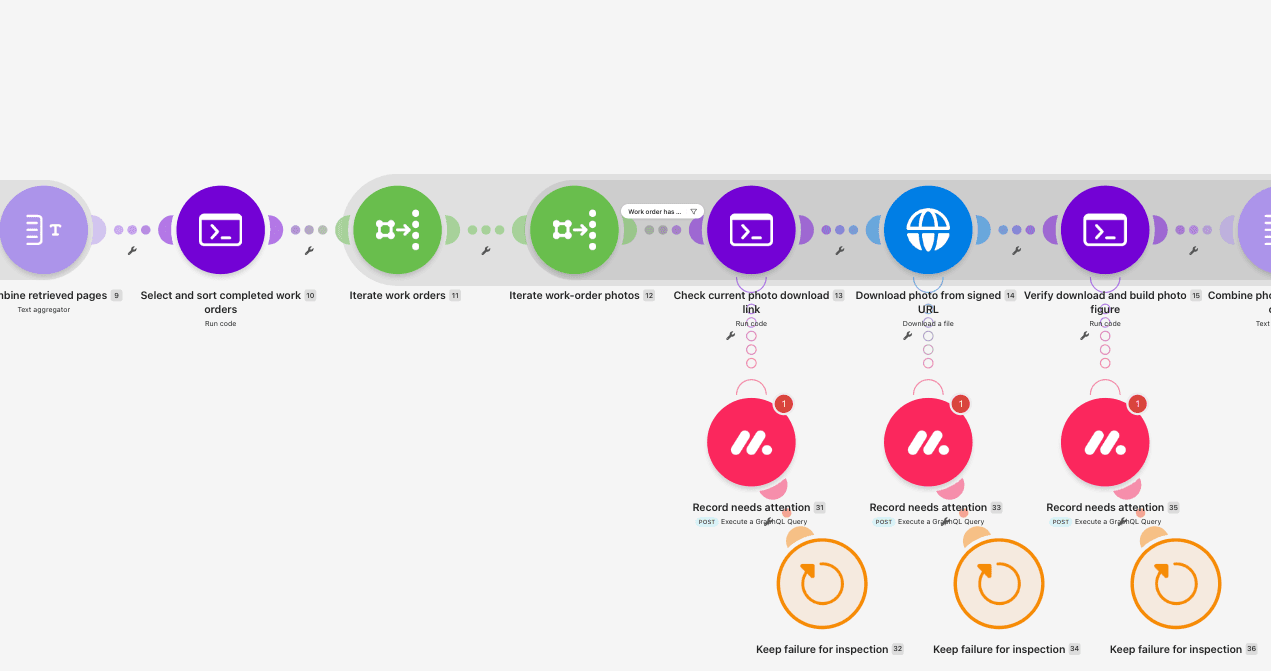
Step 9: Check the Downloaded Bytes and Build a Photo Figure
Add JavaScript Code module 15, named Verify download and build photo figure.
Create these inputs:
photo_key: Map13.result.photo_key.photo_url: Map13.result.photo_url.caption: Map13.result.caption.extension: Map13.result.extension.base64_prefix: Mapsubstring(base64(14.data); 0; 16).downloaded_bytes: Maplength(14.data).max_photo_mb: Map10.result.max_photo_mb.
The base64_prefix input uses a Make expression to take only the first 16 characters of the file's Base64 representation. The downloaded_bytes input uses the length of the HTTP module's binary Data. Map these as expressions, not as literal strings.
Paste this script:
// Runs only after a successful HTTP download. Keep the signed URL ephemeral.
const esc=value=>String(value??'').replace(/[&<>"']/g,ch=>({'&':'&','<':'<','>':'>','"':'"',"'":'''}[ch]));
const key=String(input.photo_key || '');
if(!/^[0-9]+-[0-9]+$/.test(key)) throw new Error('Missing photo identity after download.');
const prefix=String(input.base64_prefix || '');
const ext=String(input.extension || '').toLowerCase();
const bytes=Number(input.downloaded_bytes);
if(!Number.isFinite(bytes) || bytes < 16 || bytes > Number(input.max_photo_mb)*1024*1024) throw new Error('Image download was empty or exceeded the configured maximum.');
if((ext==='png' && !prefix.startsWith('iVBORw0KGgo')) || (['jpg','jpeg'].includes(ext) && !prefix.startsWith('/9j/'))) throw new Error('Downloaded bytes do not start with the expected PNG/JPEG signature.');
const caption=String(input.caption||'Completed work');
return {figure_html:`<figure data-photo-key="${key}"><img src="${esc(input.photo_url)}" alt="${esc(caption)}"><figcaption>${esc(caption)}</figcaption></figure>`};The code checks the downloaded size and PNG/JPEG header, escapes the caption and URL, and returns a <figure> with an internal photo key. It does not embed the downloaded bytes in the HTML or perform a full image decode. The finished PDF still needs a visual review.
Step 10: Combine Photos into a Complete Work-Order Section
Module 16: Combine photos for this work order
Add Tools > Text aggregator.
- Source module: Iterate work-order photos 12.
- Text: Map
15.result.figure_html. - Row separator: Other.
- Separator: Leave empty.
- Stop processing after an empty aggregation: Disabled.
Keeping empty aggregation enabled is essential to the no-photo path. When a work order has no photos, its internal entry was filtered before downloading; this aggregator must still allow the following section-building step to receive an empty photo string. Confirm this behavior in the live test.
Module 17: Build complete work-order section
Add a JavaScript Code module and create these inputs:
figures_html: Map16.text.photo_keys_json: Map11.photo_keys_json.item_id: Map11.item_id.work_order_id_html: Map11.work_order_id_html.completed_html: Map11.completed_html.summary_html: Map11.summary_html.
Paste this script:
const expected=JSON.parse(input.photo_keys_json);
const html=String(input.figures_html || '');
const actual=[...html.matchAll(/data-photo-key="([0-9]+-[0-9]+)"/g)].map(m=>m[1]);
if(expected.length!==actual.length || new Set(actual).size!==actual.length || expected.some((x,i)=>actual[i]!==x)) throw new Error('A photo is missing, repeated, or out of order. The incomplete work order cannot be rendered.');
const id=String(input.item_id);
if(!/^[1-9][0-9]*$/.test(id)) throw new Error('Missing work-order item ID.');
return {section_html:`<section class="work-order" data-work-order-key="${id}">
<h2>Work order ${input.work_order_id_html}</h2>
<p class="completed">Completed: ${input.completed_html}</p>
<p class="summary">${input.summary_html}</p>
${expected.length?html:'<p class="no-photos">No photos attached.</p>'}
</section>`};
The script checks that the assembled photo keys match the expected keys exactly and in order. A work order with zero expected photos receives the text No photos attached.
Do not remove or change the data-photo-key and data-work-order-key attributes. Later checks use them to detect missing, repeated, or incorrectly assigned content.
Step 11: Combine Work Orders and Build the Report HTML
Module 18: Combine work-order sections
Add Tools > Text aggregator.
- Source module: Iterate work orders 11.
- Text: Map
17.result.section_html. - Row separator: Other.
- Separator: Leave empty.
- Stop processing after an empty aggregation: Disabled.
Use the work-order Iterator as the source, not the immediately preceding Code module. This is the grouping boundary for one property report.
Module 19: Check completeness and build report HTML
Add a JavaScript Code module with these inputs:
sections_html: Map18.text.manifest_json: Map10.result.manifest_json.property_html: Map10.result.property_html.property_id_html: Map10.result.property_id_html.period_html: Map10.result.period_html.period_boundary_html: Map10.result.period_boundary_html.started_ms: Map10.result.started_ms.filename: Map10.result.filename.
Paste this complete JavaScript, including the HTML and CSS:
const manifest=JSON.parse(input.manifest_json);
const sections=String(input.sections_html || '');
const chunks=[...sections.matchAll(/<section class="work-order" data-work-order-key="([0-9]+)">([\s\S]*?)<\/section>/g)];
if(chunks.length!==manifest.length || new Set(chunks.map(m=>m[1])).size!==manifest.length) throw new Error('A work-order section is missing or repeated. No partial report will be generated.');
for(let i=0;i<manifest.length;i++) {
 const expected=manifest[i];
 if(chunks[i][1]!==expected.item_id) throw new Error('Work-order identity or sorting changed during aggregation.');
 const photos=[...chunks[i][2].matchAll(/data-photo-key="([0-9]+-[0-9]+)"/g)].map(m=>m[1]);
 if(photos.length!==expected.photo_count || expected.photo_keys.some((x,j)=>photos[j]!==x)) throw new Error('Photo completeness failed for a work order.');
}
if(Date.now()-Number(input.started_ms)>=45*60*1000) throw new Error('The report took too long for the temporary image links. Start a fresh request.');
const html=`<!DOCTYPE html>
<html lang="en"><head><meta charset="utf-8"><title>Property maintenance photo report</title>
<style>
@page { size:A4; }
body { font-family:Arial,sans-serif; color:#182539; font-size:11pt; line-height:1.45; margin:0; }
h1 { font-size:23pt; margin:0 0 10px; } h2 { font-size:16pt; break-after:avoid; margin:20px 0 8px; }
header { border-bottom:2px solid #294b74; padding-bottom:12px; margin-bottom:18px; }
header p { margin:4px 0; } .boundary { font-size:8pt; color:#58677a; }
.work-order + .work-order { break-before:page; page-break-before:always; }
figure { break-inside:avoid; page-break-inside:avoid; margin:16px 0; }
img { display:block; max-width:100%; max-height:650px; object-fit:contain; }
figcaption { margin-top:6px; font-size:11px; color:#58677a; }
.summary { white-space:pre-line; } .completed,.no-photos { color:#58677a; }
footer { border-top:1px solid #dbe1ea; margin-top:24px; padding-top:8px; font-size:8pt; color:#58677a; }
</style></head><body>
<header><h1>Property maintenance photo report</h1>
<p><strong>${input.property_html}</strong> | Property ID: ${input.property_id_html}</p>
<p>Reporting period: ${input.period_html}</p>
<p>Completed work orders: ${manifest.length}</p>
<p class="boundary">${input.period_boundary_html}</p></header>
${sections}
<footer>Maintenance record. Review the archived PDF and photo visibility before delivery.</footer>
</body></html>`;
return {html,filename:String(input.filename),work_order_count:manifest.length,photo_count:manifest.reduce((n,w)=>n+w.photo_count,0)};
The script compares the assembled sections and photos with the expected manifest, checks the elapsed time, and creates the full document. The CSS starts each subsequent work order on a new page and constrains photo dimensions.
Its output contains html, filename, work_order_count, and photo_count. These checks verify identities and counts in the HTML; they do not prove that a remote image has rendered in the final PDF.
Step 12: Generate One PDF with PDF.co
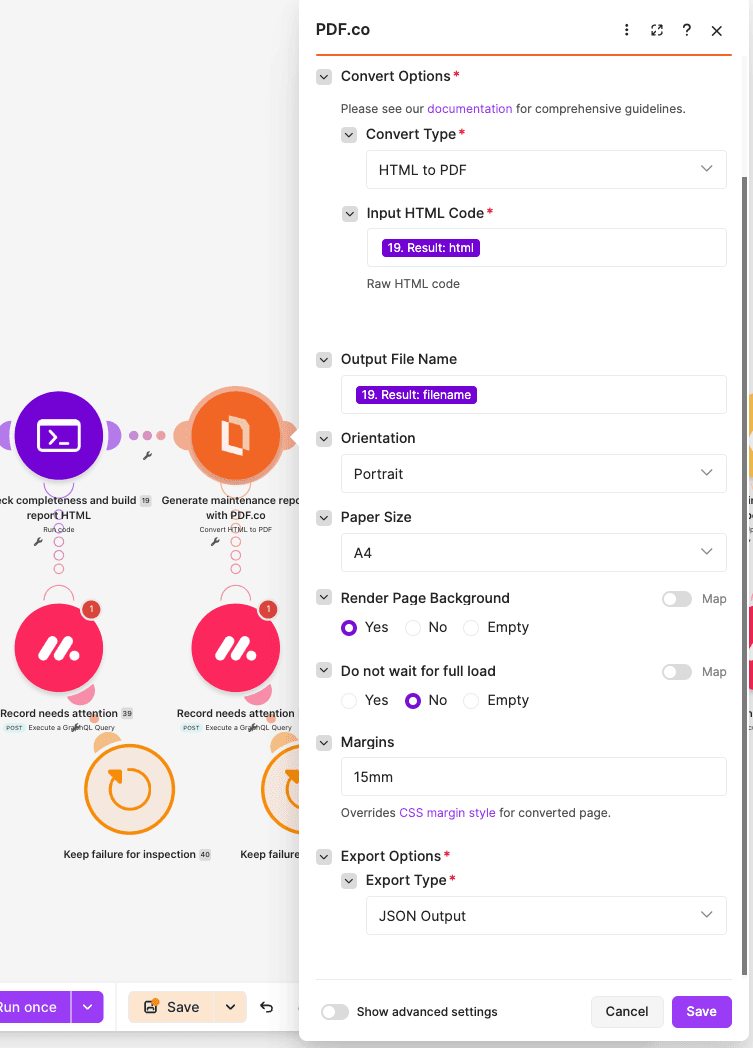
Add PDF.co > HTML to PDF as module 20, named Generate maintenance report with PDF.co. Create or select your PDF.co connection.
Configure:
- Convert Type: HTML to PDF.
- Input HTML Code: Map
19.result.html. - Output File Name: Map
19.result.filename. - Paper Size: A4.
- Orientation: Portrait.
- Margins:
15mm. - Render Page Background: Yes.
- Do not wait for full load: No.
- Execution Mode: Async.
- Output Links Expiration:
60. - Export Type: JSON Output.
The HTML is built in the scenario. No saved PDF.co HTML template ID is required.
The next module expects a completed result URL. Verify what your installed PDF.co operation returns. A job-only result requires job-status handling before proceeding, rather than disabling the validation step below.
Step 13: Require a Completed PDF Result
Add JavaScript Code module 21, named Require completed PDF result.
Create these inputs:
pdf_url: Map20.url.error: Map20.error.status: Map20.status.filename: Map19.result.filename.
Paste this script:
const err=input.error;
if(err===true || (typeof err==='string' && err.trim()!=='' && !['false','0'].includes(err.toLowerCase()))) throw new Error('PDF.co reported a conversion error.');
const status=String(input.status??'').toLowerCase();
if(status && !['success','200','0','completed'].includes(status)) throw new Error('PDF.co has not returned a completed result. Check execution mode/job status before continuing.');
const url=String(input.pdf_url??'').trim();
if(!/^https:\/\/[^\s<>"'\\]+$/i.test(url)) throw new Error('No completed PDF download URL. A job ID alone is not enough.');
if(/\.json(?:\?|$)/i.test(url)) throw new Error('Received a result-manifest URL rather than the PDF.');
return {pdf_url:url,filename:String(input.filename)};
The supplied guard checks the mapped error/status fields and requires an HTTPS output URL that is not a .json result-manifest URL. It returns the PDF URL and filename for downloading. It does not inspect the document contents or guarantee photo visibility.
Step 14: Download the Completed PDF
Add HTTP > Download a file as module 22, named Download completed maintenance report.
- Authentication type: No authentication.
- URL: Map
21.result.pdf_url. - Return error if HTTP request fails: Yes.
- Share cookies with other HTTP modules: No.
The binary Data output, rather than the URL text, is used in the Google Drive upload.
Step 15: Archive the Report in the Property's Approved Folder
Add Google Drive > Upload a file as module 23, named Archive in the approved property folder. Connect the Google account with access to the approved archive folder.
Configure:
- New Drive Location: My Drive.
- New Folder Location / Folder ID: Map
10.result.folder_idfrom the verified report record. Use the module's mapping control for this field rather than selecting one fixed folder for all requests. - New File Name: Map
21.result.filename. - File Name: Map
21.result.filename. - Data: Map
22.data. - Convert a File: No.
This configuration targets My Drive. Shared-drive storage is not configured in this walkthrough.
After the upload, the scenario uses Google Drive's returned file ID to build the stored report link. It does not save the temporary PDF.co URL as the permanent report link.
Step 16: Write the Stored Link and Reporting Period Back to monday.com
Module 24: Prepare stored-link write-back
Add a JavaScript Code module with these inputs:
config_json: Map2.result.config_json.drive_file_id: Map23.id.
Paste this script:
const c=JSON.parse(input.config_json);
const id=String(input.drive_file_id||'');
if(!/^[A-Za-z0-9_-]{10,}$/.test(id)) throw new Error('Google Drive did not return an archived file ID. Do not mark the report completed.');
const link=`https://drive.google.com/file/d/${id}/view`;
const values={
 [c.report_period_column_id]:c.period_label,
 [c.report_link_column_id]:{url:link,text:`Maintenance report - ${c.period_label}`},
 [c.report_status_column_id]:'Generated - review required'
};
const q=JSON.stringify;
return {stored_file_link:link,period:c.period_label,report_item_id:c.report_item_id,
 writeback_query:`mutation { saved: change_multiple_column_values(board_id: ${q(c.reports_board_id)}, item_id: ${q(c.report_item_id)}, column_values: ${q(JSON.stringify(values))}) { id } }`};
The mutation updates the existing report item with its reporting period, stored Google Drive link, and Generated - review required. It does not mark the report approved or update Reported Period on every work-order item.
Module 25: Write report link and period to monday.com
Add monday.com's Execute a GraphQL Query operation from the version 2 app. Select the same monday.com connection used for retrieval.
- Method: POST.
- Query: Map
24.result.writeback_query. - Operation Name: Leave empty.
- Variables Data Source: Array.
- Variables: Leave empty.
Module 26: Confirm report record was updated
Add a JavaScript Code module with these inputs:
response_body: Map25.body.response_data: Map25.data.response_errors: Map25.errors.report_item_id: Map24.result.report_item_id.stored_file_link: Map24.result.stored_file_link.
As with module 7, map the actual Body or Data response from your installed GraphQL operation, plus separately exposed errors when available.
Paste this script:
let result=input.response_body;
if(result==null || result==='') result=input.response_data;
if(typeof result==='string') result=JSON.parse(result);
if(!result || result.errors?.length || (Array.isArray(input.response_errors)&&input.response_errors.length)) throw new Error('Report write-back failed. The PDF may already be archived; check before replaying.');
const data=result.data??result;
if(String(data.saved?.id||'')!==String(input.report_item_id)) throw new Error('monday.com did not confirm the report-record update.');
return {status:'Generated - review required',stored_file_link:input.stored_file_link,report_item_id:String(input.report_item_id)};
The module confirms that monday.com returned the expected report item ID. If write-back failed, the PDF may already exist in Google Drive. Inspect the archive before rerunning so you do not create unnecessary duplicate copies.
Step 17: Add the Error-Handler Routes
The main path contains checks to stop incomplete output. Add error handlers to the photo-processing and report-generation modules so failed records can also be flagged for review.
Use Make's error-handler route on each specified module. Add monday.com > Execute a GraphQL Query and then Break. Set the GraphQL operation to POST, leave its operation name and variables empty, and select the same monday.com connection used by the main scenario.
Work-order-specific failures
Attach this route separately to:
- Module 13: Check current photo download link.
- Module 14: Download photo from signed URL.
- Module 15: Verify download and build photo figure.
- Module 17: Build complete work-order section.
Name each handler's monday.com module Record needs attention and configure:
- Connection: The same monday.com connection used on the main path.
- Method: POST.
- Query: Map
11.attention_query. - Operation Name: Leave empty.
- Variables Data Source: Array.
- Variables: Leave empty.
This mutation attempts to set the report item's status to Needs attention and add an update to the affected work-order item.
Report-level failures
Attach the same two-operation handler pattern separately to:
- Module 19: Check completeness and build report HTML.
- Module 20: Generate maintenance report with PDF.co.
- Module 21: Require completed PDF result.
- Module 22: Download completed maintenance report.
- Module 23: Archive in the approved property folder.
- Module 24: Prepare stored-link write-back.
- Module 25: Write report link and period to monday.com.
- Module 26: Confirm report record was updated.
Use the same GraphQL settings, but map Query to 10.result.report_attention_query. This attempts to mark the report item Needs attention and post a report-level update.
For every handler, place Break after the monday.com operation and disable automatic retry. The supplied route uses count 1 and interval 1 where those retained fields are exposed, but automatic retry remains off. Do not substitute Ignore or Resume to conceal a failed photo.
The handlers attempt to record the problem; they are not proof that the note was saved. If the monday.com write fails, inspect the incomplete execution. Configuration, board-validation, and pagination failures before work-order iteration do not have these custom attention routes.
A Break handler may leave other iterations to finish. The later completeness checks must still prevent a missing photo or work-order section from being treated as a complete report. Verify that interaction in the live scenario.
Step 18: Test the Report and Review the Archived PDF
Prepare test work orders whose stable Property ID matches the report request. Include one order with multiple uploaded photos and one without photos. Use completion dates inside the requested window, then run the scenario and send the sample request with your real report item ID.
Check these outputs:
- The first page validation accepts the configured boards, column types, property, report item, and archive folder.
- The selection output contains only completed work orders for the requested stable ID and time window.
- Photo figures remain attached to the correct work order, and the no-photo order is retained.
- Module 19 reports the expected work-order and photo counts.
- PDF.co returns a completed output URL, HTTP downloads the file, and Google Drive returns an archived file ID.
- The report item receives the stored Drive link, the requested period label, and
Generated - review required.
For the sample property and start date, the filename follows this pattern, with your real report item ID replacing the placeholder:
maintenance-PROP-18-2026-11-01-REPORT_ITEM_ID.pdfOpen the stored PDF as an intended reader. Confirm the property heading, reporting period, completion dates, summaries, all expected photos, captions, work-order order, and page breaks. Check the destination folder and file permissions separately. A successful conversion does not establish that every image rendered or that every reader has access.
Test boundaries, pagination, and failures
- Exact property grouping: Use two properties with similar names and different IDs. Only the requested ID should be selected.
- Reporting boundary: Include one item exactly at
period_startand another atperiod_end. The start item should be included; the end item should be excluded. Test date-only completion values against the stated UTC policy. - Multiple result pages: Temporarily set
page_sizeto1or2. Confirm all pages are collected. Then lowermax_pagesenough to leave a cursor and confirm that the report stops rather than using a partial list. - No-photo and multi-photo orders: Confirm both survive aggregation correctly and each expected photo appears once.
- Unsupported or inaccessible attachments: Test an external link, unsupported file type, oversized image, or failed photo download. Confirm the failure is visible and that an incomplete report is not treated as finished.
- Escaping and layout: Use summaries and captions containing
&,<, and quotation marks, plus enough content to span multiple pages. - Failure after archive: Test report-record write-back failure after a successful upload. Inspect the stored file before retrying to avoid creating duplicate archive copies.
Restore deliberate production limits after the tests. Do not activate automatic requests until the full path and its failure behavior have been checked.
Troubleshooting
- A configuration or column-type error occurs: Check internal board and column IDs. Completed At must be Date, Photos must be Files, Report Link must be Link, and Report Status must be Text.
- The code cannot find the GraphQL response: Inspect the actual module output. Map its Body or Data wrapper into modules 7 and 26 as appropriate, and retain any separately exposed errors.
- Pagination is incomplete: Check the
report_queryvariable, the nonempty-query filter, and module 9's Repeater source. A final cursor means more pages remain; review the cap instead of deleting the check. - No records match: Confirm the exact Property ID, nonblank completion dates, and inclusive-start/exclusive-end UTC boundary. A separate Done label does not control this version's selection.
- A photo-less work order disappears: Check that module 16 uses the photo Iterator as its source and does not stop after an empty aggregation. Review the
no_photofilter path in a live execution. - A photo fails validation or download: Use directly uploaded PNG/JPEG assets, inspect file size and access, and start a fresh request for stale temporary URLs. Do not make files permanently public to bypass the error.
- The PDF exists but its report link was not saved: Check Google Drive before replaying the request, then inspect the failed mutation and confirmation module. The workflow does not deduplicate requests or roll back a completed archive upload.
Conclusion
You have configured a property-specific maintenance-report workflow: retrieve completed monday.com work orders, verify the selected photos and assembled sections, convert one HTML report with PDF.co, archive the PDF in Google Drive, and write its stored link back to the report item.
Keep the human review step. The status Generated - review required means the document has been generated and linked, not that its photos, contents, or recipient access have been approved.
Related Tutorials