Generate a PDF Quote from Slack with ChatGPT, PDF.co, and Zapier
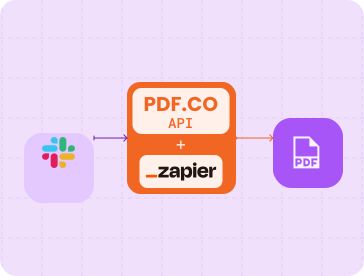
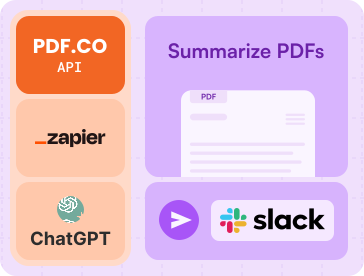
This tutorial shows how to turn a structured Slack message into a professional PDF quote. Zapier sends the message to ChatGPT, converts the generated HTML with PDF.co, and posts the PDF link back to Slack.
What You’ll Need
- A Slack account
- A ChatGPT account connected to Zapier
- A PDF.co account connected to Zapier
- A Zapier account
Step 1: Create the Slack Trigger
Create a new Zap and select Slack as the trigger app.
Choose New Message Posted to Channel as the trigger event, then:
- Connect your Slack workspace.
- Select the channel where quote requests will be submitted.
- Set Trigger for Bot Messages? to No.
- Test the trigger using a sample message.
The sample message should contain enough information to prepare a quote, such as:
Customer: ABC Company
Quote number: Q-1045
Item: Website design
Quantity: 1
Price: $2,500
Payment terms: Net 30
Valid until: October 31
The current Slack trigger and its available fields are listed on the Slack integration page.
Step 2: Generate the Quote with ChatGPT
Add an action and select ChatGPT (OpenAI). Choose the recommended Conversation action.
Connect your ChatGPT account and configure the action:
- Model: Select an available text model.
- User Message: Map the message text returned by Slack.
- Instructions: Ask ChatGPT to create a complete HTML quote.
You can use these instructions:
Create a professional customer quote from the supplied Slack message.

Return only complete, valid HTML suitable for conversion to PDF. Include:
- Quote title
- Customer information
- Quote number and validity date
- An itemized table
- Subtotal and total
- Payment terms
- A short closing message

Use simple inline CSS. Do not include Markdown or explanations.
A Memory Key is not required when every quote is independent. If the workflow handles continuing conversations for one customer or project, map a stable customer or project ID into this field so relevant context can be retained.
Test the action and confirm that its response contains valid HTML. Zapier currently identifies Conversation as the recommended action for generating responses through the Responses API, as shown on the ChatGPT integration page.
Step 3: Convert the HTML to PDF
Add another action and select PDF.co.
Choose HTML to PDF Converter, connect your PDF.co account, and configure the action:
- Input Type: Raw HTML
- HTML or Input Source: Map the HTML response from ChatGPT.
- Page Size: Letter or A4
- Page Orientation: Portrait
- Render Page Background: Enable this if the HTML uses background colors.
- File Name: Enter a name such as
quote.pdf.
If the Slack message includes a quote number, it can be mapped into the filename:
Quote-Q-1045.pdf
Test the action. PDF.co will return a temporary URL for the generated PDF. The current converter fields are listed on the PDF.co Zapier integration page.
Step 4: Post the Quote to Slack
Add a final Slack action and choose Send Channel Message.
Configure it with:
- Channel: Select the appropriate quotes or sales channel.
- Message Text: Add a short message and map the PDF URL returned by PDF.co.
For example:
The PDF quote is ready: [PDF.co output URL]
Test the complete workflow, then publish the Zap.
Conclusion
Each new quote request posted in the selected Slack channel will be formatted as HTML by ChatGPT, converted into a PDF by PDF.co, and returned to Slack as a downloadable link.
Related Tutorials