Process HTML-to-PDF or URL-to-PDF Conversions in Zapier
his tutorial creates a Zap that reads HTML or a webpage URL from Google Sheets, converts it to PDF with PDF.co, and saves the result to Google Drive.
Step 1: Prepare Google Sheets
Create a spreadsheet containing either:
- An HTML column with the complete HTML markup, or
- A URL column with a publicly accessible webpage URL
Add a Filename column for the generated PDF name.
Step 2: Setup Google Sheet Configuration
Create a Zap and select Google Sheets.
Choose New Spreadsheet Row as the trigger event, connect your account, and select the spreadsheet and worksheet.
Test the trigger and confirm that Zapier retrieves a row containing the HTML or URL to convert.
Step 3: Add the PDF.co Converter
Add PDF.co and choose HTML to PDF Converter. Connect your PDF.co account by signing in and authorizing Zapier.
Configure the action according to your source.
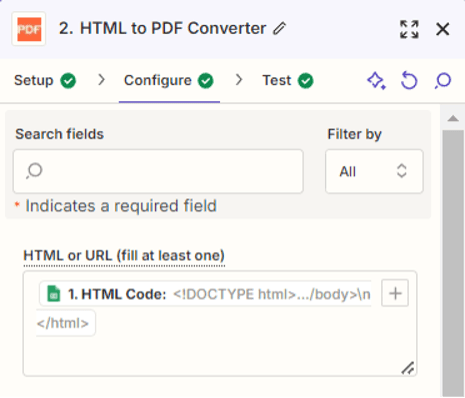
For HTML Code
- Input Type: HTML
- HTML: Map the HTML column from Google Sheets.
- File Name: Map the Filename column.
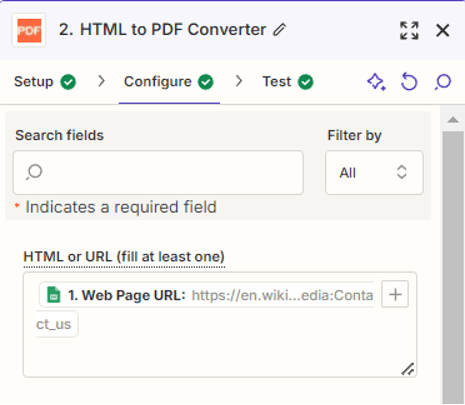
For a Webpage URL
- Input Type: URL
- URL: Map the URL column from Google Sheets.
- File Name: Map the Filename column.
Use only one input type in each PDF.co action. If the spreadsheet contains a mixture of HTML and URL jobs, use Paths by Zapier to send each type to its own configured PDF.co action.
Optionally configure the page size, orientation, margins, background rendering, and media type. For a slow webpage, enabling Do Not Wait Until Full Page Load may shorten processing, but it can omit content loaded later by JavaScript.
The current PDF.co action and its available settings are listed on the PDF.co Zapier integration page.
Step 4: Test the Conversion
Test the PDF.co action.
PDF.co will return a temporary URL for the generated PDF. Open it and confirm that the HTML or webpage was rendered correctly.
Step 5: Save the PDF to Google Drive
Add Google Drive – Upload File.
Configure the action:
- Drive: Select the destination drive.
- Folder: Select the output folder.
- File: Map the PDF URL returned by PDF.co.
- File Name: Map the filename from Google Sheets and ensure it ends with
.pdf. - Convert to Document: Select False, if displayed.
Test the upload, confirm that the PDF appears in Google Drive, and publish the Zap.
Step 1: HTML Code Input
Map the HTML code from the spreadsheet to the designated field in the PDF.co HTML to PDF converter.
Step 2: Web Page URL Input
Similarly, map the web page URL from the spreadsheet to the URL field in the converter.
Step 3: Additional Settings (Optional)
Customize any additional settings like page size, orientation, or margins if needed.
Step 4: HTML to PDF Conversion Setup
Step 5: URL to PDF Conversion Setup
Conclusion
You have created a Zap that converts HTML code or a webpage URL into a PDF with PDF.co and automatically stores the result in Google Drive.
Related Tutorials
