How to Merge PDF Files into a Single PDF with PDF.co Using Zapier
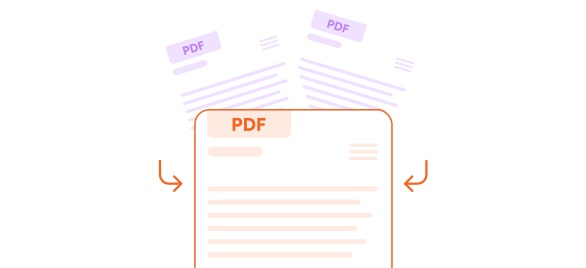
In this tutorial, you will learn how to merge three PDF files into a single PDF using PDF.co and Zapier. We will use direct URLs for the source files, but values from earlier Zap steps can also be mapped into the PDF.co action.
Workflow Overview
PDF URLs → PDF.co PDF Merger → Merged PDF
Step 1: Create a Zap
- Sign in to your Zapier account.
- Create a new Zap.
- Select an appropriate trigger for your workflow, or test the PDF.co action independently if you already have the source PDF URLs.
The source files must be accessible to PDF.co. If you use links from a cloud-storage service, ensure that PDF.co has permission to access them.
Step 2: Add the PDF.co PDF Merger Action
- Add a new action to the Zap.
- Search for and select PDF.co.
- Choose the PDF Merger action.
- Connect your PDF.co account through the authorization window. Sign in to PDF.co if prompted, then allow Zapier to access your account.
Step 3: Configure the PDF Merger
Configure the following fields:
- Source Files URLs: Enter the direct URLs of the PDF files in the order in which they should appear in the merged document. Separate multiple URLs with commas.Example:
https://example.com/file1.pdf,https://example.com/file2.pdf,https://example.com/file3.pdfYou can also map file URLs produced by previous steps in your Zap. - Automatically Convert Non-PDF Files: Leave this disabled when all the source files are PDFs. Enable it if the workflow includes supported non-PDF files that must be converted before merging.
- Output File Name: Enter a name for the merged file, such as
merged-document.pdf. If no name is provided, PDF.co may use the name of the last source file. - Custom Profiles: Leave this field blank unless you need advanced processing options.
PDF.co merges the files in the same order in which their URLs appear in the Source Files URLs field.
Step 4: Test the PDF.co Action
Click Test step to send the files to PDF.co.
After the request is processed successfully, Zapier will display information about the result, including a temporary URL for the merged PDF.
If the test fails, verify that:
- Every source URL points directly to a supported file.
- The files are accessible without an interactive login.
- The URLs are separated by commas.
- The combined size of the source files does not exceed the supported limit.
Step 5: Review the Merged PDF
Open the URL returned by PDF.co and confirm that:
- All three PDF files are included.
- The files appear in the correct order.
- The pages display correctly.
- The output filename is correct.
The returned PDF.co URL is temporary. If you need to retain the merged document, add another Zapier action to upload it to permanent storage.
Step 6: Save or Deliver the Merged PDF
You can extend the workflow by adding an action that:
- Uploads the merged PDF to Google Drive, Dropbox, OneDrive, or another storage service.
- Sends the PDF as an email attachment.
- Passes the file to another application for additional processing.
- Records the output URL or file details in a spreadsheet or database.
Map the PDF.co output URL or file from the test result into the appropriate file field in the next Zapier action.
You have successfully created a Zapier workflow that combines multiple PDF files into one document with PDF.co. The workflow can use fixed source URLs or dynamically mapped files from earlier Zap steps, and the completed PDF can be saved, emailed, or passed to another application automatically.
For descriptions of the current fields and advanced settings, see the PDF.co PDF Merge documentation.
Related Tutorials