New: Markdown to PDF built for AI agents, PDF to E-Invoice for Factur-X/ZUGFeRD, and PDF to PDF/A for archive-ready PDF/A-3b.

Merging Multiple Documents into a Single PDF Asynchronously in PHP Using PDF.co Web API

In this guide, we’ll walk you through the process of merging various types of documents into a single PDF using PHP and the PDF.co Web API. We’ll also demonstrate how to handle this process asynchronously, which is especially useful for large files or complex operations that might require additional processing time.

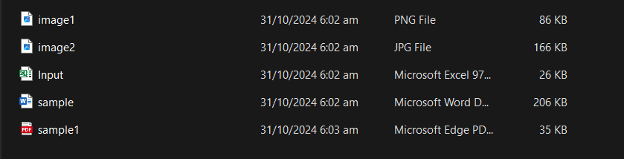
Multiple Documents to be Merged
Multiple document types to be merged

Step 1: Copy and Review the Source Code

Begin by copying the provided HTML and PHP source code. Paste this code into your preferred code editor, such as VS Code, Sublime Text, or PHPStorm.

Use asynchronous processing for a merge that needs more time than a synchronous request allows. Save the returned job ID and check its status after a delay. Continue polling only while the status is working. Download the merged PDF after success, and stop on failed, aborted or a job-not-found error.

Set network request timeouts and a polling deadline so the application cannot wait indefinitely. Asynchronous processing does not guarantee completion or eliminate network errors. If the waiting deadline is reached, retain the job ID rather than automatically submitting the merge again.
Step 2: Save the PHP File in the Correct Directory

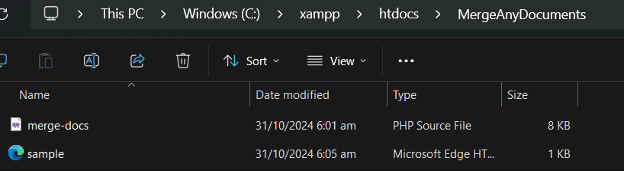
Once you've edited the code, save the PHP file in the appropriate directory for local hosting.

  • For XAMPP Users: Save the file in the /htdocs directory.
  • For WampServer Users: Save the file in the /www directory.

Saving the file in these locations ensures that it’s accessible from your local server.

Server Directory

Step 3: Start the Apache Module

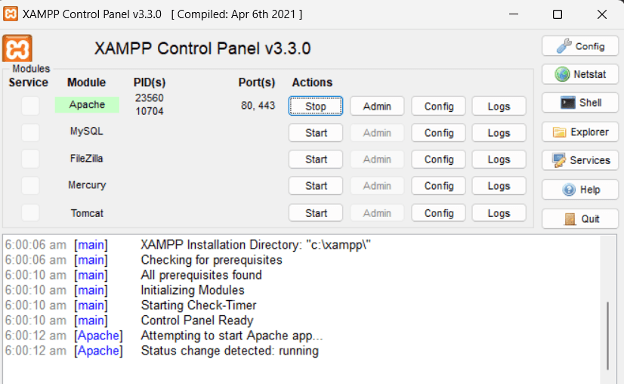
To execute your PHP script, ensure that your Apache server is running.

  • Open the XAMPP or WampServer control panel.
  • Click Start next to the Apache module to activate the server.
Start Apache Module

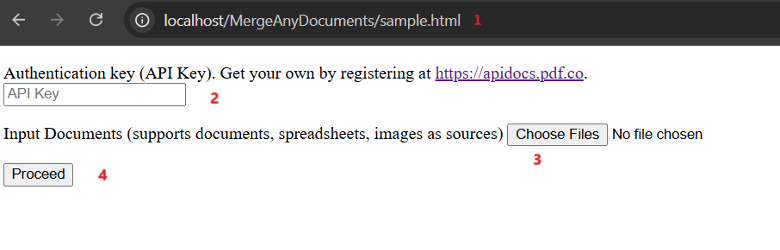
Step 4: Run the PHP Program Locally

Open your browser and enter the following in the address bar to access the file:

  • URL Path: If you saved the file as sample.html in a folder named MergeAnyDocuments, enter localhost/MergeAnyDocuments/sample.html.
  • Add Your API Key: Log in to your PDF.co account and retrieve your API Key from your dashboard. Replace the placeholder in the sample code with your actual API key.
  • Select the Files for Merging: Specify the files you wish to merge into a single PDF by selecting or uploading them as prompted by the program.
  • Send the Merge Request: Click the Proceed button to initiate the merge process. This request will send your files to PDF.co’s Web API for merging.
Run the PHP Program Locally

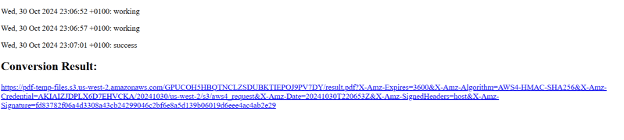
Step 5: Access the Merged PDF Result

Once the process completes, a link to the output file will be provided. Click on this link to download or view the merged PDF document.

Access the Merged PDF Result

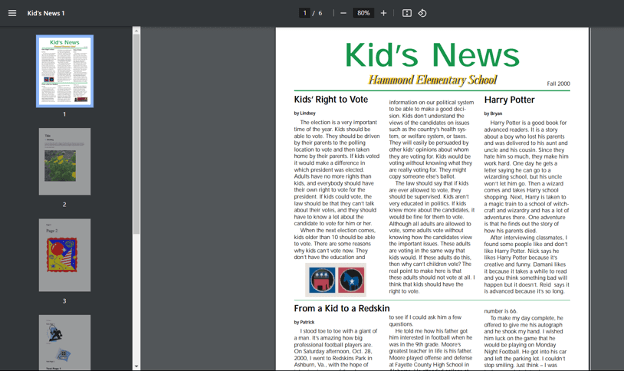
Step 6: Verify the Merged PDF

Open the merged PDF to confirm that all selected documents were successfully combined into a single file. Review the document to ensure that all content is as expected.

Verify the Merged PDF

In this tutorial, you learned how to merge PDFs, images, and documents in PHP using PDF.co Web API. You also learned how easy it is to set up the code samples to get your program running right away.

Video Guide

Related Tutorials

See Related Tutorials