How to Convert PDF Report to JPG using PDF.co and Make
Convert a PDF report from Google Drive into a JPG image using PDF.co and Make. Make connects the file-download and conversion steps, while PDF.co renders the PDF as an image.
This walkthrough selects PDF to Single JPG. Check the output before using this option for a multi-page report.
If you need a separate image for each page, use PDF.co’s Convert from PDF into Images module with PDF to JPG selected. Process every returned image rather than assuming this single-image setup produces a collection.
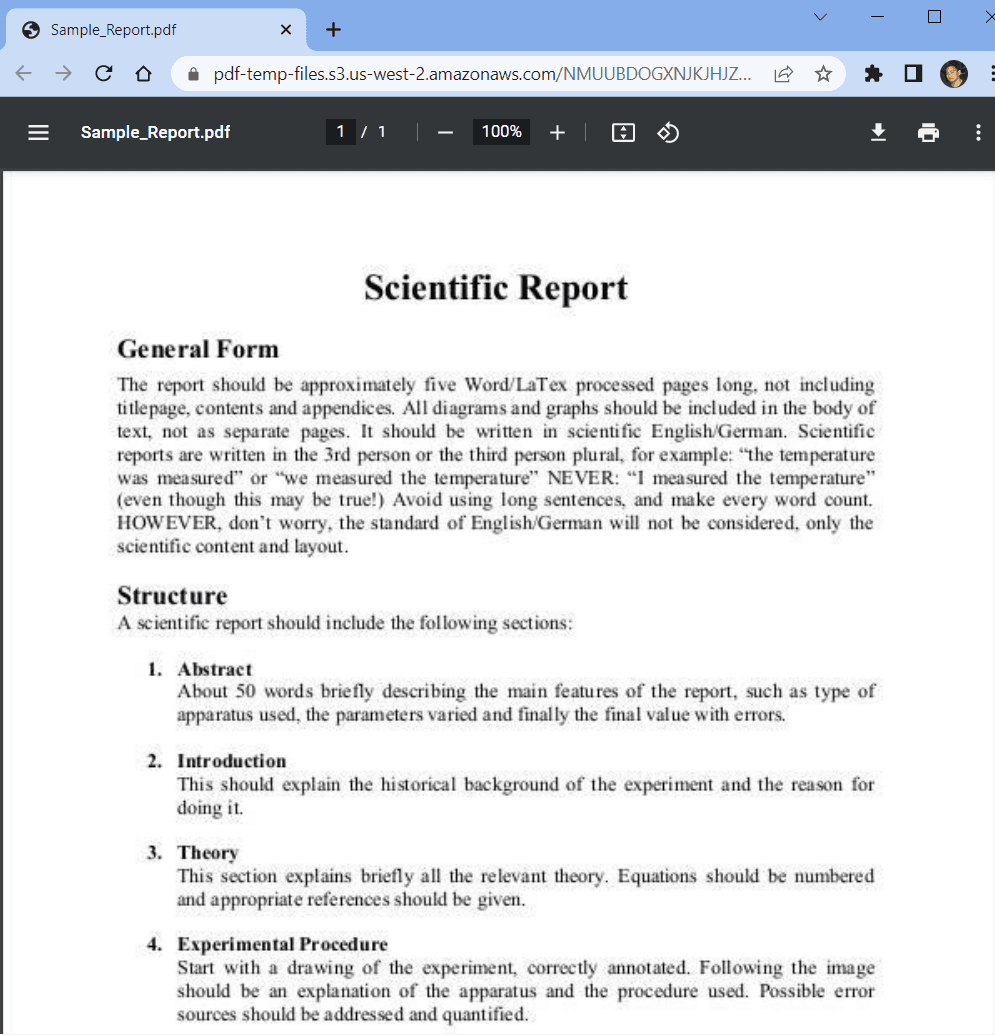
We will use this sample PDF report and convert it into a JPG format.
Step 1: Create a New Scenario
- To get started! First, log into your Make account and click on the Create a New Scenario button.
Step 2: Add Google Drive Module
- Next, search and select the Google Drive app within Make. Alternatively, you can explore other available cloud storage services to access the source file.
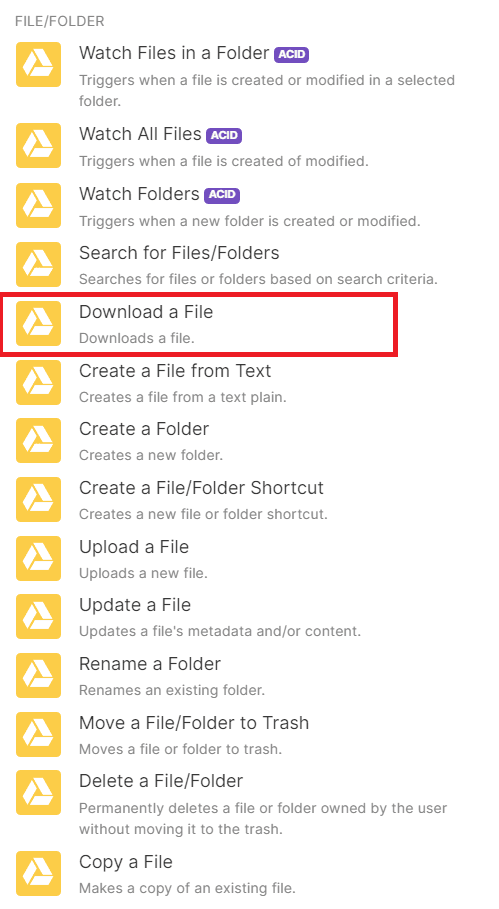
- Once you’ve chosen the Google Drive app, navigate to the Download a File module. This module enables you to download the desired file directly from your Google Drive account.
Step 3: Setup Google Drive Configuration
Let’s configure Google Drive in Make.
- Start by connecting your Google Drive account to Make. This will grant Make access to your Google Drive files.
- Once connected, choose the Select from the List option. This will display a list of available folders from your Google Drive account.
- From the list, select My Drive as the drive you want to use. This will ensure that you can access files stored in your main Google Drive directory.
- Finally, enter the specific folder and file name you wish to work with. This will help make locate the exact file you want to convert or edit.
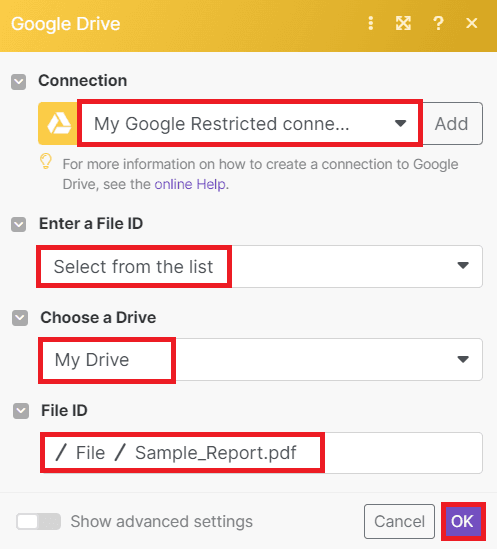
After setting up the Google Drive configuration in Make, you can now proceed to run the scenario to retrieve the file from Google Drive
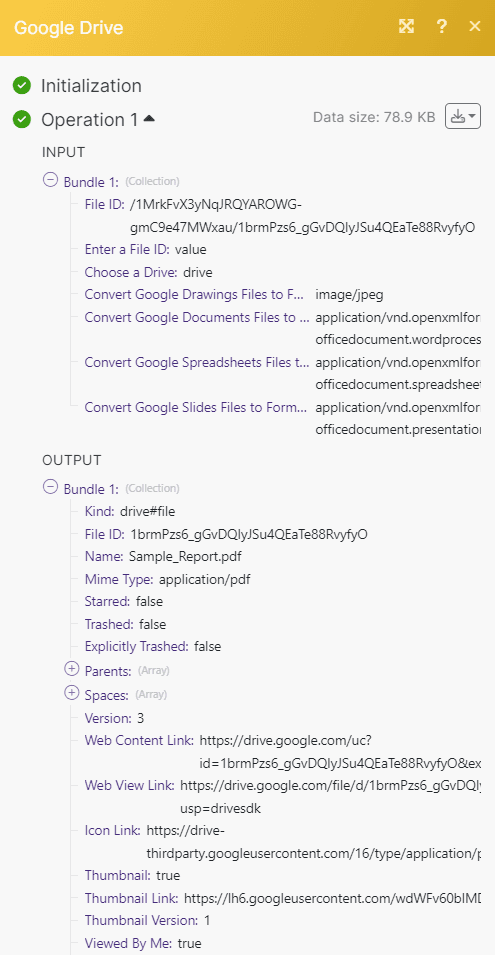
Step 4: Google Drive Result
- Great! Now that you have successfully retrieved the file from Google Drive, let’s proceed to add another module and convert the PDF file to JPG format
Step 5: Add PDF.co Module
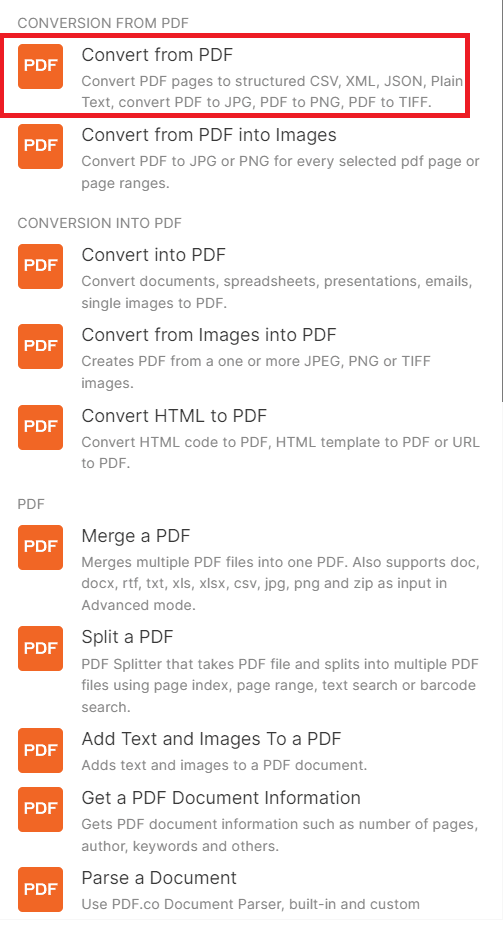
- Let’s incorporate an additional module into our workflow, specifically the PDF.co app. Next, we can utilize the Convert from PDF feature within the app to transform PDF files into various formats, including JPG.
Step 6: Setup PDF.co Configuration
Let’s set up the PDF.co Configuration.
- Begin by connecting your PDF.co account to Make by adding the API Key. You can obtain your API Key from your PDF.co dashboard or by signing up at this link.
- Once the account is connected, select the Upload a File option within the PDF.co Configuration module. This will enable automatic input of the downloaded file from Google Drive.
- In the Convert Type section, choose PDF to Single JPG as the desired conversion format. This selection ensures that the PDF file will be converted into the JPG format.
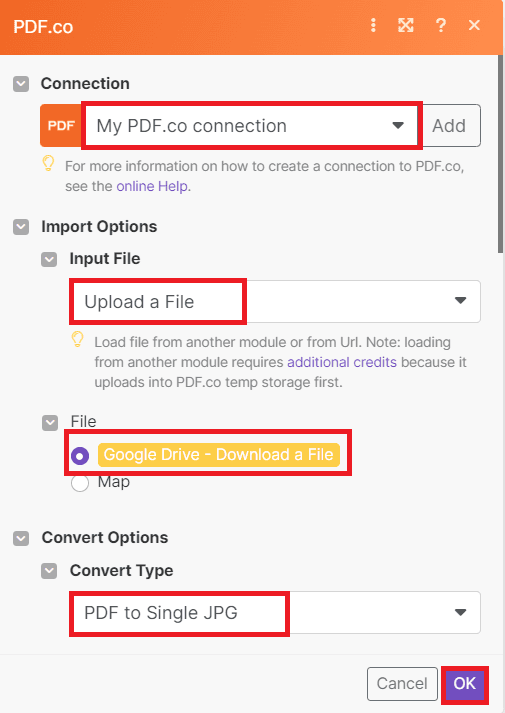
After successfully configuring PDF.co in Make, it’s time to run the scenario and convert the PDF report to JPG format.
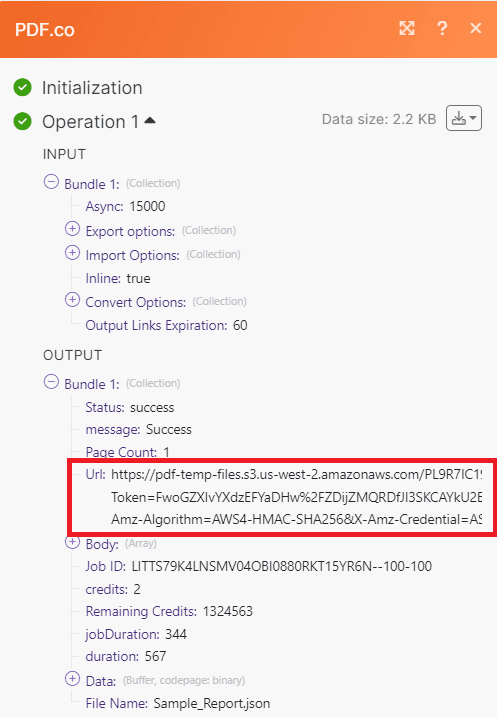
Step 7: Run PDF.co Result
- Congratulations on the successful conversion of the PDF report to JPG format! To view the output, copy the URL and paste it into your browser.
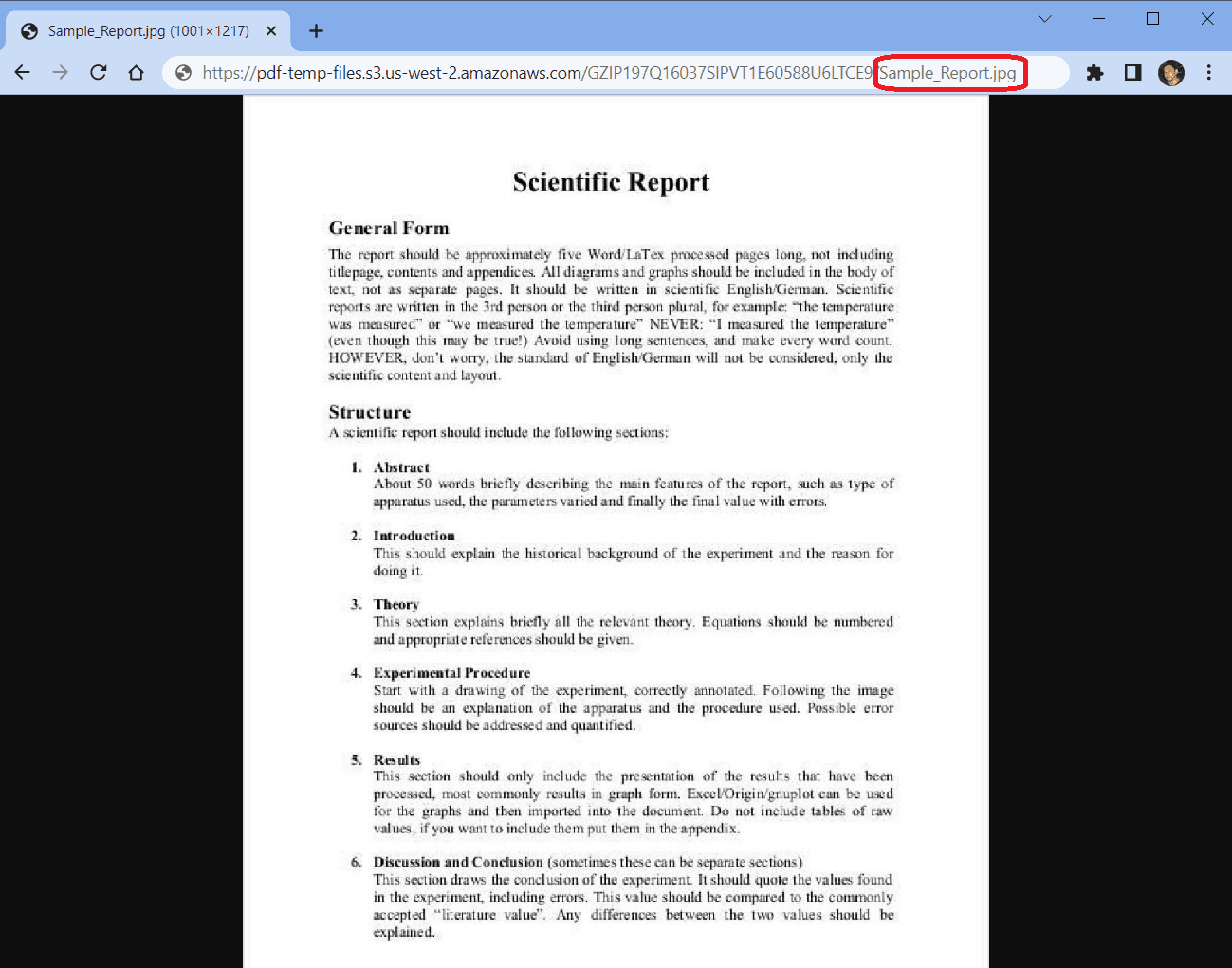
Step 8: PDF to JPG Format
- Here is the converted JPG format of the PDF report.
In this tutorial, you learned how to convert PDF reports to JPG format using PDF.co and Make. You also learned how to use the PDF.co PDF to JPG to convert PDF into a JPG format.
Video Guide
Related Tutorials