How to Convert PDF to Text API with CURL
In this tutorial, we are going to see how to convert a PDF to text using the PDF.co with CURL. CURL is basically command line URL and we will see how to use the common line executables and let’s see how to implement that step of the API program here.
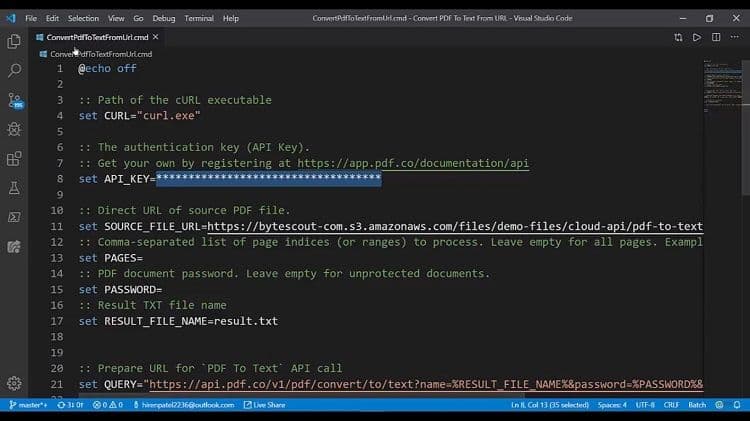
Step 1: Enter API Key and Source URL or Input File
We need to setup the following:
- Provide our API key.
- Provide our source URL.
- Leave "Pages" blank to indicate we want to convert all pages .
- Leave the "Password" blank as the PDF file is not password protected.
- The API is convert to text.
Step 2: Execute the PDF to Text Query
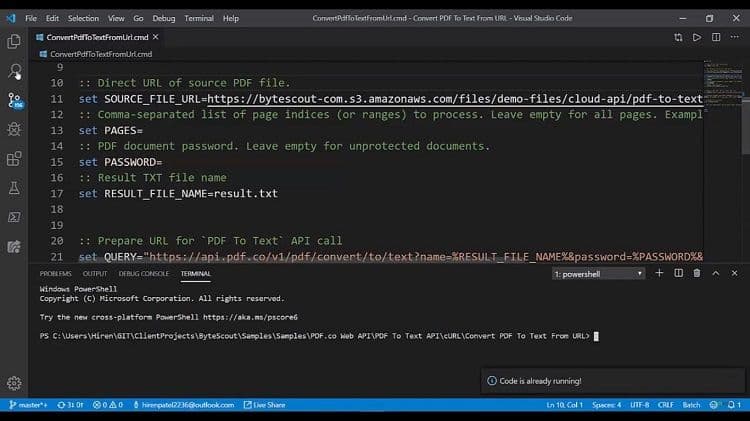
In PowerShell we run the CURL command by double clicking the `.cmd` file. We want to store it into this response.json file.
Step 3: Check the Output
Open response.json, which contains the API response saved by cURL. Check the HTTP status and the response’s error and message fields before using its url value.
For a successful non-inline conversion, the returned URL points to the extracted text file—not to the saved JSON response. Download that text file before its temporary URL expires, then open it in a text editor and compare the required content with the source PDF.
If asynchronous processing is enabled, wait for the background job to report success before downloading the text output.
Related Tutorials