Convert PDF to JSON-Meta Using PDF.co and Zapier
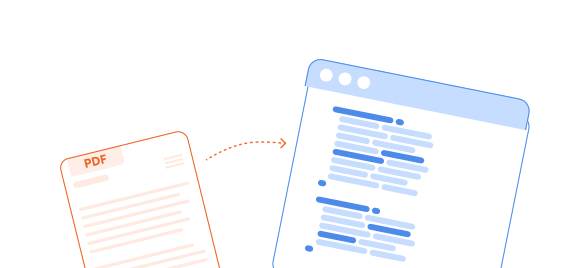
In this tutorial, you will create a complete Zap that automatically converts PDF files into AI-enriched JSON-Meta output.
The workflow will:
- Monitor a Google Drive folder for new PDFs.
- Send each PDF to PDF.co.
- Convert the document into JSON-Meta.
- Save the generated JSON file to another Google Drive folder.
JSON-Meta preserves document structure and formatting while using AI to identify semantic information such as headings, paragraphs, dates, currency values, company names, and person names.
What You Will Need
Before starting, prepare:
- A Zapier account
- A PDF.co account
- A Google Drive account
- A sample PDF
- A Google Drive folder for incoming PDFs
- A separate folder for generated JSON files
Use different input and output folders to keep the workflow organized and prevent generated files from activating the trigger.
Step 1: Prepare the Google Drive Folders
Create two folders in Google Drive. For example:
PDFs for JSON ConversionConverted JSON Files
Upload a sample PDF to the input folder. An invoice works well because it contains different kinds of information, including company names, dates, descriptions, quantities, and currency values.
Zapier will use this file when testing the workflow.
Step 2: Create a Zap
Sign in to Zapier and create a new Zap.
Give the Zap a descriptive name, such as:
Convert New PDFs to JSON-Meta
Step 3: Configure the Google Drive Trigger
Select Google Drive as the trigger application.
Choose New File in Folder as the trigger event.
Connect your Google Drive account and configure the trigger:
- Drive: Select the drive containing the input folder.
- Folder: Select the
PDFs for JSON Conversionfolder. - Include Deleted Files: Select No.
- Include Subfolders: Enable this only if PDFs in subfolders should also be processed.
Test the trigger. Zapier should find the sample PDF and return its file data, filename, MIME type, and other metadata.
Optional: Process Only PDF Files
If the source folder might contain other file types, add a Zapier Filter after the trigger.
Configure the filter to continue only when the file’s MIME type is:
application/pdf
Step 4: Add the PDF.co Conversion Action
Add an action and select PDF.co.
Choose PDF to Anything Converter as the action event.
When prompted to connect an account, select Add a new account, sign in to PDF.co, and authorize Zapier to access your PDF.co account.
Configure the action:
- Output Format: Select JSON (AI-powered advanced JSON converter).
- Source File URL or PDF URL: Map the downloadable PDF file returned by Google Drive.
- Pages: Leave empty to process every page, or enter the required zero-based page numbers.
- Name: Enter a filename ending in
.json. - Inline Output: Select False.
- OCR Language: Select the language used in the source document, if this option is available.
- Password: Enter the PDF password if the source document is protected.
Setting Inline Output to False makes PDF.co return a temporary URL for the generated JSON file. That URL can be mapped directly into the following Google Drive upload step.
Page Numbering
PDF.co uses zero-based page numbering:
0processes the first page.0-processes every page starting with the first.1-3processes the second through fourth pages.0,2,4processes the first, third, and fifth pages.
Leave the field empty when the entire document should be processed.
Step 5: Test the PDF.co Action
Test the PDF.co action.
A successful result should include:
- A generated JSON file URL
- The generated filename
- The document’s page count
- A successful status
- An
errorvalue offalse
Open the returned URL and review the JSON output.
The output can include:
- Page dimensions and page numbers
- Rows and columns
- Extracted text
- Text coordinates
- Font names and sizes
- Font styles and colors
- OCR information
- Semantic text types and subtypes
For example, JSON-Meta may classify content as:
- Heading
- Paragraph
- Date or date-time
- Integer
- Decimal
- Currency
- Company name
- Person name
The exact structure depends on the contents and layout of the source document.
For technical details, see the PDF.co PDF to JSON with AI documentation.
Step 6: Save the JSON File to Google Drive
Add another action and select Google Drive.
Choose Upload File as the action event.
Configure the upload:
- Drive: Select the destination drive.
- Folder: Select the
Converted JSON Filesfolder. - File: Map the output URL returned by PDF.co.
- Convert to Document: Select False, if this option is displayed.
- File Name: Enter or map a filename ending in
.json.
A simple output filename could be:
converted-document.json
For automated processing, use a unique value from the trigger. For example:
{{Google Drive File ID}}.json
Using the Google Drive file ID prevents files with identical names from overwriting one another.
Step 7: Test the Google Drive Upload
Test the Google Drive action.
Open the destination folder and confirm that the JSON file was uploaded successfully.
Download or open the file and verify that it contains valid JSON data generated from the source PDF.
Step 8: Publish the Zap
After all steps test successfully, publish the Zap.
Upload another PDF to the input folder. The Zap should automatically:
- Detect the new PDF.
- Convert it to JSON-Meta with PDF.co.
- Save the JSON result in the destination folder.
Step 9: JSON-Meta and Standard JSON
PDF.co offers different JSON conversion options.
The JSON-Meta conversion uses AI to add semantic classifications to document elements. It can identify content types and subtypes in addition to preserving text, coordinates, fonts, images, vectors, and layout information.
Because it performs additional AI analysis, JSON-Meta can consume more credits and take longer than the standard PDF-to-JSON conversion.
Use JSON-Meta when semantic information is important. Use standard JSON when you primarily need document text, layout, coordinates, and formatting without the additional AI classifications.
JSON-Meta provides layout-rich document data; it is not intended to return a small, predefined set of business fields. If the objective is to extract standardized invoice fields such as invoice number, vendor, total, tax, and line items, PDF.co’s AI Invoice Parser may be a better choice.
Step 10: Troubleshooting
PDF.co Cannot Access the Google Drive File
Map Google Drive’s downloadable file value or direct file content into the PDF.co source field. A link that opens a Google Drive preview page may not give PDF.co access to the underlying file.
If necessary, add a Google Drive download action between the trigger and PDF.co.
The Result Does Not Include Every Page
Leave the Pages field empty or enter:
0-
The Output Cannot Be Uploaded to Google Drive
Confirm that Inline Output is set to False and that the PDF.co output URL is mapped into Google Drive’s File field.
The JSON URL Has Expired
PDF.co-generated URLs use temporary storage. Keep the Google Drive upload immediately after the PDF.co action so the file is saved during the same Zap run.
If a test URL expires while building the Zap, retest the PDF.co step to generate a new one.
A Generated File Overwrites an Existing File
Include a unique value, such as the source file ID or timestamp, in the output filename.
Scanned Text Is Not Recognized Correctly
Select the OCR language matching the source document. OCR quality may also be affected by blurred text, low resolution, page rotation, shadows, handwriting, and poor contrast.
The JSON Is Too Complex for a Later Zap Step
JSON-Meta contains detailed layout and semantic information. If a later step needs only a few business values, consider using the AI Invoice Parser, Document Parser, or a dedicated parsing step.
Conclusion
You have created a complete Zap that monitors Google Drive for new PDF files, converts them into AI-enriched JSON-Meta using PDF.co, and stores the generated JSON files in a separate Google Drive folder.
The resulting JSON can be archived, sent to another application, loaded into a database, or used as the starting point for additional document-processing automation.
Related Tutorials