How to Extract Text, Images, and Vector Line Drawing in a PDF using PDF.co and Zapier
Extracting text, images, and vector line drawings can be a time-consuming and challenging task to do especially when dealing with large volumes of documents.
PDF.co is a powerful PDF processing platform that allows users to extract text, images, and other information from PDFs quickly and easily. The platform supports a wide range of input formats, including scanned PDFs and even images, and can output data in a variety of formats, such as CSV, JSON, and XML.
In this tutorial, we will cover the process of how to extract text, images, and vector line drawings from a PDF document by using PDF.co and Zapier.
Step 1: Create a Zap
- Start by logging into your Zapier account and clicking on the Create Zap button.
Step 2: Add Google Drive App
- Next, select the Google Drive app and choose the New File in Folder option. This will trigger the process when a new file is added to the specified folder.
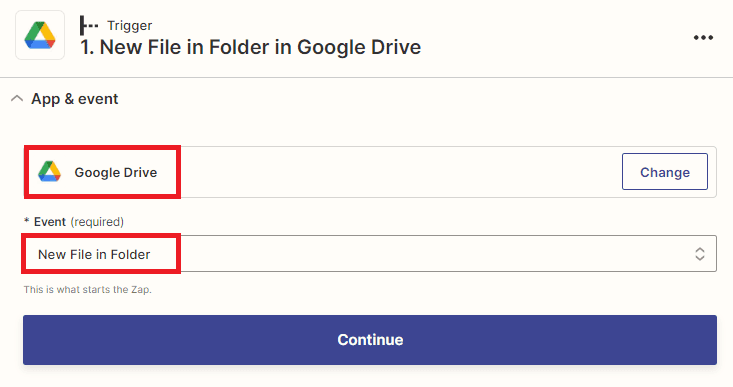
Step 3: Connect Google Drive Account
- To proceed, connect your Google Drive account to Zapier and grant access to authorize the connection between the two services.
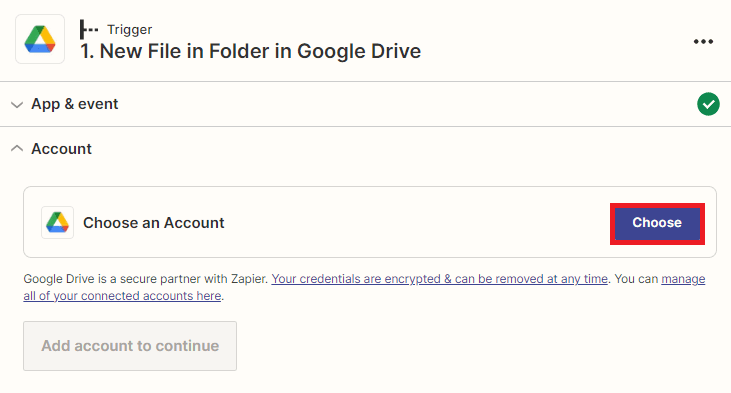
Step 4: Setup Trigger
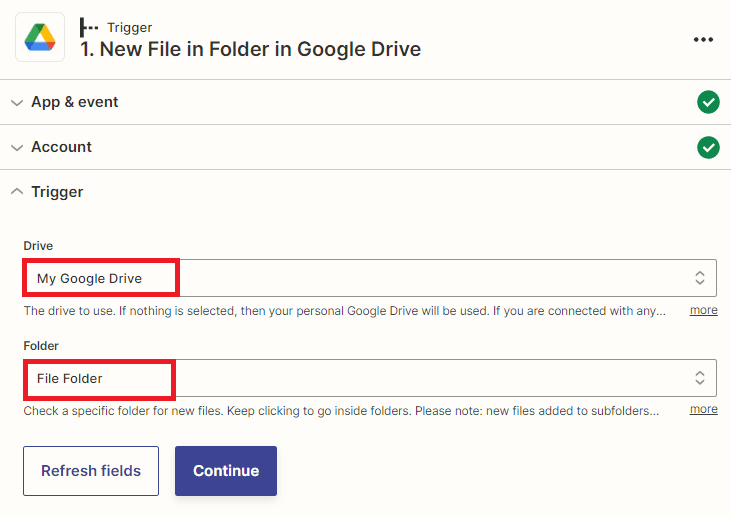
Let’s set up the trigger.
- First, select My Google Drive as the drive to use.
- Next, specify the folder name where the source file is located.
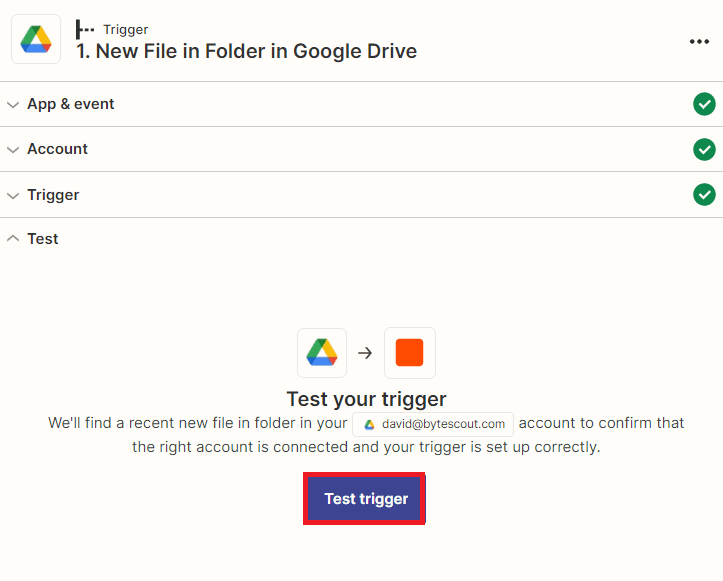
Step 5: Test Trigger
- Now, let’s test the trigger to ensure that it was set up correctly.
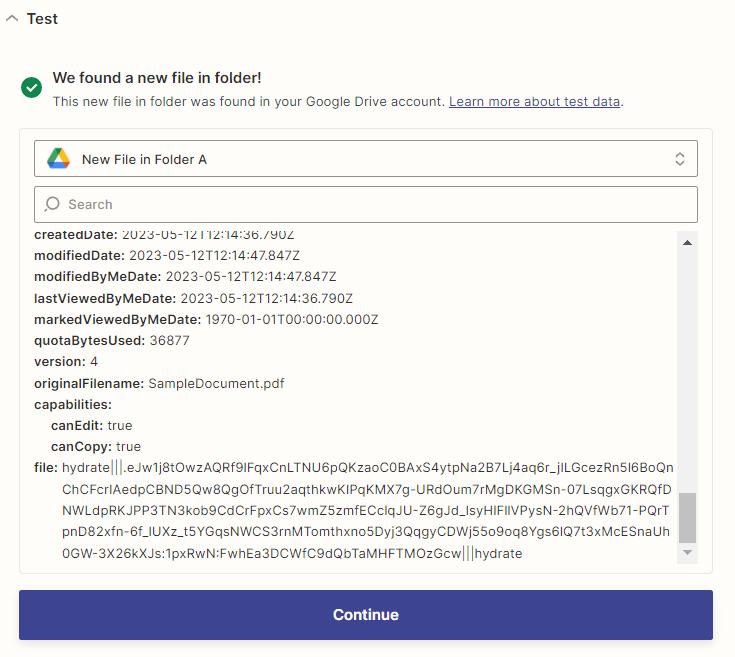
Step 6: Test Trigger Result
- Awesome! The test trigger was successful in retrieving the file from Google Drive. Now, let’s proceed by adding another app to extract text, images, and vector line drawings from the PDF document.
Step 7: Add the PDF.co Action
Add another step and select PDF.co.
For the action event, choose PDF to Anything Converter.
Step 8: Connect Your PDF.co Account
Connect PDF.co through OAuth:
- Select Connect a new account.
- Sign in to PDF.co if prompted.
- Review and authorize Zapier’s access.
- Return to Zapier and select the connected account.
Step 9: Configure PDF-to-JSON Conversion
Configure the PDF.co action:
- Output Format: Select JSON.
- Source File URL: Map the PDF file retrieved by the Google Drive trigger.
- Page Selection: Leave blank to process every page, or enter the required zero-based page indexes.
- OCR Language: Select the document language if the PDF contains scanned pages.
- File Name: Enter a name such as
extracted-content.jsonif this field is available. - Custom Profiles: Enter the following:
{
  "SaveImages": "Embed",
  "SaveVectors": true
}
SaveImages embeds extracted images as Base64 data URIs in the JSON output. SaveVectors enables the inclusion of vector graphics where supported.
When using Google Drive, map the actual file output whenever Zapier provides that option. If the action requires a URL, use a directly downloadable URL that PDF.co can access.
Step 10: Test the Action
Test the PDF.co action.
PDF.co will convert the source PDF into a structured JSON representation containing document information such as:
- Text objects
- Font and formatting information
- Embedded image data
- Vector drawing information
- Page dimensions and coordinates
The exact output depends on the contents of the source PDF.
Step 11: Review the Result
A successful test should return a status indicating success and either the JSON data or a temporary URL for the generated JSON file.
Open the returned URL, if provided, and confirm that the JSON contains the expected document objects.
PDF.co output links are temporary. Add another Zapier action to save the JSON file to Google Drive, Dropbox, or another permanent destination if it must be retained.
Step 12: Use the Extracted JSON
The resulting JSON can be passed to another Zapier step for storage, analysis, transformation, or integration with another application.
For large documents, embedded images can make the JSON output significantly larger. If the complete image data is unnecessary, remove the SaveImages profile or use another supported image-saving mode.
In this tutorial, you learned how to extract text, images, and vector line drawings in a PDF document using PDF.co and Zapier.
Related Tutorials
