Merge PDFs, Images, Documents into a Single File in JavaScript using PDF.co Web API
In this tutorial, we will show you how to merge PDFs, images, and documents into a single file in JavaScript using PDF.co Web API with asynchronous processing. Asynchronous processing allows you to handle large files or long-running tasks without waiting for the process to complete in a single API call. Below are images of our sample source files and the single PDF output.
When to Use Asynchronous Processing
An asynchronous request starts a background job and returns a job ID. Your application can do other work while the merge runs. This avoids keeping the initial request open until processing finishes, but it does not eliminate network errors, failed jobs or processing limits.
Keep the job ID and check that job’s status, allowing a delay between checks. Continue polling while the status is working, and download the output only after success. Stop on failed or aborted, and set a deadline for how long the application will wait.
If the waiting deadline is reached, retain the job ID for a later status check rather than automatically submitting the merge again. Stopping the wait does not cancel the background job.
Sample Files and Output
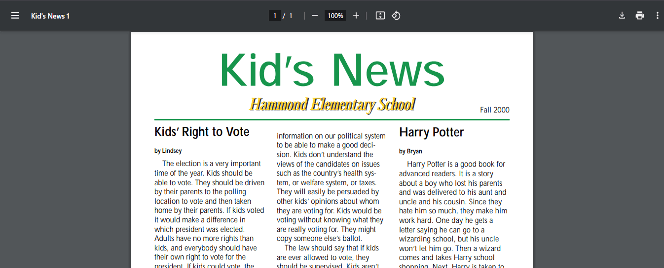

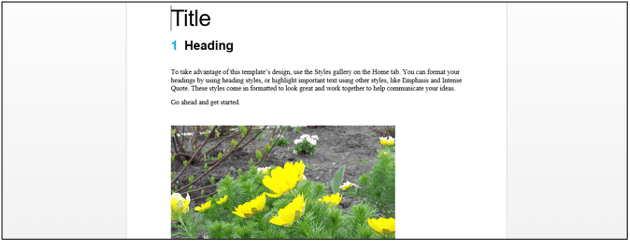

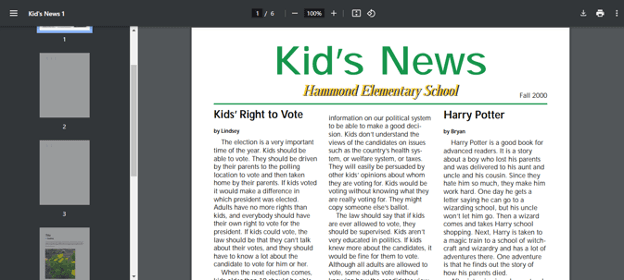
Step 1: Source Code
Let’s copy the asynchronous PDF Merger source code and save it as index.js. The source code includes the setup for asynchronous processing.
Step 2: Add Your API Key
Replace YOUR_API_KEY_HERE in line 7 with your PDF.co API Key. You can obtain your API Key from the PDF.co Dashboard.

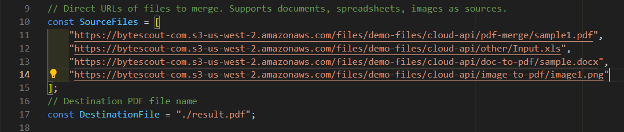
Step 3: Source Files and Destination
- Replace the URLs in the
SourceFilesarray (line 11-14) with links to the files you want to merge. Ensure they are accessible online. - Update the
DestinationFilevariable (line 17) with the desired output file name.
Step 4: Run the Program
To run the program:
- Save your file as
index.js. - Open your terminal, navigate to the file directory, and type:
node index.js
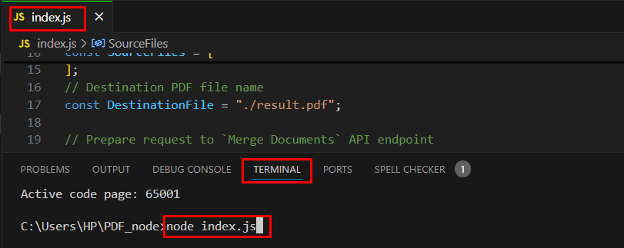
The program will submit an asynchronous job request to PDF.co.
How It Works
Initiating an Asynchronous Conversion:
- The code sends a request to the PDF.co API to start merging the files, with the async option set to
trueto enable asynchronous processing. - Retain the returned
jobId. Check its status by sendingPOST https://api.pdf.co/v1/job/checkwith{"jobid":"YOUR_JOB_ID"}as the JSON body and the same PDF.co API key in thex-api-keyheader.
Checking Job Status:
- The code uses the job ID to periodically query the job's status by sending requests to the API.
- Once the status changes to "
success", it indicates that the conversion process is complete, and the result file is ready for download.
Downloading the Result:
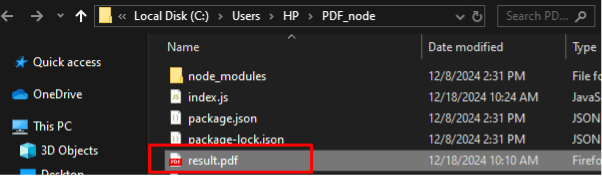
- After the merging is successfully completed, the code retrieves the PDF file from the provided URL and saves it to the specified location on the local system.
Conclusion
In this tutorial, you learned how to:
- Use asynchronous processing with PDF.co Web API to merge PDFs, images, and other documents.
- Set up your source code for asynchronous requests.
- Check the job status and download the output file.
For more details on asynchronous processing, refer to the PDF.co Documentation.
Related Tutorials