Extract Invoice Information with SharePoint and PDF.co
8 Minutes Read
In this short article, we’ll demonstrate source code for how to extract invoice information from PDF using SharePoint and PDF.co Web API. Let’s get into the source code.
Extract Invoices – Source Code Snippets
In order to get started with invoice extraction, we should analyze the code first. Take a look at the markup for Web Part visual control.
VisualWebPart1UserControl.ascx
<%@ Assembly Name="$SharePoint.Project.AssemblyFullName$" %>
<%@ Assembly Name="Microsoft.Web.CommandUI, Version=15.0.0.0, Culture=neutral, PublicKeyToken=71e9bce111e9429c" %>
<%@ Register Tagprefix="SharePoint" Namespace="Microsoft.SharePoint.WebControls" Assembly="Microsoft.SharePoint, Version=15.0.0.0, Culture=neutral, PublicKeyToken=71e9bce111e9429c" %>
<%@ Register Tagprefix="Utilities" Namespace="Microsoft.SharePoint.Utilities" Assembly="Microsoft.SharePoint, Version=15.0.0.0, Culture=neutral, PublicKeyToken=71e9bce1119429c" %>
<%@ Register Tagprefix="asp" Namespace="System.Web.UI" Assembly="System.Web.Extensions, Version=4.0.0.0, Culture=neutral, PublicKeyToken=31bf3856ad364e35" %>
<%@ Import Namespace="Microsoft.SharePoint" %>
<%@ Register Tagprefix="WebPartPages" Namespace="Microsoft.SharePoint.WebPartPages" Assembly="Microsoft.SharePoint, Version=15.0.0.0, Culture=neutral, PublicKeyToken=71e9bce111e9429c" %>
<%@ Control Language="C#" AutoEventWireup="true" CodeBehind="VisualWebPart1UserControl.ascx.cs" Inherits="ParseSimpleDocumentWebPart.VisualWebPart1.VisualWebPart1UserControl" %>

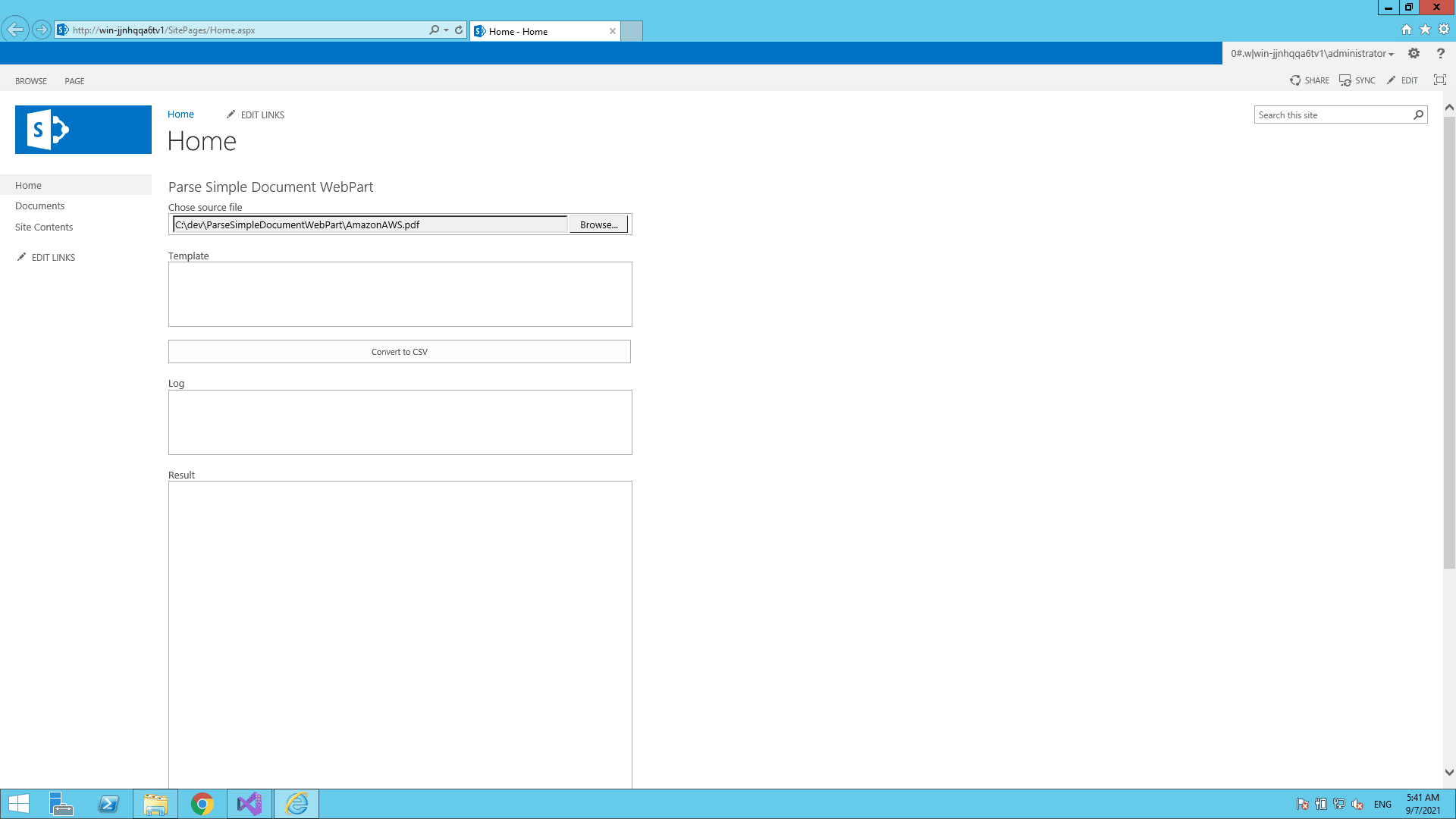
Choose source file<br />
<asp:FileUpload
    ID="FileUpload1"
    runat="server"
    Width="600px" />
<br /><br />

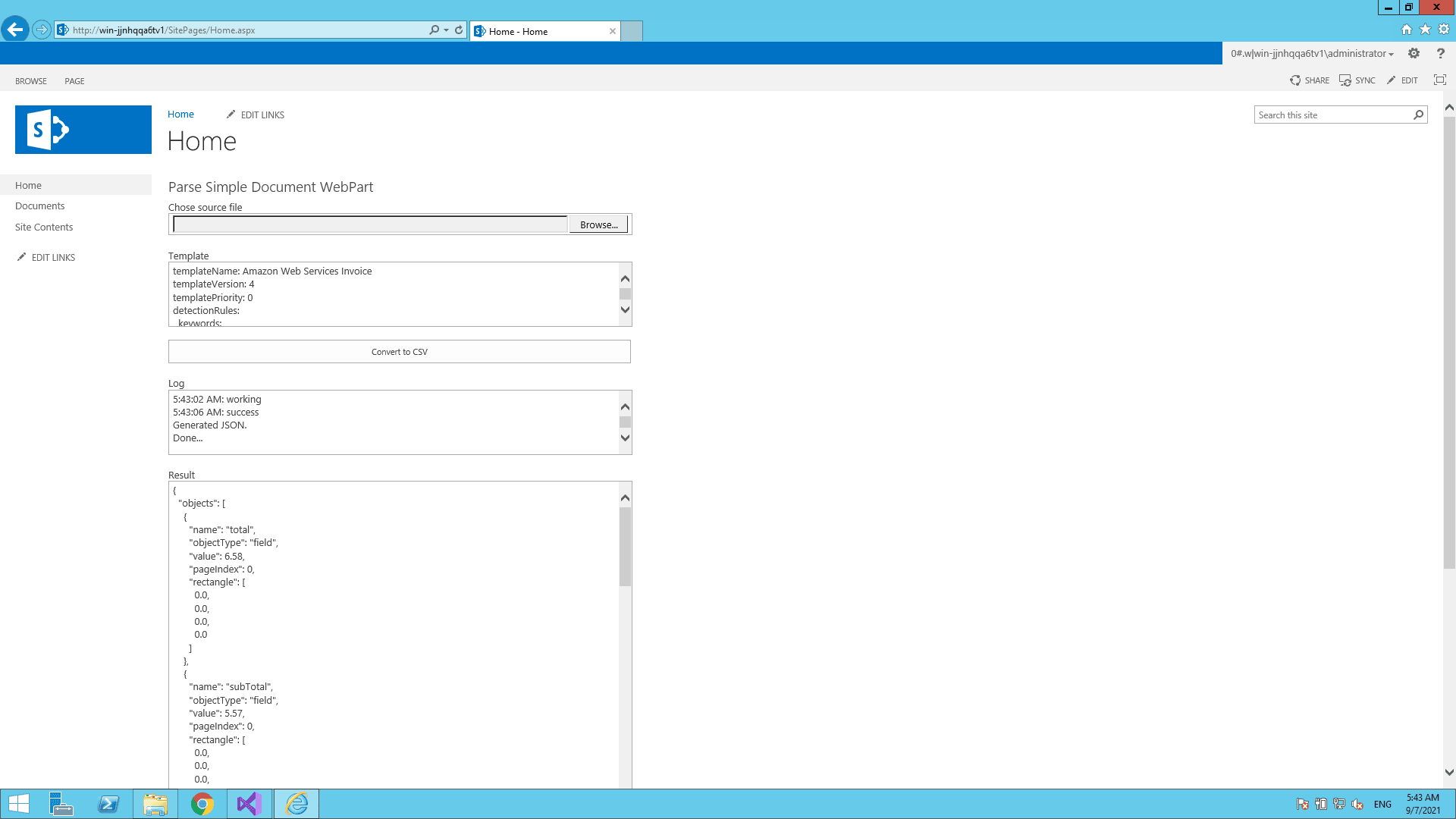
Document Parser template<br />
<asp:TextBox
    ID="TemplateTextBox"
    runat="server"
    Height="80px"
    TextMode="MultiLine"
    Width="600px" />
<br /><br />

<asp:Button
    ID="StartButton"
    runat="server"
    OnClick="StartButton_Click"
    Text="Extract Invoice Information"
    Width="610px" />
<br /><br />

Log<br />
<asp:TextBox
    ID="LogTextBox"
    runat="server"
    Height="80px"
    TextMode="MultiLine"
    Width="600px" />
<br /><br />

Result<br />
<asp:TextBox
    ID="ResultTextBox"
    runat="server"
    Height="500px"
    TextMode="MultiLine"
    Width="600px" />
This is code behind for Web Part User Control.
VisualWebPart1UserControl.ascx.cs
using Newtonsoft.Json;
using Newtonsoft.Json.Linq;
using System;
using System.Collections.Generic;
using System.Net;
using System.Text;
using System.Threading;
using System.Web.UI;

namespace ParseSimpleDocumentWebPart.VisualWebPart1
{
    public partial class VisualWebPart1UserControl : UserControl
    {
        // Configure your PDF.co API key in the project's Utils class.
        private readonly string API_KEY = Utils.API_KEY;

        // Run Document Parser asynchronously.
        private const bool Async = true;

        protected void Page_Load(object sender, EventArgs e)
        {
        }

        protected void StartButton_Click(object sender, EventArgs e)
        {
            LogTextBox.Text = "";
            ResultTextBox.Text = "";

            // Both a source file and a parser template are required.
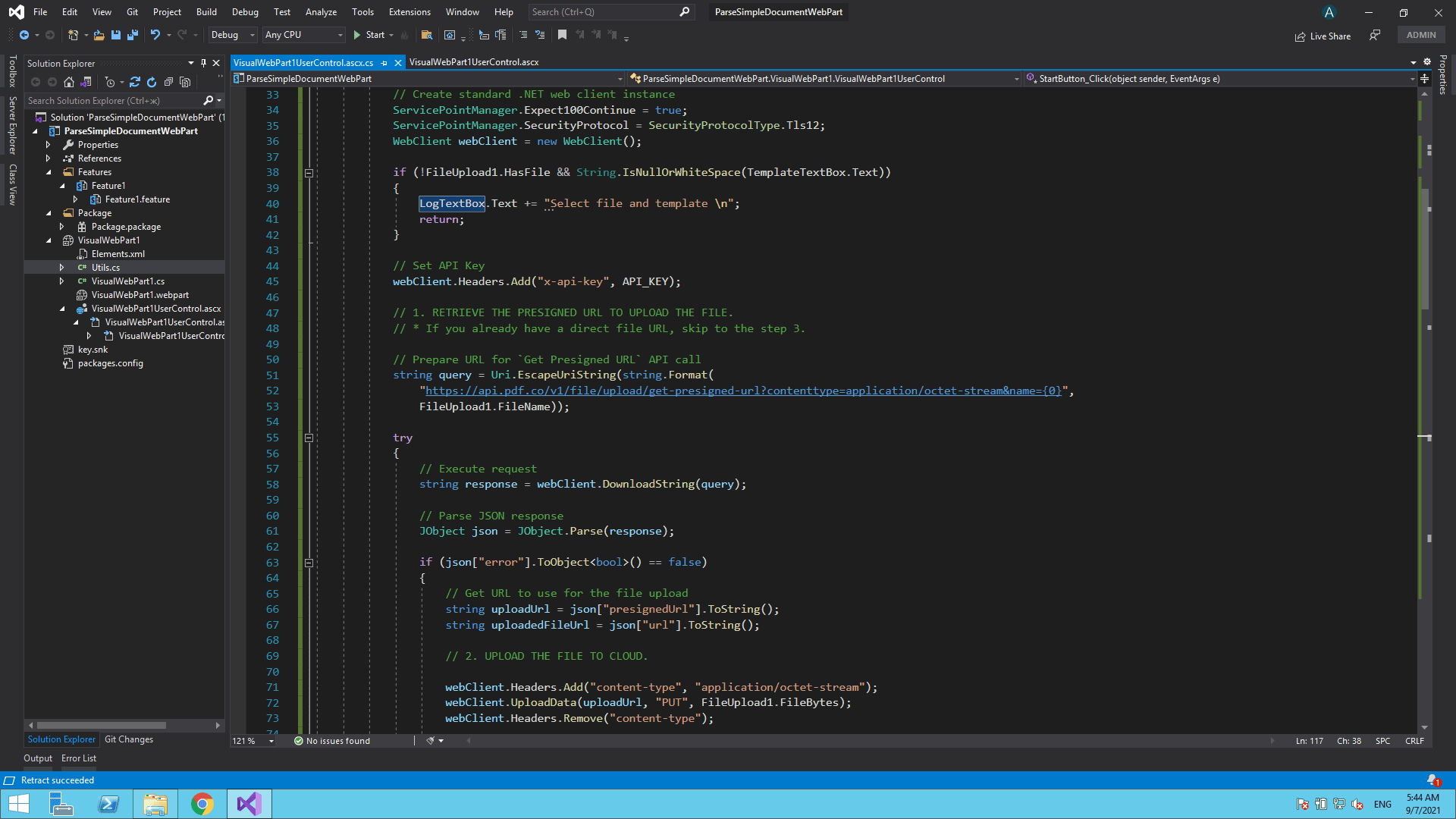
            if (!FileUpload1.HasFile ||
                String.IsNullOrWhiteSpace(TemplateTextBox.Text))
            {
                LogTextBox.Text =
                    "Select a file and provide a Document Parser template.\n";
                return;
            }

            ServicePointManager.Expect100Continue = true;
            ServicePointManager.SecurityProtocol = SecurityProtocolType.Tls12;

            try
            {
                using (WebClient webClient = new WebClient())
                {
                    webClient.Encoding = Encoding.UTF8;
                    webClient.Headers.Add("x-api-key", API_KEY);

                    // 1. Request a presigned URL for uploading the PDF.
                    // Encode only the filename, not the complete URL.
                    string query =
                        "https://api.pdf.co/v1/file/upload/get-presigned-url" +
                        "?contenttype=application/octet-stream&name=" +
                        Uri.EscapeDataString(FileUpload1.FileName);

                    string response = webClient.DownloadString(query);
                    JObject json = JObject.Parse(response);

                    if (json["error"].ToObject<bool>() == false)
                    {
                        string uploadUrl =
                            json["presignedUrl"].ToString();

                        string uploadedFileUrl =
                            json["url"].ToString();

                        // 2. Upload the PDF to the presigned storage URL.
                        // This request does not require the PDF.co API key.
                        using (WebClient uploadClient = new WebClient())
                        {
                            uploadClient.Headers[
                                HttpRequestHeader.ContentType
                            ] = "application/octet-stream";

                            uploadClient.UploadData(
                                uploadUrl,
                                "PUT",
                                FileUpload1.FileBytes
                            );
                        }

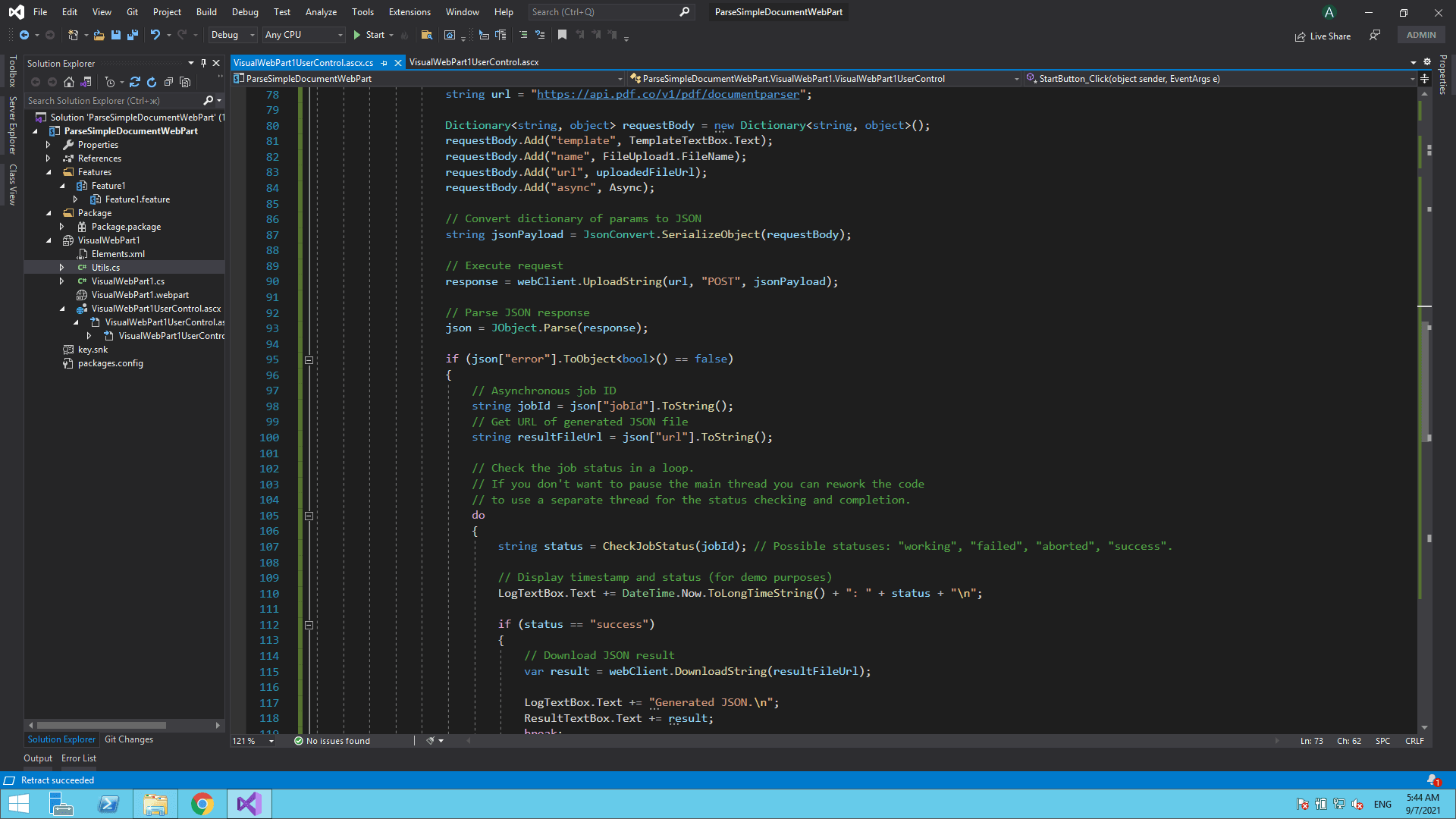
                        // 3. Submit the PDF and template to Document Parser.
                        string parserUrl =
                            "https://api.pdf.co/v1/pdf/documentparser";

                        Dictionary<string, object> requestBody =
                            new Dictionary<string, object>
                            {
                                { "template", TemplateTextBox.Text },
                                { "name", "result.json" },
                                { "url", uploadedFileUrl },
                                { "async", Async }
                            };

                        string jsonPayload =
                            JsonConvert.SerializeObject(requestBody);

                        webClient.Headers[
                            HttpRequestHeader.ContentType
                        ] = "application/json";

                        response = webClient.UploadString(
                            parserUrl,
                            "POST",
                            jsonPayload
                        );

                        json = JObject.Parse(response);

                        if (json["error"].ToObject<bool>() == false)
                        {
                            string jobId = json["jobId"].ToString();

                            string resultFileUrl = json["url"] == null
                                ? null
                                : json["url"].ToString();

                            // 4. Check the asynchronous job until it finishes.
                            while (true)
                            {
                                JObject job = CheckJobStatus(jobId);
                                string status =
                                    Convert.ToString(job["status"]);

                                LogTextBox.Text +=
                                    DateTime.Now.ToLongTimeString() +
                                    ": " + status + "\n";

                                if (status == "success")
                                {
                                    // Prefer the completed job's output URL.
                                    string completedUrl =
                                        Convert.ToString(job["url"]);

                                    if (!String.IsNullOrWhiteSpace(completedUrl))
                                    {
                                        resultFileUrl = completedUrl;
                                    }

                                    if (String.IsNullOrWhiteSpace(resultFileUrl))
                                    {
                                        throw new InvalidOperationException(
                                            "The job completed without an output URL."
                                        );
                                    }

                                    // 5. Download and display the JSON result.
                                    using (WebClient downloadClient =
                                        new WebClient())
                                    {
                                        downloadClient.Encoding =
                                            Encoding.UTF8;

                                        ResultTextBox.Text =
                                            downloadClient.DownloadString(
                                                resultFileUrl
                                            );
                                    }

                                    LogTextBox.Text +=
                                        "Generated JSON successfully.\n";
                                    break;
                                }

                                if (status == "working")
                                {
                                    Thread.Sleep(3000);
                                    continue;
                                }

                                LogTextBox.Text +=
                                    "Job ended with status: " + status + "\n";

                                string message =
                                    Convert.ToString(job["message"]);

                                if (!String.IsNullOrWhiteSpace(message))
                                {
                                    LogTextBox.Text += message + "\n";
                                }

                                break;
                            }
                        }
                        else
                        {
                            LogTextBox.Text +=
                                Convert.ToString(json["message"]) + "\n";
                        }
                    }
                    else
                    {
                        LogTextBox.Text +=
                            Convert.ToString(json["message"]) + "\n";
                    }
                }
            }
            catch (Exception ex)
            {
                LogTextBox.Text += ex.Message + "\n";
            }

            LogTextBox.Text += "Done.\n";
        }

        private JObject CheckJobStatus(string jobId)
        {
            using (WebClient webClient = new WebClient())
            {
                webClient.Encoding = Encoding.UTF8;
                webClient.Headers.Add("x-api-key", API_KEY);

                string url =
                    "https://api.pdf.co/v1/job/check?jobid=" +
                    Uri.EscapeDataString(jobId);

                string response = webClient.DownloadString(url);
                return JObject.Parse(response);
            }
        }
    }
}
Source Code at GitHub
You can explore the full source code for this sample at this GitHub link.
Extract Invoices – Sample Screenshots
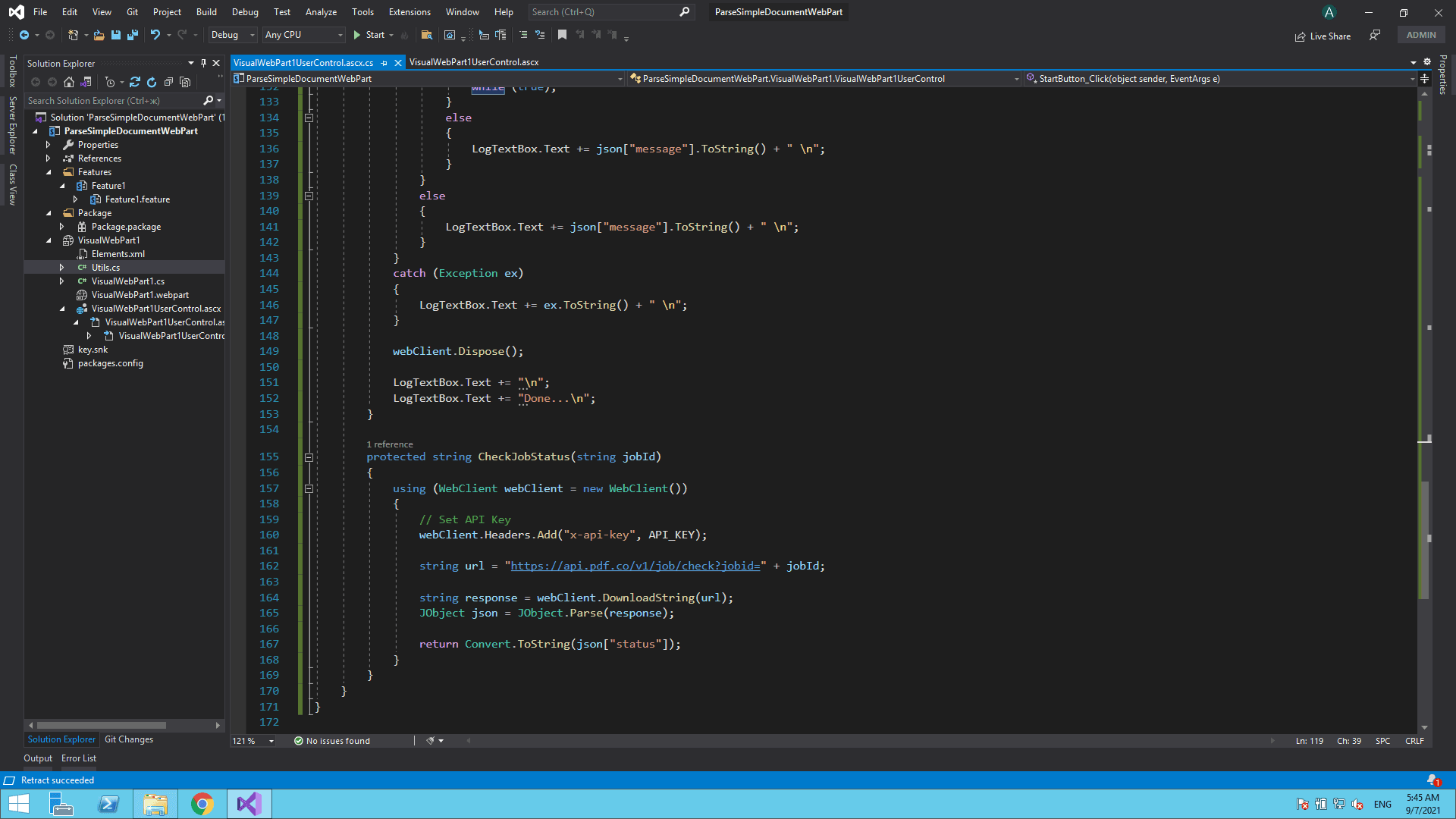
I hope this tutorial and code snippet is useful to you. Please try it yourself to get to know more.
Related Tutorials