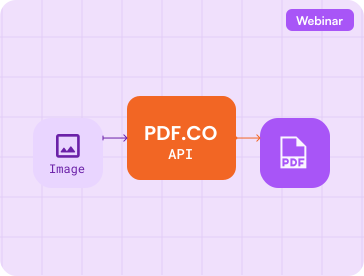
This tutorial shows how to combine JPG, PNG, or TIFF images into a single PDF using the PDF.co Web API and Node.js. Each source image becomes a separate page in the output PDF.
Step 1: Prepare the Project
Install Node.js version 18 or later and create a file named app.js.
Store your PDF.co API key in the PDFCO_API_KEY environment variable. You can obtain the key from your PDF.co dashboard.
The source images must be available through direct, publicly accessible URLs. Upload local files to online storage or PDF.co File Storage before starting the conversion.
Step 2: Add the Node.js Code
Add the following code to app.js:
const fs = require("node:fs");

async function main() {
  const apiKey = process.env.PDFCO_API_KEY;

  if (!apiKey) {
    throw new Error("Set the PDFCO_API_KEY environment variable.");
  }

  const imageUrls = [
    "https://example.com/image1.png",
    "https://example.com/image2.jpg"
  ];

  const response = await fetch(
    "https://api.pdf.co/v1/pdf/convert/from/image",
    {
      method: "POST",
      headers: {
        "x-api-key": apiKey,
        "Content-Type": "application/json"
      },
      body: JSON.stringify({
        url: imageUrls.join(","),
        name: "combined-images.pdf",
        async: false
      })
    }
  );

  const result = await response.json();

  if (!response.ok || result.error) {
    throw new Error(result.message || "Image-to-PDF conversion failed.");
  }

  const pdfResponse = await fetch(result.url);

  if (!pdfResponse.ok) {
    throw new Error("The generated PDF could not be downloaded.");
  }

  const pdfData = Buffer.from(await pdfResponse.arrayBuffer());
  fs.writeFileSync("combined-images.pdf", pdfData);

  console.log(`Created combined-images.pdf with ${result.pageCount} pages.`);
}

main().catch(console.error);
Replace the example URLs with direct links to your images. Their order in the imageUrls array determines their page order in the PDF.
Step 1: Sample Code Explanation
The sample code performs five main tasks:
Loads the required tools
const fs = require("node:fs");This imports Node.js’s built-in file-system module so the finished PDF can be saved to the computer.
2. Reads the API key
const apiKey = process.env.PDFCO_API_KEY;The API key is read from an environment variable instead of being written directly into the source code. The following check stops the program if it is missing:
if (!apiKey) {
  throw new Error("Set the PDFCO_API_KEY environment variable.");
}
3. Defines the source images
const imageUrls = [
  "https://example.com/image1.png",
  "https://example.com/image2.jpg"
];
These must be direct URLs that PDF.co can access. The images are added to the PDF in the same order in which they appear in this array.
4. Sends the conversion request
const response = await fetch(
  "https://api.pdf.co/v1/pdf/convert/from/image",
  {
    method: "POST",
    headers: {
      "x-api-key": apiKey,
      "Content-Type": "application/json"
    },
    body: JSON.stringify({
      url: imageUrls.join(","),
      name: "combined-images.pdf",
      async: false
    })
  }
);
This sends a POST request to the PDF.co Image to PDF endpoint.
x-api-keyauthenticates the request.Content-Typetells PDF.co that the request body contains JSON.imageUrls.join(",")converts the URL array into the comma-separated format expected by the API.namesets the output filename.async: falsewaits for the conversion to finish before returning the result.
5. Checks the result and downloads the PDF
const result = await response.json();

if (!response.ok || result.error) {
  throw new Error(result.message || "Image-to-PDF conversion failed.");
}
The API response is converted from JSON into a JavaScript object. The program stops if either the HTTP request or PDF.co reports an error.
PDF.co returns a temporary download URL, so the code retrieves the generated file:
const pdfResponse = await fetch(result.url);
const pdfData = Buffer.from(await pdfResponse.arrayBuffer());
fs.writeFileSync("combined-images.pdf", pdfData);
The downloaded binary data is converted into a Node.js buffer and saved as combined-images.pdf.
Finally:
main().catch(console.error);This runs the asynchronous main() function and prints any error that occurs.
Step 3: Run the Program
Run the application:
node app.js
PDF.co will combine the images and return a temporary URL for the generated PDF. The program downloads that file and saves it as combined-images.pdf.
A successful response includes information such as:
url: Temporary URL of the generated PDFpageCount: Number of pages createdname: Output file namestatus: Request statuserror: Whether the request failed
Processing Larger Jobs
The example uses synchronous processing by setting async to false.
For larger conversions, set async to true. PDF.co will return a job ID that can be checked through the Background Job Check endpoint. A callback URL can also be supplied to receive the result when processing finishes.
See the current PDF from Image API documentation for all supported parameters, response fields, code samples, and asynchronous processing options.
Conclusion
You have used the PDF.co Image to PDF endpoint to combine multiple images into one PDF. The same workflow can be adapted to accept uploaded files, images from cloud storage, or URLs generated by another application.
Explore API DocsGet Your API Key