Extract Text from a Scanned PDF into CSV Using C# and PDF.co
Use PDF.co’s PDF-to-CSV API to extract tabular data from a scanned PDF. This example accepts either a local PDF or a direct download URL and saves the result as result.csv.
Step 1: Create a Console Application
Install a supported .NET SDK, then create a project:
dotnet new console -n PdfToCsv
cd PdfToCsv
The example uses built-in .NET libraries, so no additional packages are required.
Get your API key from the PDF.co dashboard.
Step 1: Creating the Program
The first step is to import the required C# libraries.
using System.Net;
using Newtonsoft.Json;
using Newtonsoft.Json.Linq;
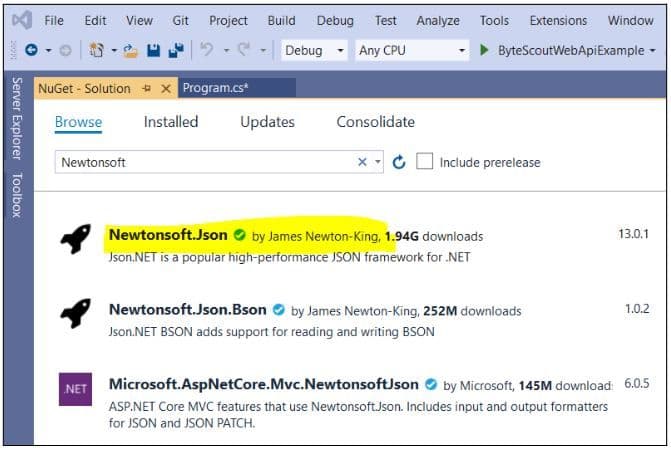
From the aforementioned libraries, you will manually need to install the “NewtonSoft” library.
To do so from the Microsoft Visual Studio IDE, go to “Tools-> NuGet Package Manager.” Search for the “Newtonsoft” library. Select the first package and click the “Install” button.
Next, you need to define C# variables that store the following information:
- The PDF.CO Web API key. You can get your API key by registering at https://app.pdf.co.
- The URL of the source PDF document that you want to search. The source PDF document for this article can be found at this link:
- The pages of the PDF document that you want to search. If you leave this field empty, all the pages of the PDF document will be scanned.
- The destination CSV document.
The following script performs the aforementioned tasks.
        const String API_KEY = "*****************************";
        const string SourceFile = @"https://bytescout-com.s3.amazonaws.com/files/demo-files/cloud-api/pdf-to-csv/sample.pdf";
        const string Pages = "";
        const string DestinationFile = @"D:\Datasets\result.csv";
The next step is to define the WebClient class object. This object will be used to make calls to the PDF.CO Web API. Your PDF.CO API Key is also added to this object.
The script below creates the WebClient object and also stores the PDF.CO Web API call scans a PDF document and stores it into a CSV file.
            WebClient webClient = new WebClient();
            webClient.Headers.Add("x-api-key", API_KEY);

            string url = "https://api.pdf.co/v1/pdf/convert/to/csv";
Next, you need to create a parameter dictionary that contains parameter values that are passed to the Web API call.
The following creates a dictionary with the following parameters:
- The name of the destination file
- The URL of the source file
- The page number of the pages that you want to scan.
The following script also serializes the parameter dictionary.
            // Prepare requests params as JSON
            Dictionary<string, object> parameters = new Dictionary<string, object>();
            parameters.Add("name", Path.GetFileName(DestinationFile));
            parameters.Add("pages", Pages);
            parameters.Add("url", SourceFile);

            // Convert dictionary of params to JSON
            string jsonPayload = JsonConvert.SerializeObject(parameters);
You are now ready to make a call to the PDF.CO Web API scans the source PDF document and stores it in a CSV file.
The following script uses the UploadString() method of the WebClient object to make the API call. The code is executed inside a try/catch block.
The response from the API call is parsed as a JSON object.
If the response contains an error, the error message is displayed. Else, the URL of the destination CSV file is parsed, and the CSV file is downloaded to the local file system.
In case of an exception, the exception message is displayed on the console.
            try
            {

                string response = webClient.UploadString(url, jsonPayload);
                JObject json = JObject.Parse(response);

                if (json["error"].ToObject<bool>() == false)
                {

                    // Get URL of generated CSV file
                    string resultFileUrl = json["url"].ToString();

                    // Download CSV file
                    webClient.DownloadFile(resultFileUrl, DestinationFile);
                    Console.WriteLine("Generated CSV file saved as \"{0}\" file.", DestinationFile);
                }

                else
                {
                    Console.WriteLine(json["message"].ToString());
                }
            }
            catch (WebException e)
            {
                Console.WriteLine(e.ToString());
            }
Finally, the WebClient class object is disposed of.
            webClient.Dispose();

            Console.WriteLine();
            Console.WriteLine("Press any key...");
            Console.ReadKey();
Step 2: Complete Code
Here is the complete C# code that scans a native PDF document and stores it into a CSV file.
using System.Net;
using Newtonsoft.Json;
using Newtonsoft.Json.Linq;

namespace PDFCOWebApiExample
{
    public class Program
    {

        const String API_KEY = "****************************";
        const string SourceFile = @"https://bytescout-com.s3.amazonaws.com/files/demo-files/cloud-api/pdf-to-csv/sample.pdf";
        const string Pages = "";
        const string DestinationFile = @"D:\Datasets\result.csv";

        static void Main(string[] args)
        {

            WebClient webClient = new WebClient();
            webClient.Headers.Add("x-api-key", API_KEY);

            string url = "https://api.pdf.co/v1/pdf/convert/to/csv";

            // Prepare requests params as JSON
            Dictionary<string, object> parameters = new Dictionary<string, object>();
            parameters.Add("name", Path.GetFileName(DestinationFile));
            parameters.Add("pages", Pages);
            parameters.Add("url", SourceFile);

            // Convert dictionary of params to JSON
            string jsonPayload = JsonConvert.SerializeObject(parameters);

            try
            {

                string response = webClient.UploadString(url, jsonPayload);
                JObject json = JObject.Parse(response);

                if (json["error"].ToObject<bool>() == false)
                {

                    // Get URL of generated CSV file
                    string resultFileUrl = json["url"].ToString();

                    // Download CSV file
                    webClient.DownloadFile(resultFileUrl, DestinationFile);

                    Console.WriteLine("Generated CSV file saved as \"{0}\" file.", DestinationFile);
                }

                else
                {

                    Console.WriteLine(json["message"].ToString());
                }
            }

            catch (WebException e)
            {

                Console.WriteLine(e.ToString());
            }

            webClient.Dispose();
            Console.WriteLine();
            Console.WriteLine("Press any key...");
            Console.ReadKey();
        }
    }
}
Step 3: Input PDF Document
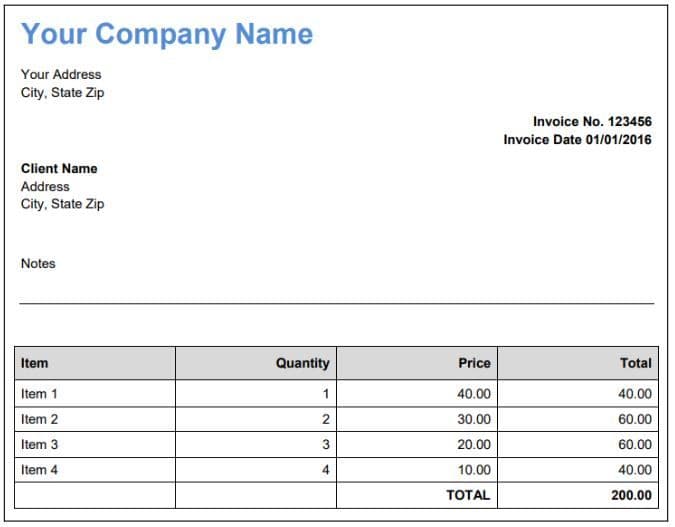
Our input PDF document looks like this. You can see it contains some free text and a table.
Step 4: Output CSV File
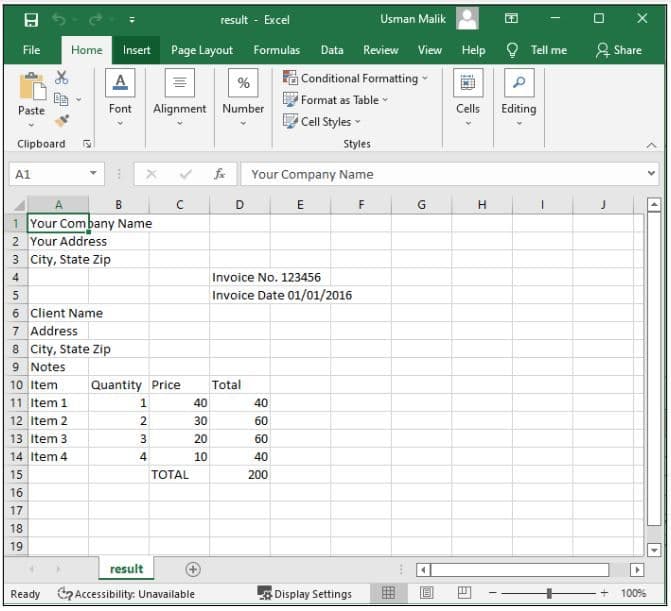
The output CSV file is generated by the PDF.CO Web API looks like the one below. You can see that the document structure in CSV is retained.
Step 2: Add the Code
Replace Program.cs with the following code and enter your PDF.co API key. Keep the key out of shared code and source control.
The input and output paths are resolved from the program’s current working directory.
using System;
using System.IO;
using System.Net.Http;
using System.Net.Http.Headers;
using System.Text;
using System.Text.Json.Nodes;
using System.Threading.Tasks;

internal class Program
{
    private const string ApiKey = "YOUR_PDFCO_API_KEY";
    private const string ApiBase = "https://api.pdf.co/v1";

    private static readonly string SourceFile =
        Path.Combine(Environment.CurrentDirectory, "scanned_invoice.pdf");

    private static readonly string DestinationFile =
        Path.Combine(Environment.CurrentDirectory, "result.csv");

    private static readonly HttpClient Client = new HttpClient();

    private static async Task<int> Main(string[] args)
    {
        try
        {
            if (args.Length > 1)
            {
                throw new ArgumentException(
                    "Usage: dotnet run -- [direct-PDF-URL]");
            }

            string sourceUrl;

            if (args.Length == 1)
            {
                if (!Uri.TryCreate(
                        args[0], UriKind.Absolute, out Uri? uri) ||
                    (uri.Scheme != "https" && uri.Scheme != "http"))
                {
                    throw new ArgumentException(
                        "Provide a valid HTTP or HTTPS PDF URL.");
                }

                sourceUrl = uri.AbsoluteUri;
            }
            else
            {
                sourceUrl = await UploadFileAsync(SourceFile);
            }

            var payload = new JsonObject
            {
                ["url"] = sourceUrl,
                ["name"] = "result.csv",
                ["lang"] = "eng",
                ["inline"] = false,
                ["async"] = false
            };

            using var request = new HttpRequestMessage(
                HttpMethod.Post, ApiBase + "/pdf/convert/to/csv");

            request.Content = new StringContent(
                payload.ToJsonString(),
                Encoding.UTF8,
                "application/json");

            JsonObject result = await SendApiRequestAsync(request);

            string resultUrl = result["url"]?.GetValue<string>()
                ?? throw new InvalidOperationException(
                    "The API did not return a CSV download URL.");

            using var download = await Client.GetAsync(
                resultUrl, HttpCompletionOption.ResponseHeadersRead);

            download.EnsureSuccessStatusCode();

            // Refuse to overwrite an existing result.csv.
            using var output = new FileStream(
                DestinationFile, FileMode.CreateNew, FileAccess.Write);

            await download.Content.CopyToAsync(output);

            Console.WriteLine($"Saved CSV: {DestinationFile}");
            return 0;
        }
        catch (Exception ex)
        {
            Console.Error.WriteLine(ex.Message);
            return 1;
        }
    }

    private static async Task<string> UploadFileAsync(string filePath)
    {
        if (!File.Exists(filePath))
        {
            throw new FileNotFoundException(
                "Place scanned_invoice.pdf in the working directory.",
                filePath);
        }

        string uploadEndpoint =
            ApiBase + "/file/upload/get-presigned-url"
            + "?contenttype="
            + Uri.EscapeDataString("application/octet-stream")
            + "&name="
            + Uri.EscapeDataString(Path.GetFileName(filePath));

        using var request = new HttpRequestMessage(
            HttpMethod.Get, uploadEndpoint);

        JsonObject result = await SendApiRequestAsync(request);

        string uploadUrl = result["presignedUrl"]?.GetValue<string>()
            ?? throw new InvalidOperationException(
                "The API did not return an upload URL.");

        string fileUrl = result["url"]?.GetValue<string>()
            ?? throw new InvalidOperationException(
                "The API did not return a source file URL.");

        using var input = File.OpenRead(filePath);
        using var content = new StreamContent(input);

        content.Headers.ContentType =
            new MediaTypeHeaderValue("application/octet-stream");

        // The storage upload does not receive the PDF.co API key.
        using var response = await Client.PutAsync(uploadUrl, content);
        response.EnsureSuccessStatusCode();

        return fileUrl;
    }

    private static async Task<JsonObject> SendApiRequestAsync(
        HttpRequestMessage request)
    {
        request.Headers.Add("x-api-key", ApiKey);

        using var response = await Client.SendAsync(request);
        string body = await response.Content.ReadAsStringAsync();

        if (!response.IsSuccessStatusCode)
        {
            throw new InvalidOperationException(
                $"PDF.co request failed: HTTP {(int)response.StatusCode}");
        }

        JsonObject result = JsonNode.Parse(body) as JsonObject
            ?? throw new InvalidOperationException(
                "The API returned an invalid JSON response.");

        if (result["error"]?.GetValue<bool>() == true)
        {
            throw new InvalidOperationException(
                result["message"]?.ToString() ?? "PDF.co processing failed.");
        }

        return result;
    }
}
Step 1: Creating the Program
The following script imports the required libraries.
using System.Net;
using Newtonsoft.Json;
using Newtonsoft.Json.Linq;
The following script stores the API key, the source file path, the number of pages, and the destination file name in C# variables.
       const String API_KEY = "***************************";
       const string SourceFile = @"D:\Datasets\scanned_invoice.pdf";
       const string Pages = "";
       const string DestinationFile = @"D:\Datasets\result.csv";
Next, you need to create a WebClient object which stores the PDF.CO Web API key, as shown in the following script.
            WebClient webClient = new WebClient();
            webClient.Headers.Add("x-api-key", API_KEY);
You will need to upload your PDF file to some cloud before you can extract text from it. As an example, the following script fetches the URL path from the PDF.CO cloud where your PDF file will be uploaded.
            string query = Uri.EscapeUriString(string.Format(

                      "https://api.pdf.co/v1/file/upload/get-presigned-url?contenttype=application/octet-stream&name={0}",                 Path.GetFileName(SourceFile)));
The script below uploads your input PDF file.
try
            {

                string response = webClient.DownloadString(query);
                JObject json = JObject.Parse(response);

                if (json["error"].ToObject<bool>() == false)
                {

                    // Get URL to use for the file upload
                    string uploadUrl = json["presignedUrl"].ToString();
                    string uploadedFileUrl = json["url"].ToString();

                    // 2. UPLOAD THE FILE TO CLOUD.

                    webClient.Headers.Add("content-type", "application/octet-stream");
                    webClient.UploadFile(uploadUrl, "PUT", SourceFile); // You can use UploadData() instead if your file is byte[] or Stream
                    webClient.Headers.Remove("content-type");
The rest of the script is similar to what you have already seen. You define a variable that stores the PDF.CO Web API call for converting PDF to CSV.
A parameter dictionary is then defined, which stores the parameters for the PDF.CO Web API call. The dictionary is also serialized.
// 3. Convert PDF to CSV

                    string url = "https://api.pdf.co/v1/pdf/convert/to/csv";

                    Dictionary<string, object> parameters = new Dictionary<string, object>();
                    parameters.Add("name", Path.GetFileName(DestinationFile));
                    parameters.Add("pages", Pages);
                    parameters.Add("url", uploadedFileUrl);

                    // Convert dictionary of params to JSON
                    string jsonPayload = JsonConvert.SerializeObject(parameters);
Finally, inside the try/catch block, the WebClient class object makes an API call. The response from the API is parsed as a JSON object. If the response doesn’t contain any error, the URL of the converted CSV file is parsed, and the CSV file is downloaded to the local file system.
Look at the script below for reference.
                    try
                    {

                        response = webClient.UploadString(url, jsonPayload);
                        json = JObject.Parse(response);

                        if (json["error"].ToObject<bool>() == false)
                        {

                            // Get URL of generated CSV file
                            string resultFileUrl = json["url"].ToString();

                            // Download CSV file
                            webClient.DownloadFile(resultFileUrl, DestinationFile);

                            Console.WriteLine("Generated CSV file saved as \"{0}\" file.", DestinationFile);
                        }

                        else
                        {

                            Console.WriteLine(json["message"].ToString());
                        }
                    }

                    catch (WebException e)
                    {

                        Console.WriteLine(e.ToString());
                    }
               }

                else
                {
                    Console.WriteLine(json["message"].ToString());
                }
            }

            catch (WebException e)
            {
                Console.WriteLine(e.ToString());
            }
Finally, the WebClient is disposed of.
            webClient.Dispose();

            Console.WriteLine();
            Console.WriteLine("Press any key...");
            Console.ReadKey();
Step 2: Complete Code to Extract Text from Scanned PDF
using System.Net;
using Newtonsoft.Json;
using Newtonsoft.Json.Linq;

namespace ByteScoutWebApiExample
{
    class Program
    {

        const String API_KEY = "***************************";
        const string SourceFile = @"D:\Datasets\scanned_invoice.pdf"

        const string Pages = "";
        const string DestinationFile = @"D:\Datasets\result.csv";


        static void Main(string[] args)
        {

            WebClient webClient = new WebClient();
            webClient.Headers.Add("x-api-key", API_KEY);

            string query = Uri.EscapeUriString(string.Format(
                "https://api.pdf.co/v1/file/upload/get-presigned-url?contenttype=application/octet-stream&name={0}",
                Path.GetFileName(SourceFile)));


            try
            {

                string response = webClient.DownloadString(query);

                JObject json = JObject.Parse(response);

                if (json["error"].ToObject<bool>() == false)
                {
                    // Get URL to use for the file upload

                    string uploadUrl = json["presignedUrl"].ToString();
                    string uploadedFileUrl = json["url"].ToString();

                    // 2. UPLOAD THE FILE TO CLOUD.

                    webClient.Headers.Add("content-type", "application/octet-stream");
                    webClient.UploadFile(uploadUrl, "PUT", SourceFile); // You can use UploadData() instead if your file is byte[] or Stream
                    webClient.Headers.Remove("content-type");


                    // 3. Convert PDF to CSV


                    string url = "https://api.pdf.co/v1/pdf/convert/to/csv";

                    Dictionary<string, object> parameters = new Dictionary<string, object>();
                    parameters.Add("name", Path.GetFileName(DestinationFile));
                    parameters.Add("pages", Pages);
                    parameters.Add("url", uploadedFileUrl);

                    // Convert dictionary of params to JSON
                    string jsonPayload = JsonConvert.SerializeObject(parameters);

                    try
                    {

                        response = webClient.UploadString(url, jsonPayload);

                        json = JObject.Parse(response);

                        if (json["error"].ToObject<bool>() == false)
                        {
                            // Get URL of generated CSV file
                            string resultFileUrl = json["url"].ToString();

                            // Download CSV file
                            webClient.DownloadFile(resultFileUrl, DestinationFile);

                            Console.WriteLine("Generated CSV file saved as \"{0}\" file.">, DestinationFile);                        }

                        else
                        {
                            Console.WriteLine(json["message"].ToString());
                        }
                    }
                    catch (WebException e)
                    {
                        Console.WriteLine(e.ToString());
                    }


                }
                else
                {
                    Console.WriteLine(json["message"].ToString());
                }
            }
            catch (WebException e)
            {
                Console.WriteLine(e.ToString());
            }

            webClient.Dispose();

            Console.WriteLine();
            Console.WriteLine("Press any key...");
            Console.ReadKey();
        }
    }
}
Step 3: Input Scanned PDF Document
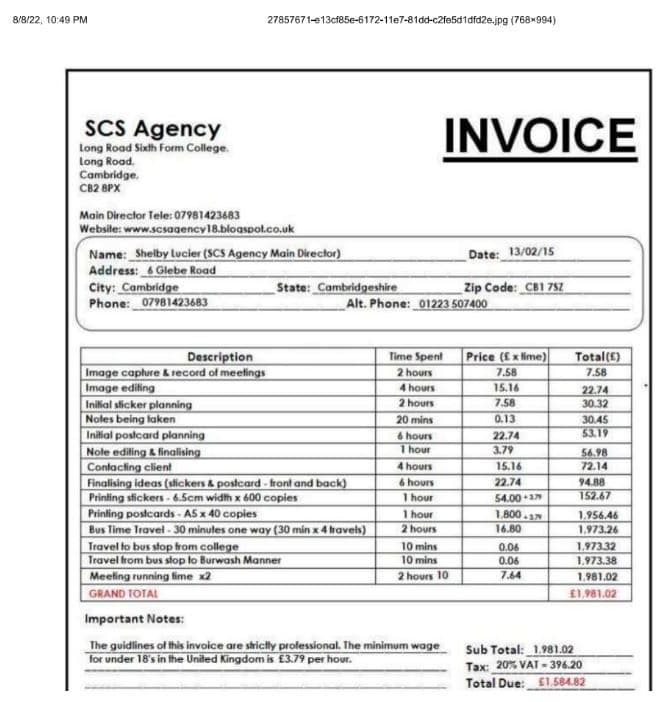
The input scanned PDF document looks like the one below. Basically, it is a scanned receipt.
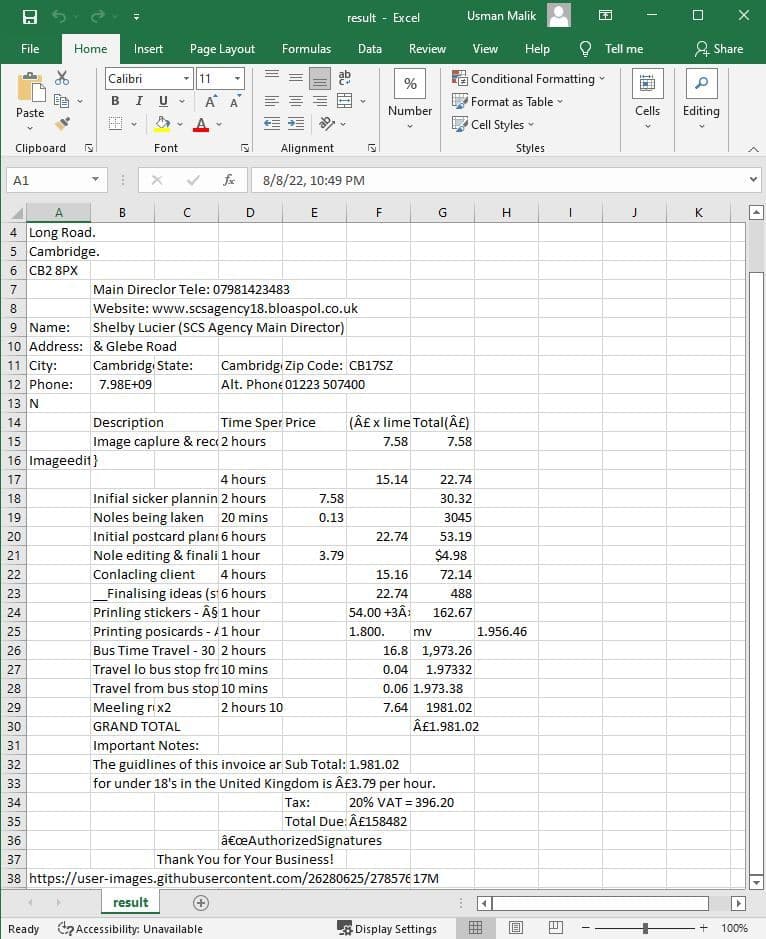
Step 4: Output
The output CSV file looks like this:
Step 3: Convert a Local PDF
Place scanned_invoice.pdf in the project folder. From that folder, run:
dotnet runThe program uploads the PDF to temporary storage, requests CSV conversion, and downloads the result to the current working directory.
If you run the application from an IDE, check its working-directory setting to confirm where it looks for the source file.
Step 4: Convert a PDF from a URL
To process an online PDF, supply its direct download URL:
dotnet run -- "https://example.com/scanned_invoice.pdf"Replace the example URL with a PDF accessible to PDF.co. This mode skips the local-file upload.
Step 5: Review the CSV
Open result.csv in a spreadsheet application. Compare the extracted rows, columns, and numeric values with the original scan.
The request uses English OCR through "lang": "eng". Adjust the language for your document as needed. See the PDF-to-CSV documentation for conversion parameters.
Move or rename an existing result.csv before running the program again. The example avoids overwriting previous results.
This example uses synchronous processing for a small document. For larger PDFs, use asynchronous processing and check the job status before downloading the CSV.
Related Tutorials
